Your home WiFi network connects your phones, laptops, smart TVs, cameras, and more — so if someone breaks into it, they can slow down your internet, snoop on unprotected traffic, or attack the devices on your network. The good news is that most WiFi attacks rely on weak default settings that take only minutes to fix. Here are 12 essential tips to secure your WiFi network, in order of importance.
1. Change the Default Router Admin Password
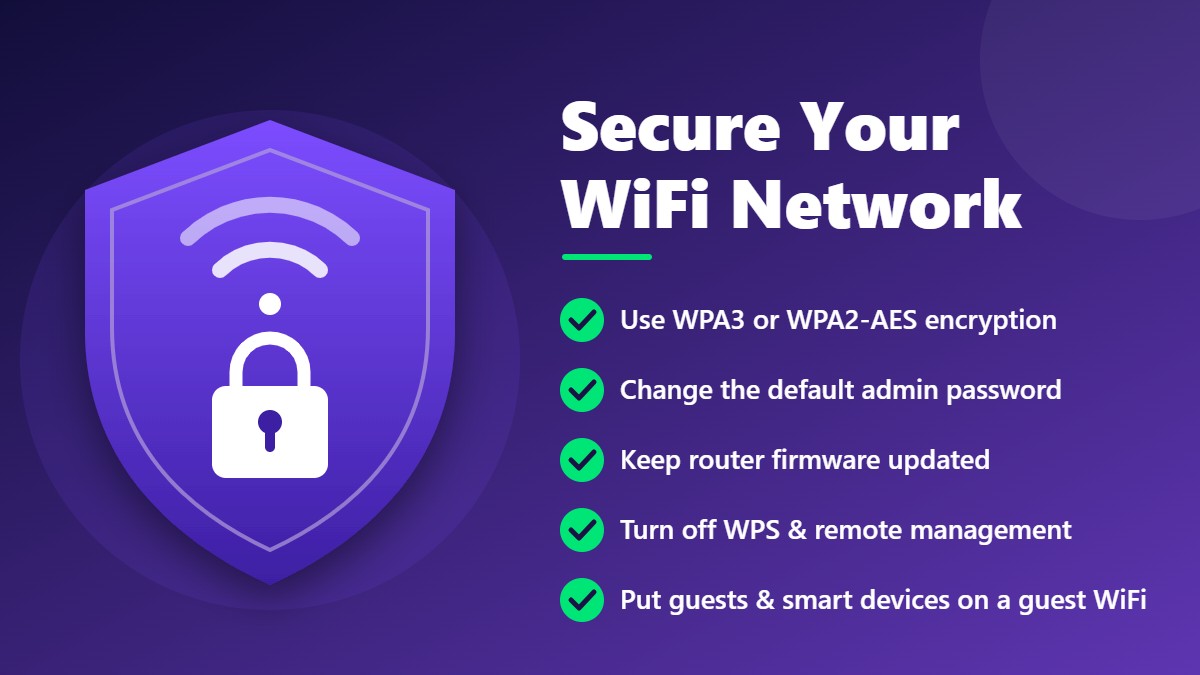
Default admin logins like admin / admin are widely known. Log in to your router (see our 192.168.1.1 login guide) and set a long, unique admin password. This single step blocks anyone on your WiFi network from changing your settings.
2. Use WPA3 or WPA2-AES Encryption
Encryption scrambles the data sent over your WiFi network. In the wireless settings, choose WPA3-Personal, or WPA2/WPA3 mixed mode if some older devices need it. If WPA3 isn’t available, use WPA2-PSK with AES. Never use WEP, WPA (TKIP), or an open network — they can be broken easily or offer no protection at all.
3. Set a Strong WiFi Password
Use at least 12–16 characters with a mix of letters, numbers, and symbols, or a long passphrase made of random words. Avoid names, birthdays, and phone numbers. Our guide on how to change your WiFi password and name shows you exactly where to do this.
4. Keep Your Router Firmware Updated
Router manufacturers release firmware updates to fix security holes. Look for Firmware Upgrade or Software Update in the admin panel, install the latest version, and turn on automatic updates if your router supports them.
5. Turn Off WPS
WiFi Protected Setup (WPS) lets devices connect with a button press or an 8-digit PIN. The PIN method in particular has a known weakness that lets attackers guess it with brute force. Unless you really need it, disable WPS in your wireless settings.
6. Disable Remote Management
Remote management (also called Remote Access or WAN Access) allows the router’s settings page to be reached from the internet. Most homes never need this. Turn it off so your admin page is only reachable from inside your WiFi network.
7. Review UPnP Settings
Universal Plug and Play (UPnP) lets apps and devices open ports on your router automatically. It’s convenient for gaming consoles and some apps, but malware can abuse it too. If you don’t need it, switch it off; if you do, keep your firmware and devices up to date.
8. Create a Guest Network
Give visitors access to a separate guest WiFi instead of your main WiFi network. A guest network keeps their devices isolated from your computers and files. It’s also a smart place to put smart-home gadgets like plugs, bulbs, and cameras, which often receive fewer security updates.
9. Change the Default WiFi Network Name (SSID)
Default names such as “TP-Link_1234” or “NETGEAR55” reveal your router brand, which helps attackers look up known weaknesses. Pick a neutral name that doesn’t include your name, address, or router model.
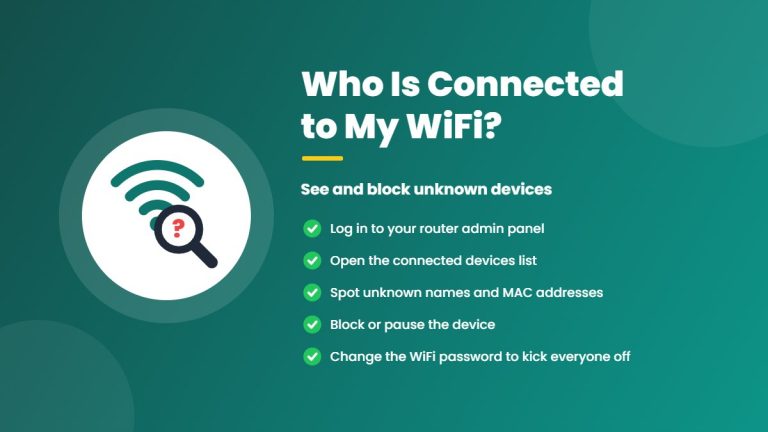
10. Check Connected Devices Regularly
Open the Connected Devices, DHCP Clients, or Attached Devices page in your router every so often. If you see a device you don’t recognise, change your WiFi password and, if your router supports it, block that device.
11. Keep the Router Firewall On
Most routers include a built-in firewall (often labeled SPI Firewall) that blocks unwanted incoming traffic. Make sure it’s enabled, and only open ports (port forwarding) when you know exactly why you need them.
12. Replace Outdated Routers
If your router no longer receives firmware updates from the manufacturer, it won’t get fixes for newly discovered security problems. Replacing an end-of-life router with a modern model that supports WPA3 is one of the best long-term security upgrades you can make.
How to Check Your WiFi Network Security in 5 Minutes
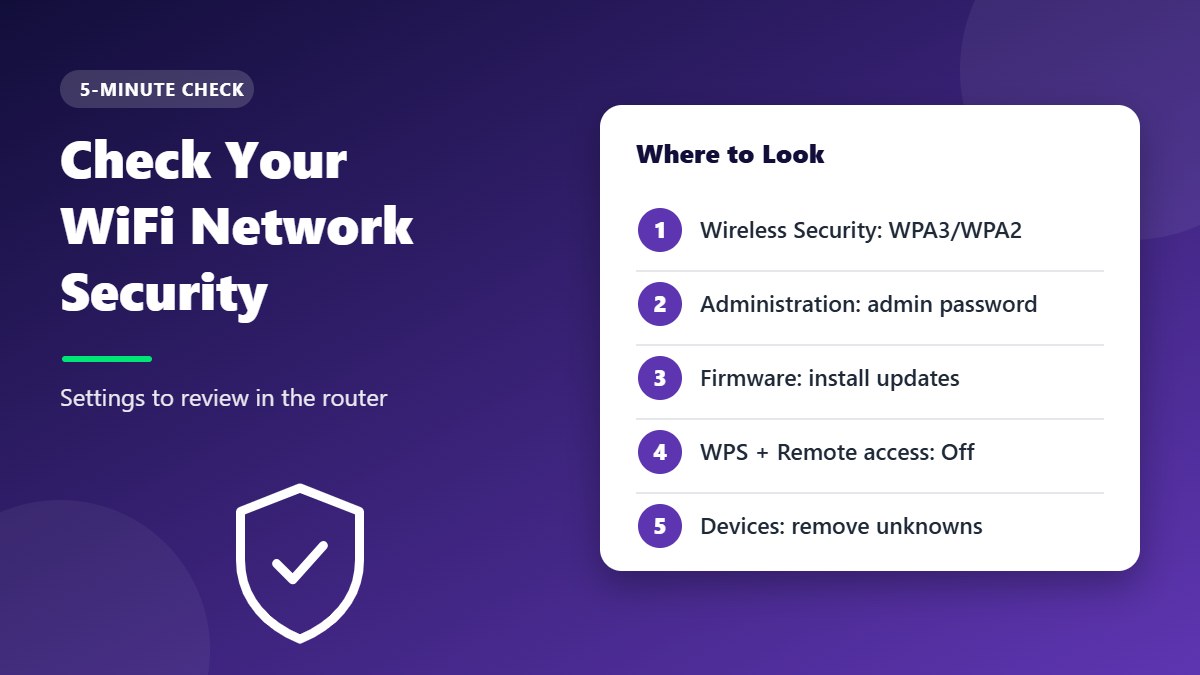
Not sure which of these tips you have already done? Log in to your router and walk through this quick audit. Menu names vary by brand, but every router has these settings somewhere.
- Log in to the admin panel at your router’s IP address, such as 192.168.1.1.
- Open Wireless Security and confirm the mode is WPA3-Personal, WPA2/WPA3, or WPA2-AES.
- Open Administration or System and make sure the admin password is no longer the default.
- Open Firmware Update and install any update that is available.
- Check the WPS and Remote Management options and switch them off if you don’t use them.
- Open the connected devices list and look for anything you don’t recognise.
Extra Protection for Smart-Home Devices
Smart plugs, cameras, doorbells, and TVs are often the weakest devices on a home WiFi network, because they rarely get security updates and many ship with simple default passwords. A few extra steps keep them from becoming a way in:
- Put them on the guest network so a hacked gadget can’t reach your laptops and phones.
- Change their default passwords in the device app, especially on cameras and baby monitors.
- Keep their apps and firmware updated, and turn on automatic updates where possible.
- Switch off features you don’t use, such as remote viewing or voice control.
- Buy from brands that publish updates for several years after release.
WiFi Security Myths
- “Hiding my SSID makes me invisible.” A hidden WiFi network is still easy to detect with free tools. It’s not a substitute for strong encryption.
- “MAC address filtering keeps intruders out.” MAC addresses can be copied (spoofed) easily. Filtering adds hassle but little real protection.
- “Nobody would target my home network.” Most attacks are automated and look for any router with default settings — not specific people.
Signs Someone Is Using Your WiFi Network
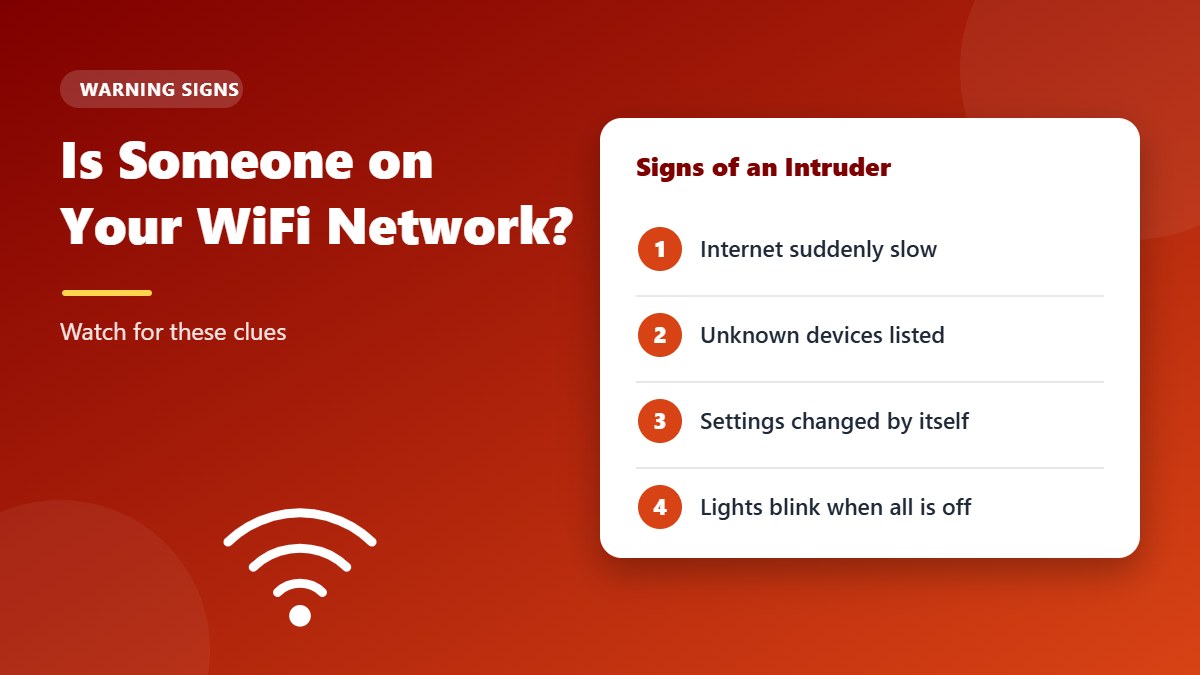
- Your internet is much slower than usual, even when you’re not using it much.
- Unknown devices appear in the router’s connected devices list.
- The router’s activity lights blink heavily when all your devices are off.
- Your router settings have changed without you doing it.
If you notice any of these, change your WiFi and admin passwords immediately. If you can’t log in anymore, follow our router reset guide and set everything up again securely.
What to Do If Your Router Was Hacked
If your settings changed on their own, your WiFi password stopped working, or strange pop-ups started appearing on every device, act quickly:
- Unplug the router from the internet by disconnecting the cable from the modem or wall socket.
- Factory reset the router to remove any settings an attacker may have changed — follow our router reset guide.
- Install the latest firmware before you reconnect to the internet.
- Set a new admin password and a new WiFi password that you have never used before.
- Check the DNS settings and set them back to automatic, because attackers often change DNS to redirect you to fake websites.
- Scan your computers and phones for malware and change the passwords of important online accounts.
How Often Should You Review Your WiFi Network Security?
A quick check every three to six months is enough for most homes. Also review your settings whenever you get a new router, after a firmware update, when someone moves out, or if you notice unknown devices. It only takes a few minutes, and it keeps small problems from turning into big ones.
Tip: set a reminder in your phone calendar for your next review, and keep a short note of the settings you changed. It makes the next check even faster.
Quick WiFi Network Security Checklist
| Setting | Recommended |
|---|---|
| Admin password | Changed from default, long and unique |
| Encryption | WPA3-Personal or WPA2-AES |
| WiFi password | 12+ characters, not personal info |
| Firmware | Latest version, auto-update on |
| WPS | Off |
| Remote management | Off |
| UPnP | Off unless needed |
| Guest network | On for visitors and smart devices |
| Firewall | On |
Frequently Asked Questions
Is WPA2 still safe to use?
WPA2 with AES and a strong password is still reasonably secure for home use. WPA3 adds stronger protection against password-guessing attacks, so use it whenever all your devices support it.
Should I turn off my router at night for security?
It’s not necessary. A well-configured router with strong passwords, current firmware, and WPS and remote management turned off is far more effective than switching it off.
Does a VPN protect my home WiFi network?
A VPN encrypts the traffic from the device it runs on, which is useful on public WiFi. It doesn’t secure your router or stop others from joining your WiFi network, so you still need the steps above.
Do all devices support WPA3?
No. Most phones and laptops made in the last few years support WPA3, but older laptops, printers, and many smart-home gadgets only support WPA2. If some of your devices can’t connect after switching to WPA3, use the WPA2/WPA3 mixed (transition) mode so newer devices get WPA3 while older ones can still join your WiFi network.
Conclusion
Securing your WiFi network doesn’t require technical expertise — just a few minutes in your router’s settings. Change the default admin password, use WPA3 or WPA2-AES with a strong WiFi password, keep the firmware updated, and switch off features you don’t need like WPS and remote management. Do these today, and your home WiFi network will be far safer than most.