Router login guide · Updated October 2026
192.168.l.1 Login Admin – Access Your Router at 192.168.1.1
If you typed 192.168.l.1 or 192.l68.1.1 to open your router settings and nothing loaded, the fix is simple. The address you need is 192.168.1.1, written with the number 1, not the letter “l”. It is the default gateway IP for millions of routers from TP-Link, Netgear, Linksys, Asus, Huawei, ZTE and many internet providers.
The button works only while your phone or computer is connected to your router.
Quick Answer: How to Log In to 192.168.l.1
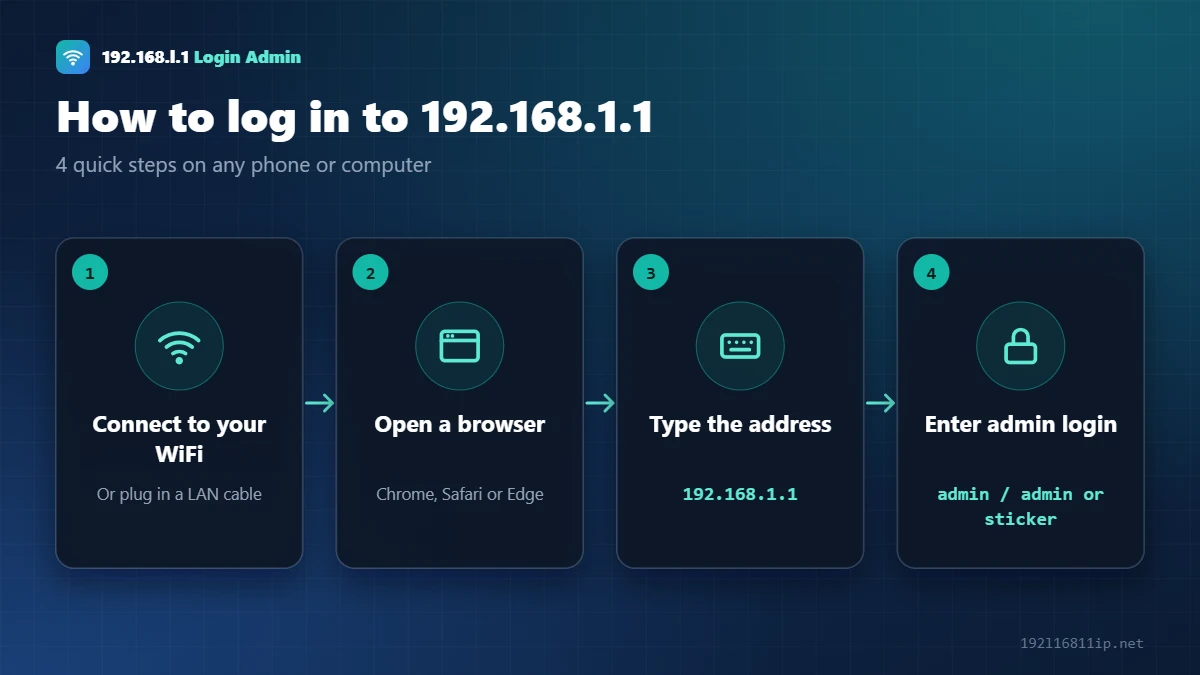
- Connect your phone or computer to your router by WiFi or LAN cable.
- Open a browser such as Chrome, Safari or Edge.
- Type 192.168.1.1 in the address bar (not the search box) and press Enter.
- Enter the admin username and password. These are often
admin/admin, or printed on the router sticker. - Change the settings you need and press Save or Apply.
Through this address you can log in to the router admin panel, change your WiFi name and password, see connected devices and secure your network. This 192.168.1.1 login guide shows how to sign in on a phone or computer, lists default usernames and passwords, and fixes the most common “192.168.l.1 not opening” problems.
What Is 192.168.1.1?
192.168.1.1 is a private IP address that a router uses as its own address on your home network. That is why it is called the default gateway. It belongs to the 192.168.0.0/16 range reserved for local networks, so it works only inside your network and cannot be reached from the internet.
When you type ip 192.168.1.1 into a browser, the request goes straight to your router. The router then shows its web-based admin page, where all its settings live.
192.168.l.1, 192.l68.1.1 and Other Typos Explained
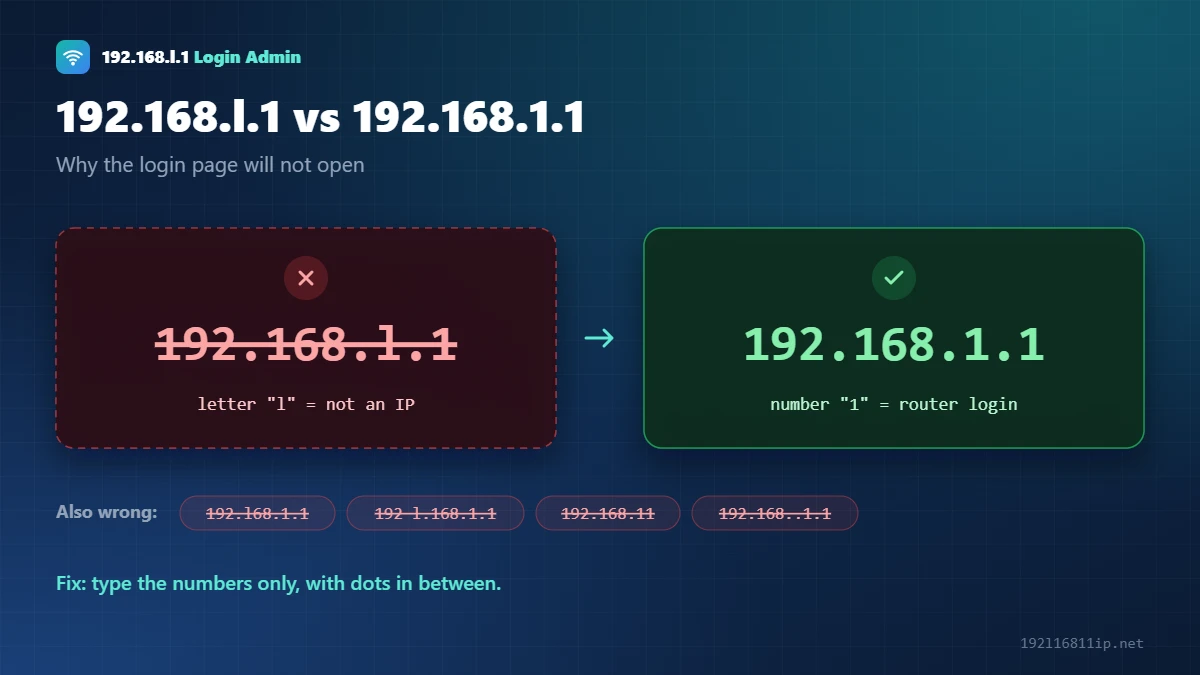
An IP address contains only numbers and dots. “192.168.l.1” uses a lowercase letter L, and “192.168.o.1” uses a letter O. Your browser reads these as a search phrase, so you land on Google instead of your router. These are the most common mistakes:
| What people type | What’s wrong | Correct address |
|---|---|---|
| 192.168.l.1 | Letter “l” instead of 1 | 192.168.1.1 |
| 192. l68.1.1 or 192.l68.1.1 | Letter “l” in 168, extra space | 192.168.1.1 |
| 192 l.168.1.1 | Extra letter and space | 192.168.1.1 |
| 192.168 1.1 or 192.168. 1.1 | Missing dot or extra space | 192.168.1.1 |
| 192.1681.1 or 192.168.11 | Missing dot | 192.168.1.1 |
| 192.168..1.1 or 1.92.168.1.1 | Extra dot | 192.168.1.1 |
| http //192.168.l.1 | Missing colon, letter “l” | http://192.168.1.1 |
| www.192.168.1.1 | “www.” added | 192.168.1.1 |
| 192.168.o.1 | Letter “o” instead of 0 | 192.168.0.1 |
Once the login page opens, bookmark it so you never have to type the address again.
How to Log In to the 192.168.1.1 Admin Panel
On a Computer (Windows or Mac)
- Connect to the router by WiFi or Ethernet cable. A cable is the most reliable option.
- Open Chrome, Edge, Firefox or Safari.
- Click the address bar, type http://192.168.1.1 and press Enter.
- If a privacy warning appears, click Advanced and then Proceed. Some routers use their own security certificate, and this is normal for your own device.
- Enter the admin username and password.
- The dashboard opens. Make your changes and click Save or Apply.
On a Mobile Phone (Android or iPhone)
- Connect your phone to the router’s WiFi.
- Turn off mobile data. If the WiFi has no internet, the phone may switch to mobile data and the page will not load.
- Open Chrome or Safari and type 192.168.1.1 in the address bar.
- Log in with the admin username and password.
- Many brands also offer an app that does the same job, such as TP-Link Tether, Tenda WiFi, Airtel Thanks or MyJio.
192.168.1.1 Default Username and Password List
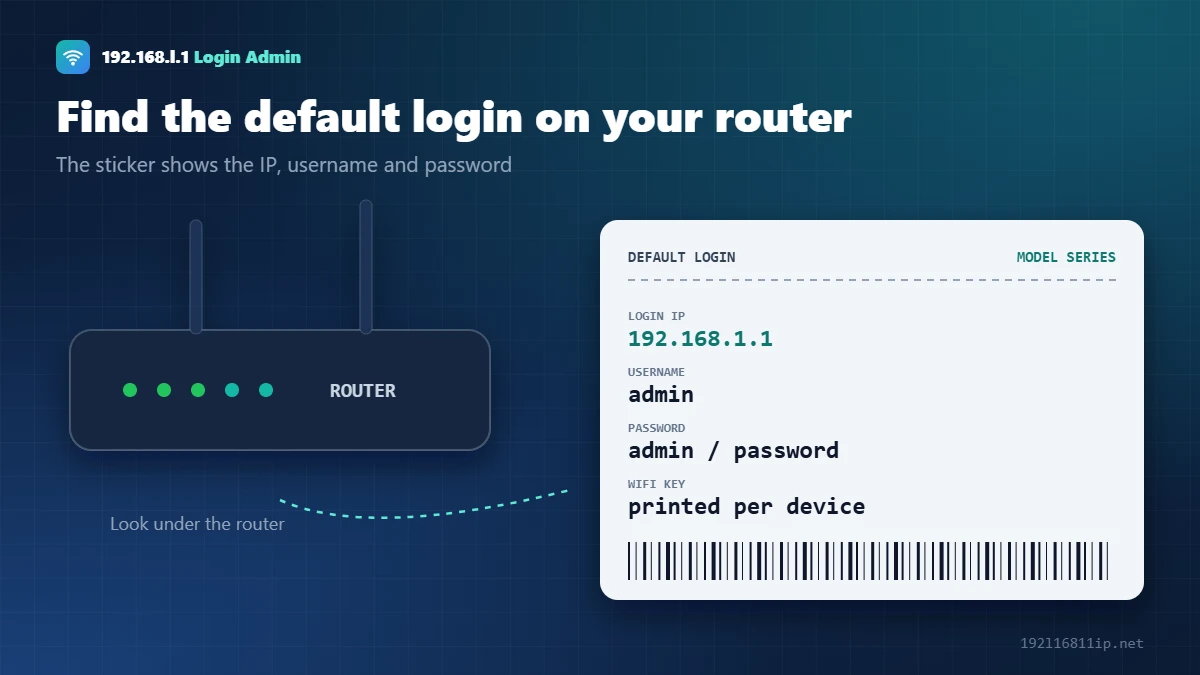
Most routers use admin as the username. If the details below do not work, check the sticker on the bottom or back of your router. Newer routers print a unique password there.
| Brand | Default IP | Username | Password |
|---|---|---|---|
| TP-Link | 192.168.0.1 or 192.168.1.1 | admin | admin (newer models ask you to create one) |
| Netgear | 192.168.1.1 or 192.168.0.1 | admin | password |
| Linksys | 192.168.1.1 | admin or blank | admin |
| Asus | 192.168.1.1 | admin | admin |
| D-Link | 192.168.0.1 | admin | blank |
| Tenda | 192.168.0.1 | admin | admin, or none on newer models |
| Huawei | 192.168.1.1, 192.168.3.1 or 192.168.100.1 | admin | printed on sticker |
| ZTE | 192.168.1.1 | admin or user | admin or user |
No sticker? Try these common combinations for 192.168.1.1 admin login: admin / admin, admin / password, admin / 1234, admin / (blank) and user / user. If your router still uses one of them, change it right after you log in. See the full default router password list.
How to Change Your WiFi Password Using 192.168.l.1
Menu names differ by brand, but the path is nearly always the same:
- Log in at 192.168.1.1.
- Open Wireless (also called WiFi, WLAN or Wireless Settings).
- Go to Security or Wireless Security.
- Choose WPA2-PSK (AES), or WPA3 if your router offers it.
- Type a new password in the field named Password, Pre-Shared Key, Passphrase or WPA Key. Use at least 12 characters with letters, numbers and symbols.
- Click Save or Apply. Your devices will disconnect, so reconnect them with the new password.
To rename your network, edit the SSID field on the same page. The admin password you use to open 192.168.1.1 is a separate password. Change it under System Tools, Administration or Management. For brand-by-brand menus, read how to change WiFi password on any router.
ISP Router Login: Airtel, JioFiber, BSNL, PTCL and IndiHome
Routers supplied by internet providers often use a custom login printed on the device.
- Airtel Xstream FiberOpen 192.168.1.1 and use the username and password on the router sticker. You can also change your Airtel WiFi password in the Airtel Thanks app. Read the Airtel router login guide.
- JioFiberThe address is 192.168.29.1, not 192.168.1.1. The username is admin and the password is on the sticker under the router. The MyJio app can also change your WiFi password. See the Jio router login guide.
- BSNL BroadbandMost BSNL modems use 192.168.1.1 with admin / admin.
- PTCL (Pakistan)Most modems use 192.168.1.1, and some newer ones use 192.168.10.1. The default login is usually admin / admin.
- IndiHome (Indonesia)ZTE modems use 192.168.1.1 with user / user for the customer account, or check the sticker.
192.168.l.1 Not Opening? 8 Quick Fixes
- Check the spellingType 192.168.1.1 with numbers only. 192.168.l.1 with a letter “l” will never work.
- Use the address barTyping into Google’s search field shows search results, not your router.
- Connect to the right networkYou must be on your router’s WiFi or cable. Guest WiFi networks often block the admin page.
- Turn off VPN and mobile dataA VPN or proxy sends your request outside your home network.
- Switch between http and httpsMost routers use http://192.168.1.1. If https //192.168.l.1 style links fail, type http://192.168.1.1, and try https:// if http is refused.
- Check your router’s real IPYour router may use 192.168.0.1, 192.168.29.1 or 10.0.0.1 instead (see the next section).
- Clear the cache or switch browserAn old cached page can block the login. An incognito window is a quick test.
- Restart the routerUnplug it for 30 seconds, plug it back in, wait 2 minutes and try again.
If you see “incorrect password”, try the defaults on the sticker. If those fail too, the password was changed, and a factory reset is the last option.
How to Find Your Router’s IP Address
If 192.168.1.1 does not respond, your router uses another gateway address. You can find it in under a minute:
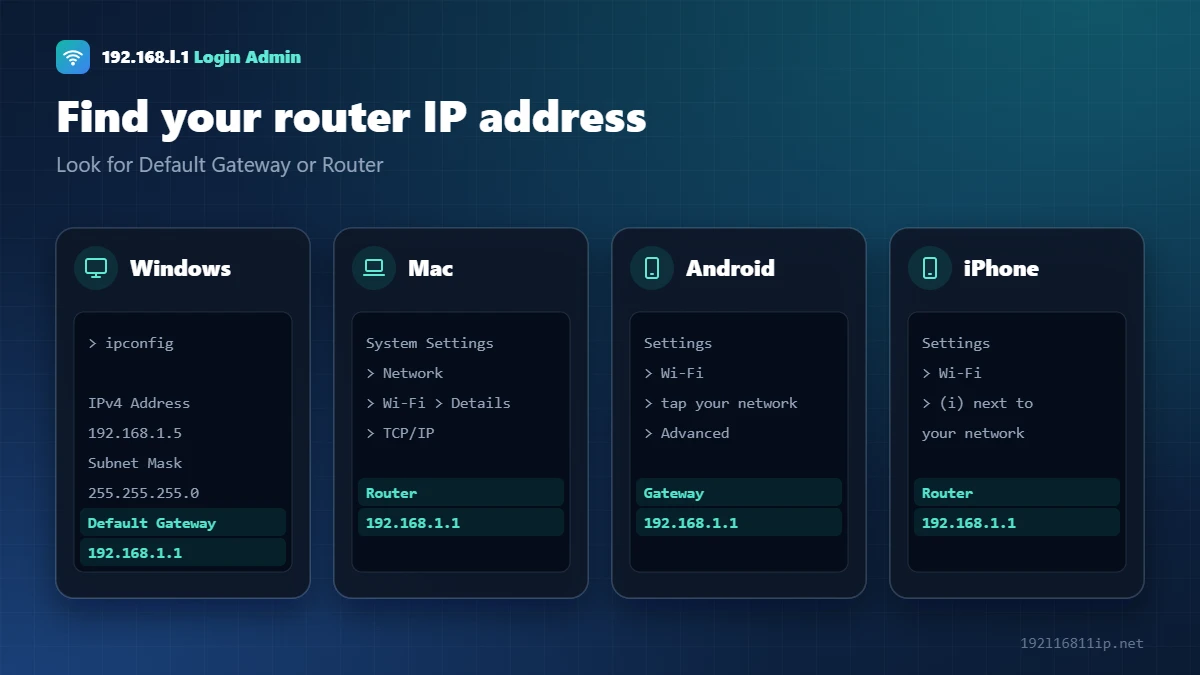
- Windows: press Windows + R, type
cmdand press Enter. Typeipconfigand look for Default Gateway. - Mac: open System Settings → Network → Wi-Fi → Details → TCP/IP and look for Router.
- Android: open Settings → Wi-Fi, tap the gear or (i) next to your network and look for Gateway or Router. On some phones it sits under Advanced.
- iPhone or iPad: open Settings → Wi-Fi, tap (i) next to your network and look for Router.
Forgot the Admin Password? Reset Your Router
A factory reset brings back the default username, password and WiFi name. It also erases every change you made, including your ISP connection details (such as the PPPoE username for fiber or DSL). Note those first or call your provider.
- Keep the router switched on.
- Find the small Reset hole on the back.
- Press and hold it with a pin for 10–30 seconds, until the lights flash.
- Release it and wait 2–3 minutes while the router restarts.
- Log in at 192.168.1.1 with the default details from the sticker.
Secure Your Router After Logging In
- Change the default admin password.
- Use WPA2-AES or WPA3 encryption, never WEP.
- Update the firmware from System Tools or Administration.
- Turn off WPS and remote management if you do not use them.
- Create a separate guest network for visitors.
- Check the connected devices list for anything you do not recognize.
192.168.1.1 vs 192.168.0.1 and Other Router IPs
| Router IP | Commonly used by |
|---|---|
| 192.168.1.1 | TP-Link, Netgear, Linksys, Asus, Huawei, ZTE, Airtel, BSNL, PTCL |
| 192.168.0.1 | D-Link, Tenda, many TP-Link models |
| 192.168.29.1 | JioFiber |
| 192.168.100.1 | Huawei fiber modems (ONTs) and cable modems |
| 192.168.10.1 | Some PTCL modems |
| 192.168.2.1 | Digisol, Edimax and Belkin |
| 10.0.0.1 | Xfinity and some business networks |
If your router uses 192.168.0.1 (often mistyped as 192.168.o.1), the login steps are the same. Just type 192.168.0.1 instead, or follow our 192.168.0.1 login guide.
Frequently Asked Questions
Is 192.168.l.1 the same as 192.168.1.1?
No. 192.168.l.1 contains the letter “l”, so it is not a valid IP address. Type 192.168.1.1 with the number one.
What is the default password for 192.168.1.1?
The most common combination is admin / admin. Netgear uses admin / password, and many newer routers print a unique password on the sticker.
Why does 192.168.1.1 say “This site can’t be reached”?
You are not connected to the router, the address is mistyped, or your router uses a different IP. Check your default gateway as shown above.
Can I open 192.168.1.1 on my phone?
Yes. Connect to the router’s WiFi, open Chrome or Safari and type 192.168.1.1 in the address bar.
Can someone outside my home access 192.168.1.1?
Not directly. It is a private address that works only inside your network, unless remote management is turned on.
How do I change my WiFi password from 192.168.l.1?
Log in at 192.168.1.1, open Wireless → Security, enter a new password and click Save.
What is 192.168.1.1 used for?
It opens your router’s settings page, where you manage the WiFi name and password, connected devices, parental controls, port forwarding and firmware updates.
I forgot my router admin password. What now?
Try the default on the sticker. If it was changed, factory-reset the router with the reset button and log in with the defaults.
Related Router Guides
Conclusion
192.168.l.1 is simply a typo of 192.168.1.1, the most common router login address. Type the numbers correctly, connect to your router and log in with the details on the sticker. Then change the default passwords and keep the firmware updated to keep your network safe.