Router login guide · Updated October 2026
Tenda Router Login – tendawifi.com & 192.168.0.1 Guide
To open your Tenda router settings, connect to its WiFi and go to tendawifi.com or 192.168.0.1. Newer Tenda routers ask only for the login password you created during setup. Older models use admin / admin.
Both links work only while your device is connected to the Tenda router.
Quick Answer: How to Do Tenda Login
- Connect your phone or laptop to the Tenda WiFi or plug in a LAN cable.
- Open a browser and go to tendawifi.com or 192.168.0.1.
- Type the login password. On older models, use
admin/admin. - Change your settings and click Save or OK.
This guide covers Tenda login on phone and computer, the default Tenda login password, how to change your Tenda WiFi password, and what to do when the login page will not open. For other brands, see our 192.168.1.1 router login guide.
Tenda Login Address: tendawifi.com or 192.168.0.1
Tenda routers answer on two addresses. tendawifi.com is a local web address built into the router, and 192.168.0.1 is its default IP address. Both open the same page.
tendawifi.com only works while you are connected to the Tenda network. If it opens a normal website or an error, use 192.168.0.1 instead. Typing 192.168.o.1 with a letter “o” will not work. Our 192.168.0.1 login guide explains that typo in detail.
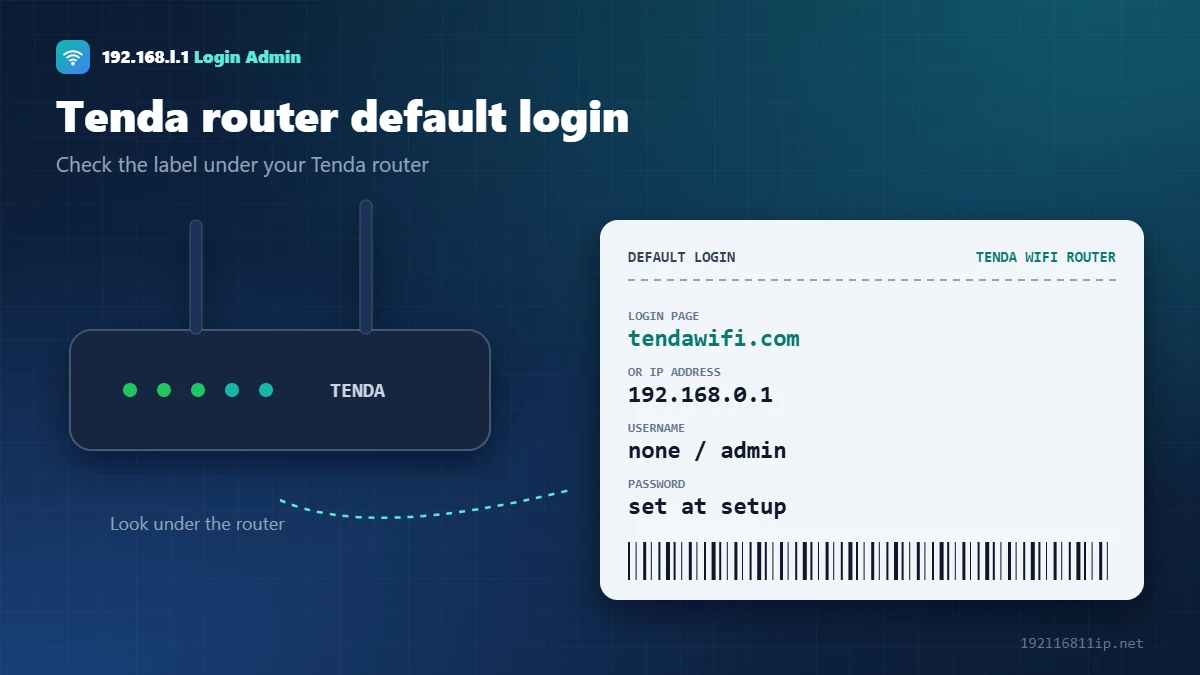
Tenda Default Login Password
The Tenda router login password depends on the age of your model and how it was set up:
| Router | Login address | Login password |
|---|---|---|
| Newer Tenda WiFi routers | tendawifi.com or 192.168.0.1 | The password you created during setup. Some setups use the WiFi password. |
| Older Tenda N-series routers | 192.168.0.1 | Username admin, password admin |
| After a factory reset | tendawifi.com | No password. The setup wizard asks you to create one. |
If none of these work, someone changed the password. A factory reset is the only way back, and it erases your settings. See default passwords for other brands.
How to Log In to a Tenda Router
On a computer
- Connect to the Tenda WiFi or plug a cable into a LAN port.
- Type tendawifi.com in the address bar and press Enter.
- Enter the login password and click Login.
- You now see the Tenda dashboard with Internet, WiFi and System settings.
On a mobile phone
- Join the Tenda WiFi network from your phone.
- Turn off mobile data so the phone stays on the WiFi.
- Open Chrome or Safari and go to 192.168.0.1.
- Log in. The Tenda WiFi app can also manage most newer models.
How to Change Your Tenda WiFi Password
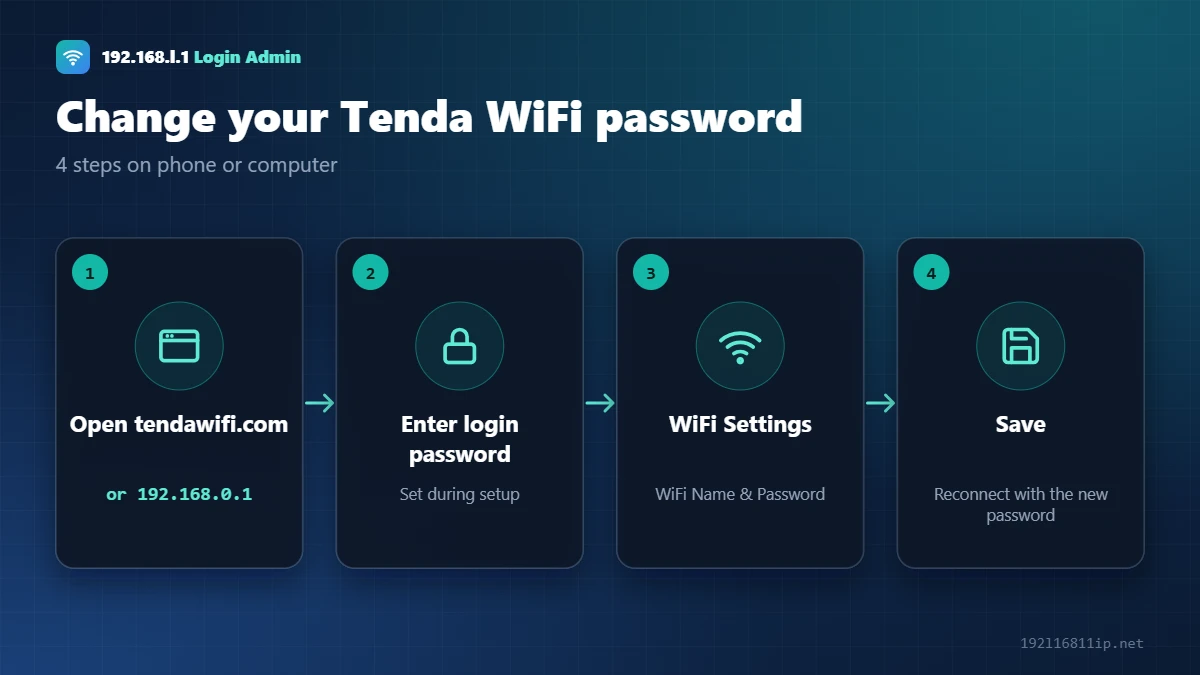
- Log in at tendawifi.com or 192.168.0.1.
- Open WiFi Settings, then WiFi Name & Password. On older models, open Wireless Settings → Wireless Security.
- Type a new WiFi password of at least 12 characters. Keep the security mode on WPA2-PSK or WPA2/WPA3.
- Click Save. Your devices disconnect, so reconnect them with the new password.
The login password and the WiFi password are different. To change the login password, open System Settings → Login Password. Older firmware lists it under Tools or System Tools. For other brands, read how to change a WiFi password on any router.
How to Change the Tenda Login Password
The login password protects the Tenda admin page. It is different from your WiFi password, and you should set your own as soon as possible:
- Open tendawifi.com and sign in.
- Go to System Settings (called Administration or System Tools on some models).
- Select Login Password.
- Enter the old password, then type a new password of at least 8–12 characters twice.
- Click Save and sign in again with the new password.
If you forget this password later, the only way back in is a factory reset, so store it somewhere safe.
First-Time Tenda Router Setup
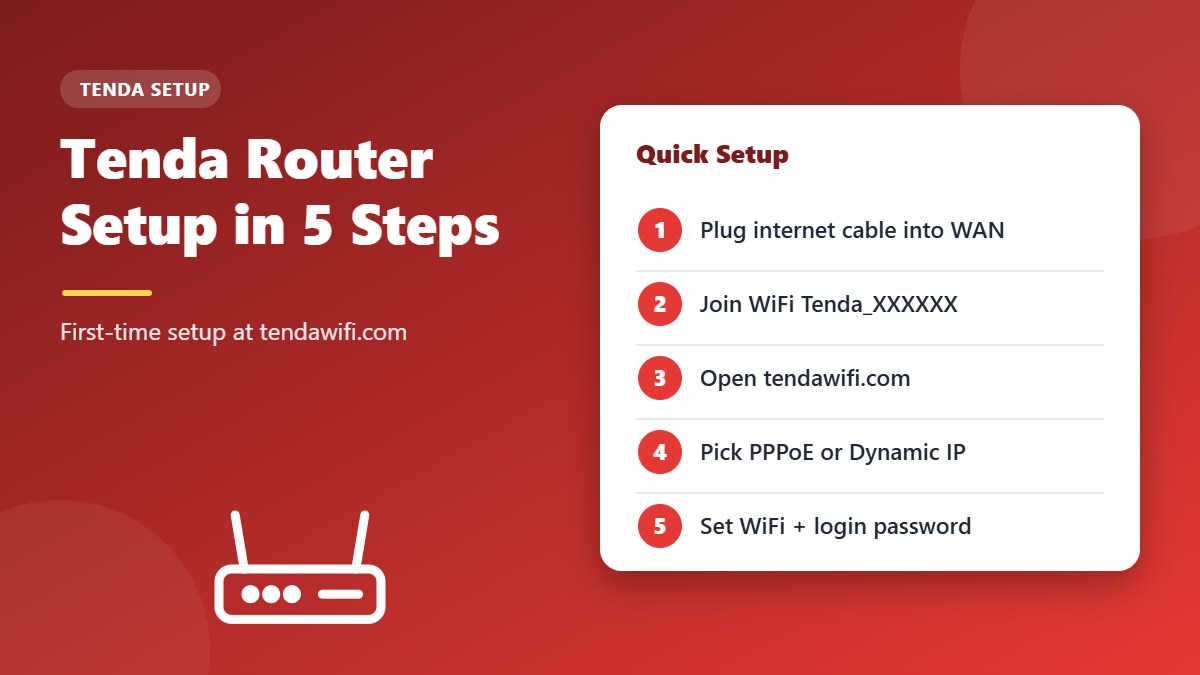
Setting up a brand-new or freshly reset Tenda router takes about five minutes:
- Connect the internet cable from your modem or fiber box to the WAN port (usually blue or yellow and labeled WAN or Internet).
- Power on the router and wait for the lights to settle.
- Connect your phone or laptop to the default WiFi network, which is usually named Tenda_XXXXXX and printed on the label.
- Open tendawifi.com. The quick setup wizard starts automatically.
- Choose your connection type: PPPoE (enter the username and password from your internet provider), Dynamic IP, or Static IP.
- Create a WiFi name, a strong WiFi password, and a login password, then click Save.
If you are not sure which connection type to choose, check the documents from your internet provider or call their helpline. Most fiber and DSL connections in South Asia use PPPoE, while cable connections usually use Dynamic IP.
Tenda Login Not Working? 6 Fixes
- Join the Tenda WiFitendawifi.com does not work on mobile data or on another network.
- Use the IP addressIf tendawifi.com fails, type 192.168.0.1 directly.
- Check the spelling192.168.o.1 with a letter “o” is a typo. Use the number zero.
- Check the gatewayIf your Tenda sits behind an ISP modem, its address may differ. Look for Default Gateway in your network details.
- Clear the browserOpen a private window or try another browser.
- Restart the routerUnplug it for 30 seconds and wait 2 minutes after turning it back on.
How to Reset a Tenda Router
A reset removes the login password, the WiFi name and your internet settings. Note your ISP login details (such as the PPPoE username) before you start.
- Keep the router switched on.
- Press and hold the RST or WPS/RST button for about 8 seconds, until the lights blink.
- Wait 1–2 minutes for the router to restart.
- Connect to the default WiFi name on the label and open tendawifi.com to run setup again.
Manage Your Tenda Router With the App
Tenda also offers the free Tenda WiFi app for Android and iPhone. After you connect your phone to the router WiFi and sign in, the app lets you change the WiFi name and password, see connected devices, block unknown users, set up a guest network, and restart the router — without typing tendawifi.com in a browser.
The app and the web page change the same settings, so you can use whichever is easier. If the app cannot find your router, make sure your phone is connected to the Tenda WiFi and not to mobile data.
Where to Place Your Router for the Best Signal
Even a perfectly configured router can feel slow if it sits in the wrong spot. These placement tips usually make a bigger difference than any setting in the admin panel:
- Put it in a central, open place rather than in a cupboard or at one end of the house.
- Raise it off the floor — a shelf or the top of a cabinet works well.
- Keep it away from thick concrete walls, mirrors, fish tanks and microwave ovens, which block or interfere with the signal.
- Angle the antennas so one points straight up and another sideways. This helps devices on different floors and at different angles.
- Use the 5 GHz band for phones and laptops close to the router, and 2.4 GHz for devices that are further away.
If some rooms still have a weak signal, a mesh system or a WiFi extender placed halfway between the router and the dead zone is usually the easiest fix.
Frequently Asked Questions
What is the Tenda router login password?
Newer Tenda routers use the login password you created during setup. Older models use admin as both username and password. After a reset there is no password until you create one.
What is tendawifi.com?
It is the local login address of Tenda routers. It works only when your device is connected to the Tenda network and opens the same page as 192.168.0.1.
Is 192.168.o.1 the Tenda login page?
No. 192.168.o.1 is a typo with the letter “o”. The Tenda login IP is 192.168.0.1 with a zero.
How do I change my Tenda WiFi password on mobile?
Connect to the Tenda WiFi, open 192.168.0.1 in your phone browser, log in, then go to WiFi Settings and change the password.
How do I reset my Tenda router password?
Hold the RST button for about 8 seconds while the router is on. This clears the login password and all settings.
Can I log in to a Tenda router without a computer?
Yes. A phone browser or the Tenda WiFi app works the same way.
Related Router Guides
Summary
Tenda login works at tendawifi.com or 192.168.0.1 while you are on the Tenda network. Newer routers need the password you set during setup, and older ones use admin / admin. This is an independent guide and is not affiliated with Tenda.