How-to guide · Updated October 2026
How to Change WiFi Password on Router (Any Brand)
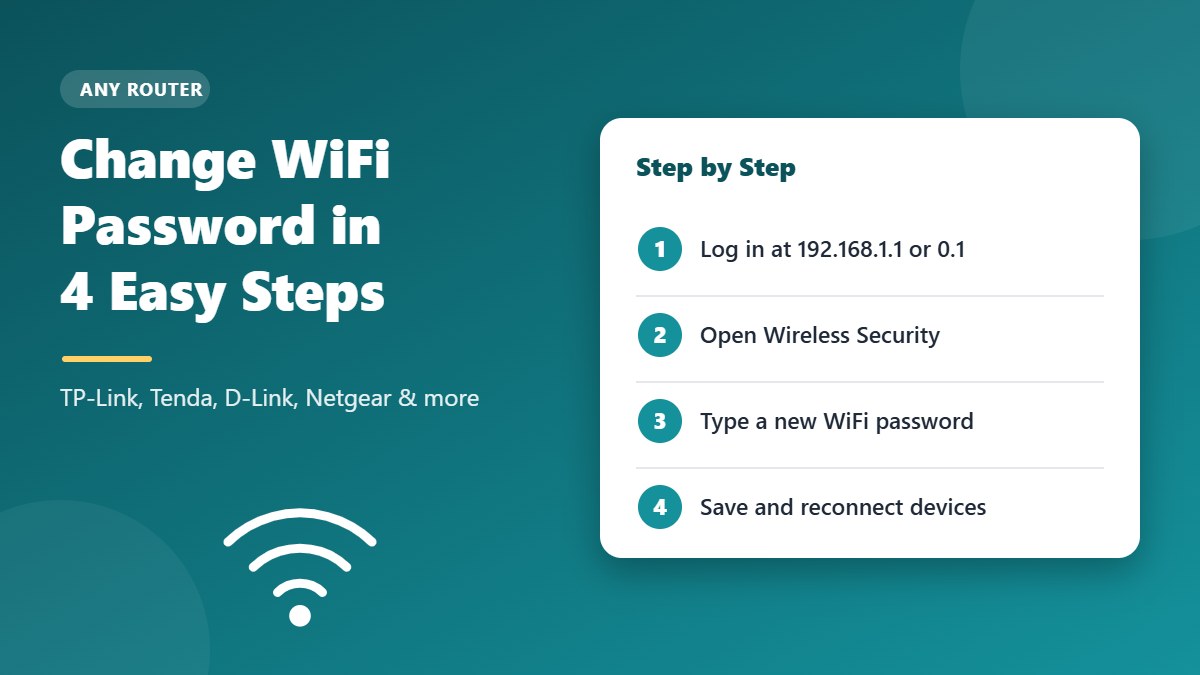
A WiFi password change takes about two minutes. Log in to your router at 192.168.1.1 or 192.168.0.1, open the Wireless Security settings, type a new password and save. The steps below work on phones and computers for every major brand.
Your router may use 192.168.0.1 instead. The steps are the same.
Quick Answer: Change WiFi Password in 4 Steps
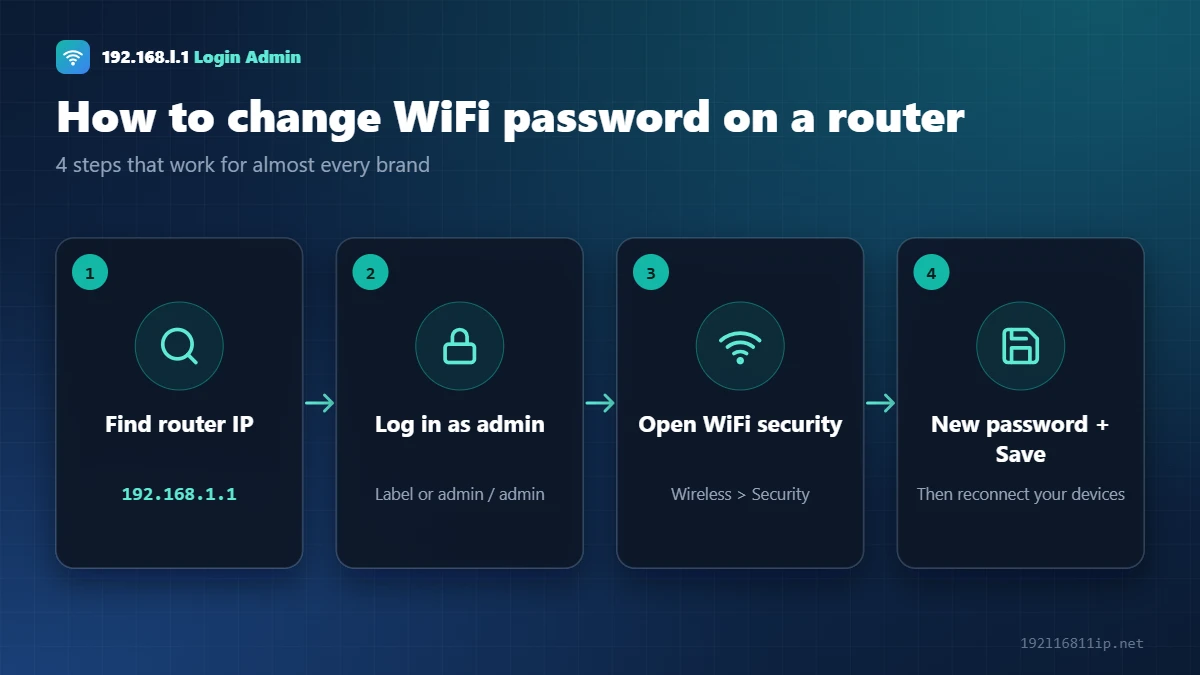
- Connect to your router and open 192.168.1.1 or 192.168.0.1 in a browser.
- Log in with the admin username and password from the router label.
- Open Wireless, WiFi or WLAN settings, then Security.
- Type a new password of at least 12 characters and click Save.
- Reconnect every device using the new password.
A WiFi password change stops neighbours and old guests from using your internet. If you do not know your router address yet, our 192.168.1.1 login guide shows how to find it.
Before You Start
- Two different passwords. The WiFi password lets devices join your network. The admin password opens the router settings. You need the admin password to change the WiFi password.
- You will be disconnected. After saving, every device drops off the WiFi until you enter the new password.
- Use a cable if you can. A laptop on a LAN cable stays connected while you make the change.
How to Change WiFi Password on a Router, Step by Step
- Find your router IP. It is usually 192.168.1.1 or 192.168.0.1. On Windows, run
ipconfigand read Default Gateway. - Open it in a browser. Type the IP in the address bar, not in the search box.
- Log in. Use the admin password from the label, or the default from our default router password list.
- Open the WiFi settings. Look for Wireless, WiFi or WLAN, then Security or Wireless Security.
- Set the new password. Keep security on WPA2-PSK (AES) or WPA3 and type a strong password.
- Save and reconnect. Click Save or Apply, then join the WiFi again on each device.
How to Change WiFi Password on Your Phone
You do not need a computer. Connect your phone to the WiFi, turn off mobile data, open Chrome or Safari and type your router IP. Then follow the same steps. Many brands also offer an app: TP-Link Tether, Tenda WiFi, the Airtel Thanks app, MyJio and the Xfinity app can all change the WiFi password.
Where to Change WiFi Password, by Brand
Menu names change between models and firmware versions, but they are usually close to these:
| Brand | Login address | Menu for the WiFi password |
|---|---|---|
| TP-Link | 192.168.0.1 or tplinkwifi.net | Wireless → Wireless Security, or Advanced → Wireless |
| Tenda | tendawifi.com | WiFi Settings → WiFi Name & Password (Tenda guide) |
| D-Link | 192.168.0.1 | Setup → Wireless Settings, or Settings → Wi-Fi |
| Netgear | routerlogin.net | Wireless, or Basic → Wireless |
| Asus | router.asus.com | Wireless → General → WPA Pre-Shared Key |
| Huawei / ZTE fiber | 192.168.1.1 or 192.168.100.1 | WLAN → WLAN Basic or Security |
| JioFiber | 192.168.29.1 | Wireless settings, or the Jio app (Jio guide) |
| Airtel | 192.168.1.1 | WLAN → Security, or Airtel Thanks app (Airtel guide) |
| Xfinity | 10.0.0.1 | Gateway → Connection → Wi-Fi, or the Xfinity app (10.0.0.1 guide) |
Choose a Strong WiFi Password
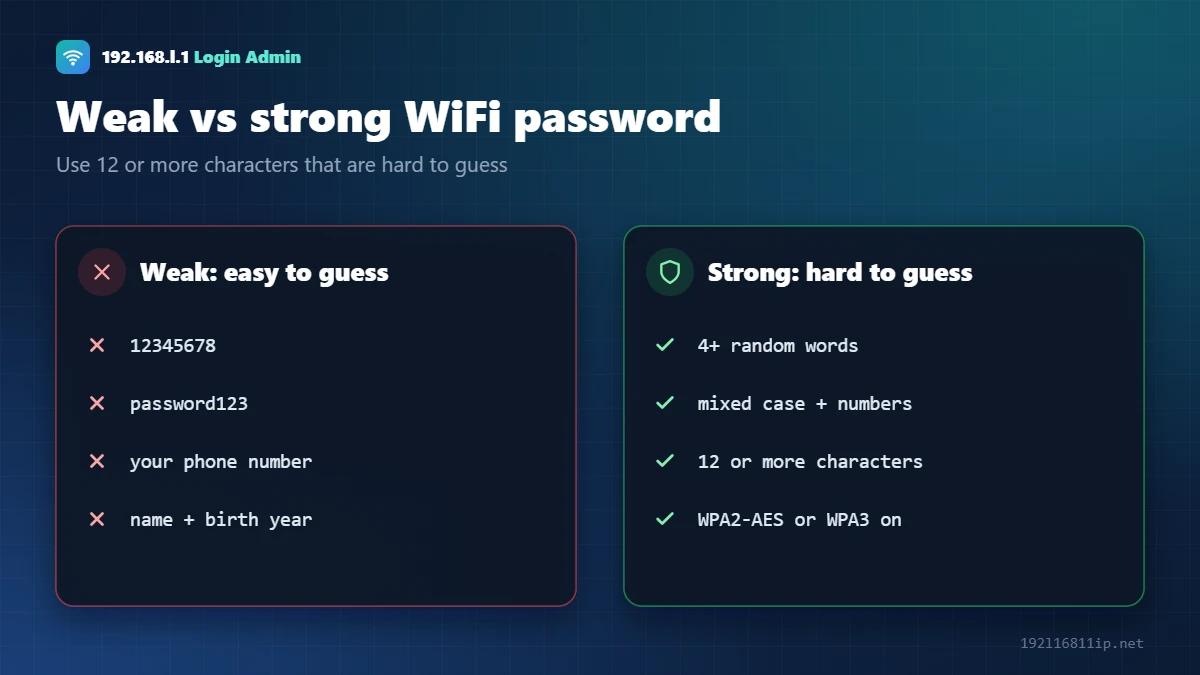
- Use at least 12 characters. Longer is better.
- Join three or four random words with numbers or symbols. Do not copy any example from the internet.
- Avoid names, birthdays, phone numbers and 12345678.
- Keep encryption on WPA2-AES or WPA3. Never use WEP or an open network.
How to Change Router Password (Admin Login)
The router password is not the same as the WiFi password. It protects the settings page, and you should change it from the factory default as well:
- Log in to the router admin page.
- Open System Tools, Administration, Management or Maintenance.
- Select Admin Password or Login Password.
- Enter the old password and a new one of at least 12 characters, then click Save.
Use a different password from your WiFi key, so that guests who know the WiFi password still cannot open your router settings.
Write the new password down or save it in a password manager before you log out, so you never need a reset just to get back into the settings.
Change WiFi Password From an App
You do not always need a browser. Many providers and mesh systems let you change WiFi password settings from a phone app:
- Airtel Xstream Fiber — the Airtel Thanks app has a WiFi section where you can change the network name and password.
- Mesh systems such as TP-Link Deco, Google Nest Wifi and Eero are managed entirely from their own apps.
- TP-Link, Tenda and Netgear routers also work with the Tether, Tenda WiFi and Nighthawk apps.
Open the app, go to the WiFi or Network settings, enter the new password and save. Your devices will disconnect and need the new password, just like with the browser method.
What Happens After a WiFi Password Change?
As soon as you save, every wireless device is disconnected — including the phone or laptop you used, if it was on WiFi. Wired devices stay online. Reconnect each device by selecting your network and typing the new password. Smart TVs, printers, cameras and streaming sticks usually need to be reconnected from their own settings menu or app, so make a quick list of them before you start.
If you share the network with family, tell everyone before you change WiFi password settings, and pick a quiet time such as late evening. That way nobody loses their connection in the middle of a video call, an online class or a game, and you can reconnect all the smart devices in one go.
How Often Should You Change WiFi Password?
There is no fixed rule. Change WiFi password settings right away if you still use the password printed on the router, if someone you no longer trust knows it, or if you see unknown devices on your network. Otherwise, once or twice a year is a sensible habit. A long password matters more than changing it often — the WPA2 and WPA3 security standards are only as strong as the password you choose.
Forgot the Router Password? How to Reset It
If you forgot the WiFi password but can still log in to the router, open the Wireless Security page. The current password is shown there. You can also check it on any device that is already connected.
If you forgot the admin password, you need a factory reset:
- Keep the router switched on.
- Press and hold the reset button with a pin for 10–30 seconds, until the lights flash.
- Wait 2–3 minutes while it restarts.
- Log in with the default details on the label and set new passwords.
A reset also erases your internet settings. Fiber and DSL users may need their PPPoE username and password, or a call to their provider, to get back online.
Devices Will Not Connect After a WiFi Password Change?
- Forget the networkOn your phone or laptop, forget the old WiFi and join again with the new password.
- Restart the deviceSmart TVs, printers and cameras often need a restart and the new password typed again.
- Check the security modeSome older devices cannot join WPA3-only networks. Use WPA2/WPA3 mixed mode.
- Check for typosWiFi passwords are case sensitive. Show the password while typing.
Frequently Asked Questions
How do I change my WiFi password on my phone?
Connect your phone to the WiFi, turn off mobile data, open 192.168.1.1 or 192.168.0.1 in Chrome or Safari, log in, open Wireless Security and save a new password.
Will changing the WiFi password disconnect everyone?
Yes. Every device leaves the network and must reconnect with the new password. This is also how you remove unwanted users.
What is the difference between the WiFi password and the router password?
The WiFi password lets devices join your network. The router (admin) password opens the settings page at 192.168.1.1.
How do I find my current WiFi password?
Log in to your router and open the Wireless Security page, or check the saved network on a device that is already connected.
How do I reset my router password if I forgot it?
Hold the reset button for 10–30 seconds while the router is on. Then log in with the default details on the label.
How often should I change my WiFi password?
Change it when you move in, after guests or workers no longer need access, or if your internet suddenly slows down.
Related Router Guides
Summary
To change a WiFi password, log in to your router, open Wireless Security, set a strong new password and save. Then reconnect your devices. If you forgot the admin password, a factory reset restores the default login on the label.