Router login guide · Updated October 2026
10.0.0.1 Login – Xfinity Gateway Admin Login and Password
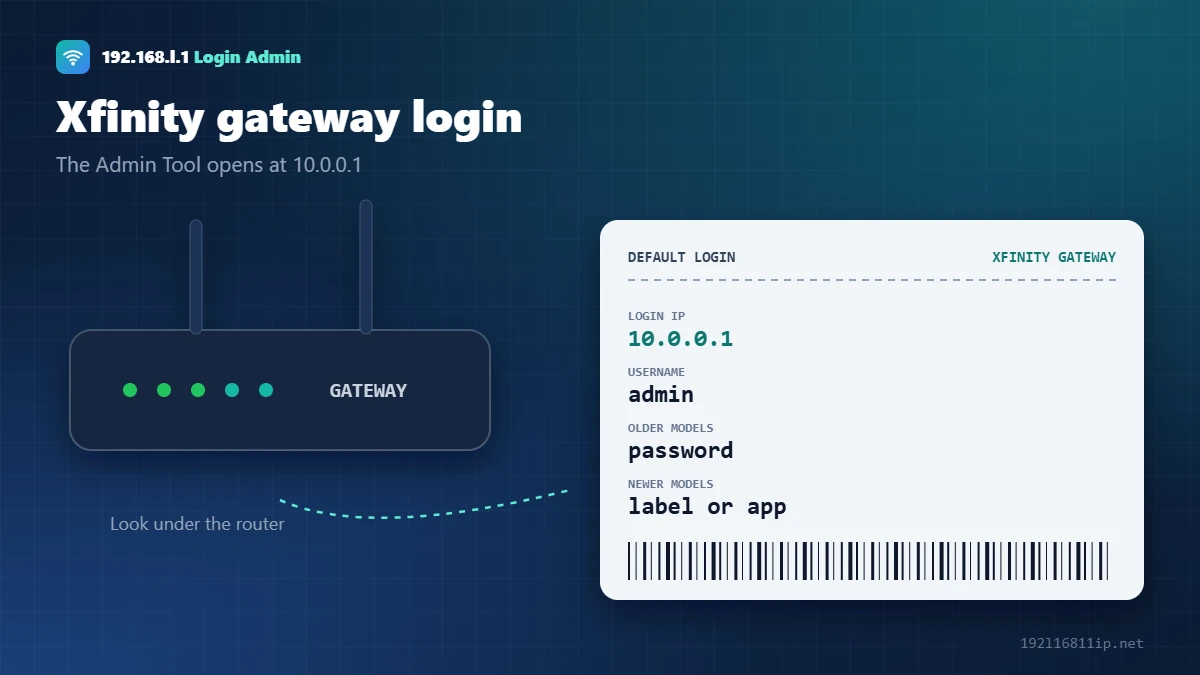
10.0.0.1 opens the Admin Tool of Xfinity (Comcast) gateways and some other routers. The username is admin. Older gateways use password as the default password. On newer gateways, check the label or manage your WiFi in the Xfinity app.
The button works only while your device is connected to that router or modem.
Quick Answer: 10.0.0.1 Xfinity Gateway Login
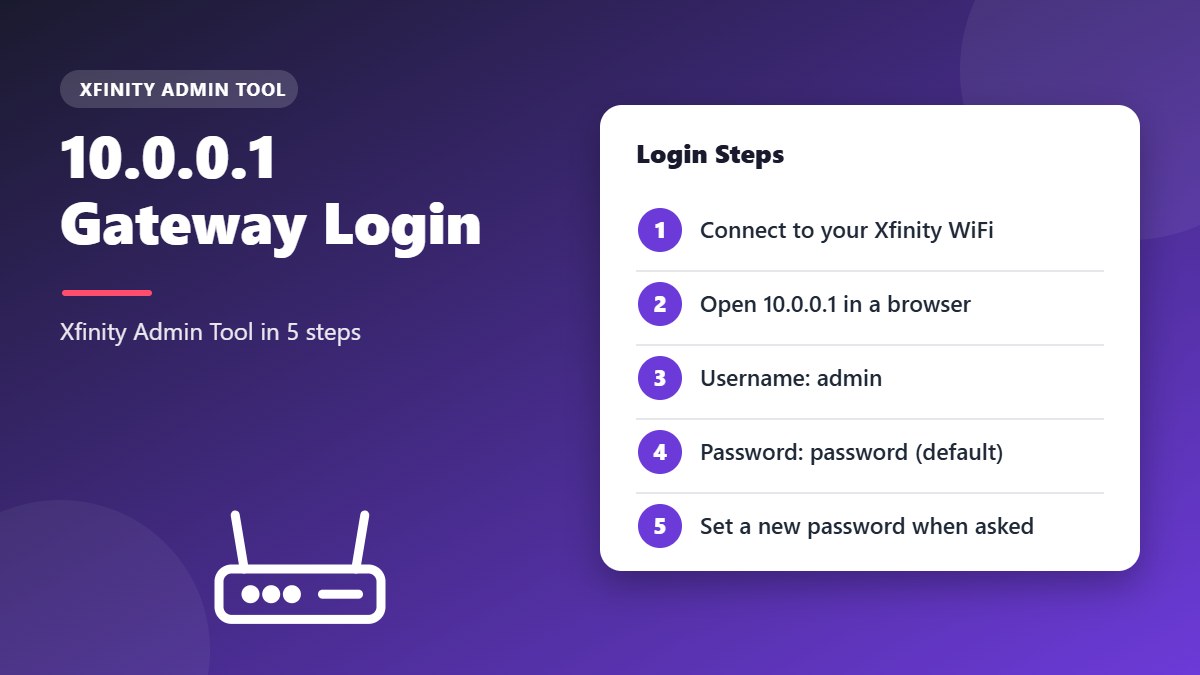
- Connect to your Xfinity WiFi or plug in an Ethernet cable.
- Type 10.0.0.1 in the browser address bar.
- Enter username
adminand your admin password. On older gateways the default ispassword. - Change your settings and click Save Settings.
This guide explains the 10.0.0.1 Admin Tool, the default Xfinity login, how to change your WiFi password, and what to do when the page does not load. Most other home routers use 192.168.1.1 or 192.168.0.1 instead.
What Is 10.0.0.1?
10.0.0.1 is a private IP address, just like 192.168.1.1. Xfinity sets its gateways to use it as the default gateway, so your devices get addresses such as 10.0.0.25. It works only from inside your home network.
10.0.0.1 Default Username and Password
| Gateway | Login IP | Username | Password |
|---|---|---|---|
| Older Xfinity gateways | 10.0.0.1 | admin | password (you are asked to change it on first login) |
| Newer Xfinity gateways | 10.0.0.1 | admin | Check the label, or manage settings in the Xfinity app |
| Other routers set to 10.0.0.1 | 10.0.0.1 | see label | see label |
If the admin password was changed and you cannot remember it, a factory reset brings back the default. On an Xfinity gateway this also resets your WiFi name and password to the ones on the label.
How to Log In to 10.0.0.1
- Connect a computer or phone to the gateway WiFi or an Ethernet port.
- Open a browser and type http://10.0.0.1.
- Enter admin and your admin password, then click Login.
- If the page tells you to use the Xfinity app, your gateway manages WiFi there instead.
How to Change Xfinity WiFi Password
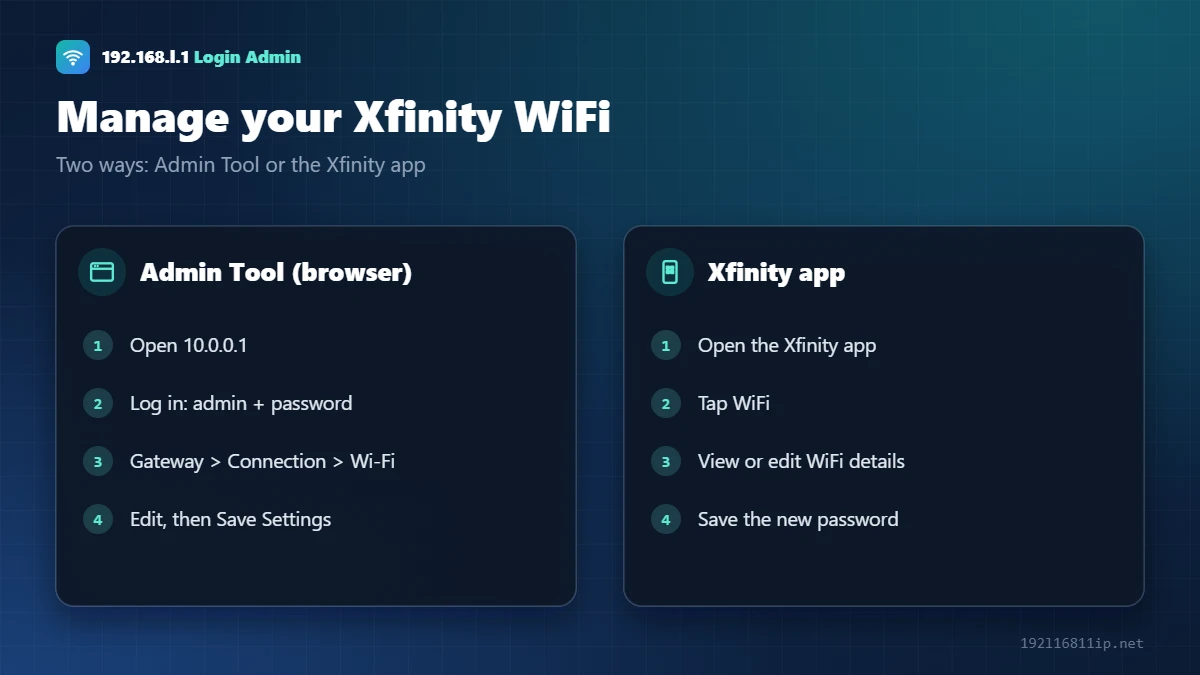
In the Admin Tool, go to Gateway → Connection → Wi-Fi, click Edit next to your network, enter a new password and click Save Settings. In the Xfinity app, tap WiFi, open your network details and edit the password. More brands are covered in our WiFi password guide.
10.0.0.1 Not Working? 6 Fixes
- Join the gateway network10.0.0.1 only opens from devices on your Xfinity WiFi or cable.
- Check the gateway IPIf you use your own router behind the gateway, its address may be 192.168.1.1 instead.
- Use httpType http://10.0.0.1 and avoid https.
- Try the appSome newer gateways limit the Admin Tool and send you to the Xfinity app.
- Turn off VPNA VPN sends your request outside your home network.
- Restart the gatewayUnplug it for 30 seconds and wait until the light is solid.
Xfinity App or Admin Tool: Which Should You Use?
Xfinity gives you two ways to manage your gateway. The Xfinity app is the main tool on newer gateways: it lets you change the WiFi name and password, see and pause connected devices, run speed tests, and set up port forwarding. The browser-based Admin Tool offers more technical settings, such as bridge mode, firewall levels and the event log.
If a setting is missing in the Admin Tool, look for it in the app — Xfinity has moved several features there. Both tools change the same gateway, so you can switch between them freely.
How to Change the Admin Tool Password
On first login, the gateway usually asks you to replace the default password. If you skipped that step, change it now:
- Sign in to the Admin Tool with the username admin and your current password.
- Open Troubleshooting and select Change Password.
- Enter the current password, then a new password twice. Use at least 12 characters.
- Click Save and sign in again.
This password only protects the Admin Tool. Your Xfinity account password, used in the app and on the website, is separate and is not changed here.
Write the new password down or store it in a password manager, because you will need it whenever you open the Admin Tool again.
How to Turn On Bridge Mode
Bridge mode turns off the gateway’s own router and WiFi, so you can use your own router or mesh system without double NAT. To enable it, log in to the Admin Tool, open Gateway → At a Glance, and set Bridge Mode to Enable. The gateway restarts and its private WiFi network switches off.
Once bridge mode is on, connect your own router to the gateway with an Ethernet cable. To undo it later, connect a computer directly to the gateway by cable and switch bridge mode off, or use a factory reset as a last resort.
Bridge mode is optional — most homes work perfectly well with the gateway in its normal mode.
Secure Your Xfinity Home Network
- Use WPA2 or WPA3 security with a long, unique WiFi password — the Wi-Fi Protected Access article explains the standards.
- Change the Admin Tool password from the default.
- Review connected devices in the Xfinity app and pause or remove anything you do not recognise.
- Keep the firewall at its typical setting or higher in the Admin Tool.
- Do not share your Xfinity account login with guests; give them the WiFi password only.
Tip: turn on two-step verification for your Xfinity account as well. Anyone who gets into the account can change your WiFi settings from the app, even without the Admin Tool password.
Tips for Faster Xfinity WiFi
- Place the gateway in an open, central spot, not inside a cabinet or behind the TV.
- Use the 5 GHz band for nearby devices and connect game consoles or smart TVs with Ethernet.
- Restart the gateway from the app if speeds drop suddenly.
- Add Xfinity pods or another mesh system for large or multi-storey homes.
If speeds are still low, run a test with a laptop plugged into the gateway. If the wired result matches your plan, the slowdown is WiFi coverage rather than the connection itself.
What Is the Xfinity WiFi Hotspot on My Gateway?
Many Xfinity gateways also broadcast a separate public network called Xfinity WiFi. Other Xfinity customers nearby can sign in to it with their own account. It is completely separate from your private network, so visitors on the hotspot cannot see your devices or use your WiFi password. If you prefer, you can turn the home hotspot off from your Xfinity account settings.
Can You Use Your Own Modem or Router?
Yes. You can keep the Xfinity gateway and put it in bridge mode, or replace it with your own compatible cable modem and router. Owning your equipment can save the monthly rental fee and lets you choose a faster WiFi system, but some features — such as the Xfinity app’s device controls and in-home Xfinity services — may only work with the rented gateway. Check Xfinity’s list of compatible devices before you buy.
Restart vs Factory Reset
A restart keeps all settings and fixes most temporary problems. You can do it from the Xfinity app or by unplugging the gateway for about a minute. A factory reset erases your WiFi name, password and every custom setting, and brings back the default login. Use it only when you are locked out or nothing else works, and write down your settings first so you can restore them.
- Restart first when the internet is slow or drops.
- Reset only when you cannot sign in or the settings are badly wrong.
- After a reset, give the gateway up to 10 minutes to reconnect and update.
Frequently Asked Questions
What is the 10.0.0.1 Xfinity gateway login?
Open the address while connected to your Xfinity network and log in with the username admin and your admin password.
What is the default Xfinity admin password?
Older Xfinity gateways use password as the default admin password. Newer gateways may use the details on the label or the Xfinity app.
Why can I not open the Admin Tool?
You may be on another network, your own router may sit in front, or your gateway may manage settings only through the Xfinity app.
How do I change my Xfinity WiFi password?
In the Admin Tool, go to Gateway, Connection, Wi-Fi and click Edit. In the Xfinity app, tap WiFi and edit your network details.
Is 10.0.0.1 the same as 192.168.1.1?
Both are private router addresses. Xfinity uses 10.0.0.1, while most other home routers use 192.168.1.1 or 192.168.0.1.
Related Router Guides
Summary
The 10.0.0.1 Admin Tool manages Xfinity gateways. Log in with admin and your admin password, or use the Xfinity app on newer gateways. This is an independent guide and is not affiliated with Comcast or Xfinity.