Router login guide · Updated October 2026
192.168.100.1 Login – Fiber Modem (ONT) and Cable Modem Admin
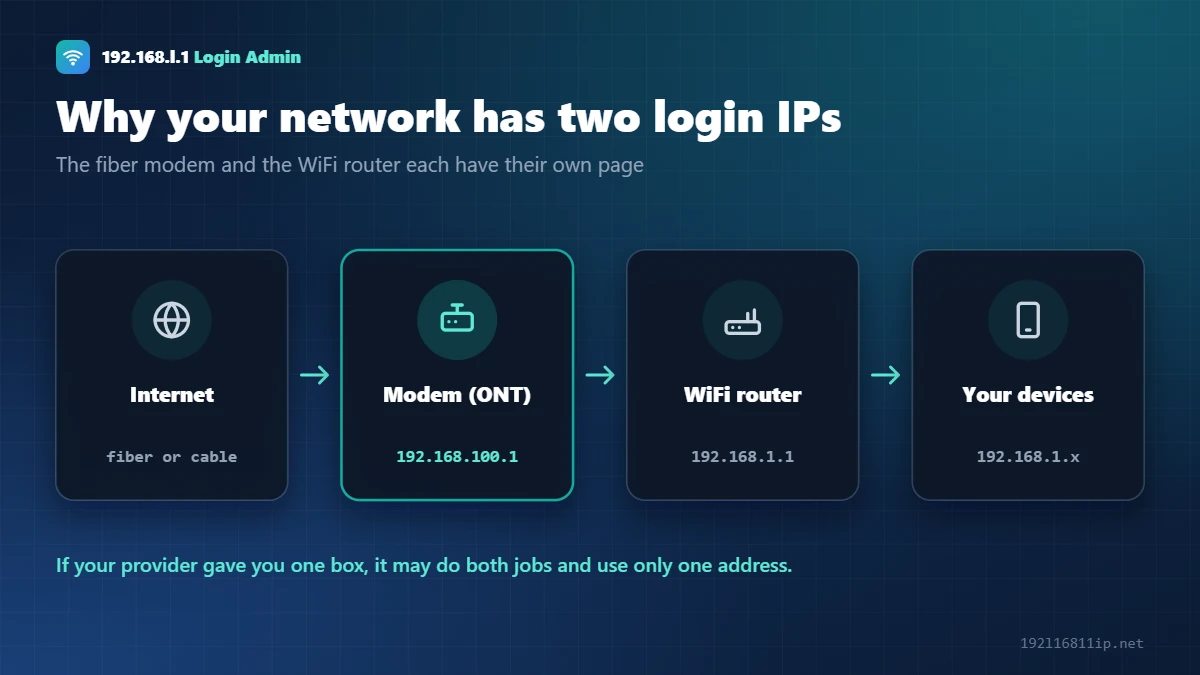
192.168.100.1 is the login address of many fiber modems (ONTs), especially Huawei models, and of most cable modems such as Arris SURFboard. It opens the modem, not your WiFi router. Your router usually has its own page at 192.168.1.1 or 192.168.0.1.
*Internet providers often change the modem login. The label or your provider has the right one.
Quick Answer: How to Log In to 192.168.100.1
- Connect your computer to the modem with a LAN cable, or to the WiFi of the router behind it.
- Type 192.168.100.1 in the browser address bar and press Enter.
- Enter the username and password from the modem label.
- Check the status or change settings, then click Apply or Save.
This guide explains what 192.168.100.1 is, the default modem logins, and what to do when the page will not open. For your WiFi router page, see the 192.168.1.1 login guide.
What Is 192.168.100.1?
192.168.100.1 is a private IP address used by modems. Fiber internet uses an ONT (optical network terminal) that turns the fiber signal into a normal internet connection. Cable internet uses a cable modem. Both often answer on 192.168.100.1.
Many homes have two devices: the modem from the provider and a WiFi router. Each has its own login page and address, which is why one page opens and the other does not.
192.168.100.1 Default Username and Password
Modem logins vary more than router logins because providers customise them. Try the label first.
| Device | Login IP | Username | Password |
|---|---|---|---|
| Huawei fiber modem (ONT) | 192.168.100.1 | root (many models) | admin, or printed on the label |
| Arris SURFboard cable modem | 192.168.100.1 | admin | password |
| Netgear cable modem | 192.168.100.1 | admin | password |
| Provider-managed modem | 192.168.100.1 | set by provider | ask your internet provider |
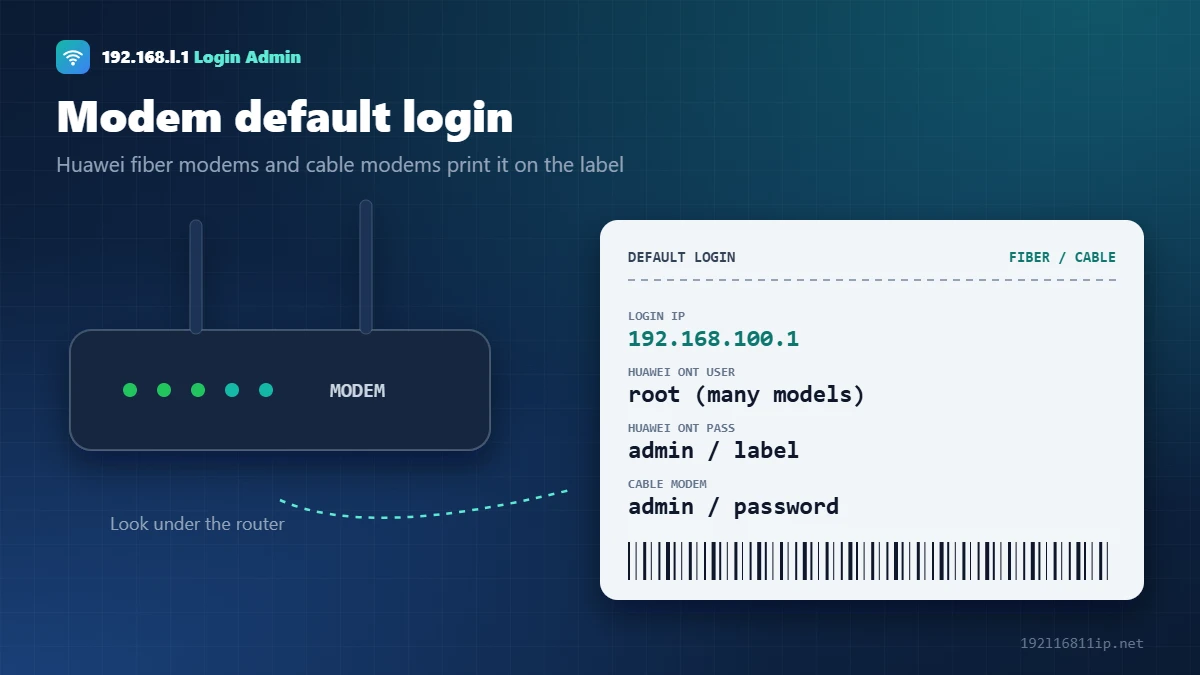
Some providers lock the admin account on their modems. If the label details fail, ask your provider instead of resetting, because a reset can remove your fiber or cable activation.
How to Open 192.168.100.1
- Connect to the modem. A LAN cable from your computer to the modem works best. Many routers also pass the request through to the modem.
- Type the address. Enter http://192.168.100.1 in the address bar.
- Log in. Use the label details or the defaults in the table above.
- Read the status. The status page shows the optical or cable signal, which helps when your internet keeps dropping.
192.168.100.1 Not Opening? 6 Fixes
- Use a cablePlug your laptop straight into a LAN port on the modem and try again.
- Set a manual IPOn your laptop, set IP 192.168.100.2 and subnet 255.255.255.0, then open 192.168.100.1. Switch back to automatic afterwards.
- Check the deviceYour modem may use 192.168.1.1 instead. Look at the label on the modem.
- Use httpType http://192.168.100.1. Many modems do not support https.
- Turn off VPNA VPN sends your traffic away from the local network.
- Restart the modemPower it off for 30 seconds and wait until the lights are stable.
ONT, Modem and Router: What Is the Difference?
Many homes have two boxes, and it helps to know which one you are logging in to:
- ONT (optical network terminal) — the small box where the fiber cable ends. It converts the light signal from your provider into a normal Ethernet connection. Fiber networks of this kind are known as a passive optical network (PON).
- Cable modem — does the same job on coaxial TV-cable connections.
- Router — creates your WiFi network, gives addresses to your phones and laptops, and protects your devices with a firewall.
Some providers supply a single combo unit that does both jobs. In that case one login page controls everything. If you have two separate boxes, the modem page usually lives at this address, while the WiFi router has its own page at an address such as 192.168.1.1 or 192.168.0.1.
Not sure which box you have? Look at the label: fiber units usually mention ONT, GPON or EPON, while cable modems mention DOCSIS.
What You Can See on the Modem Status Page
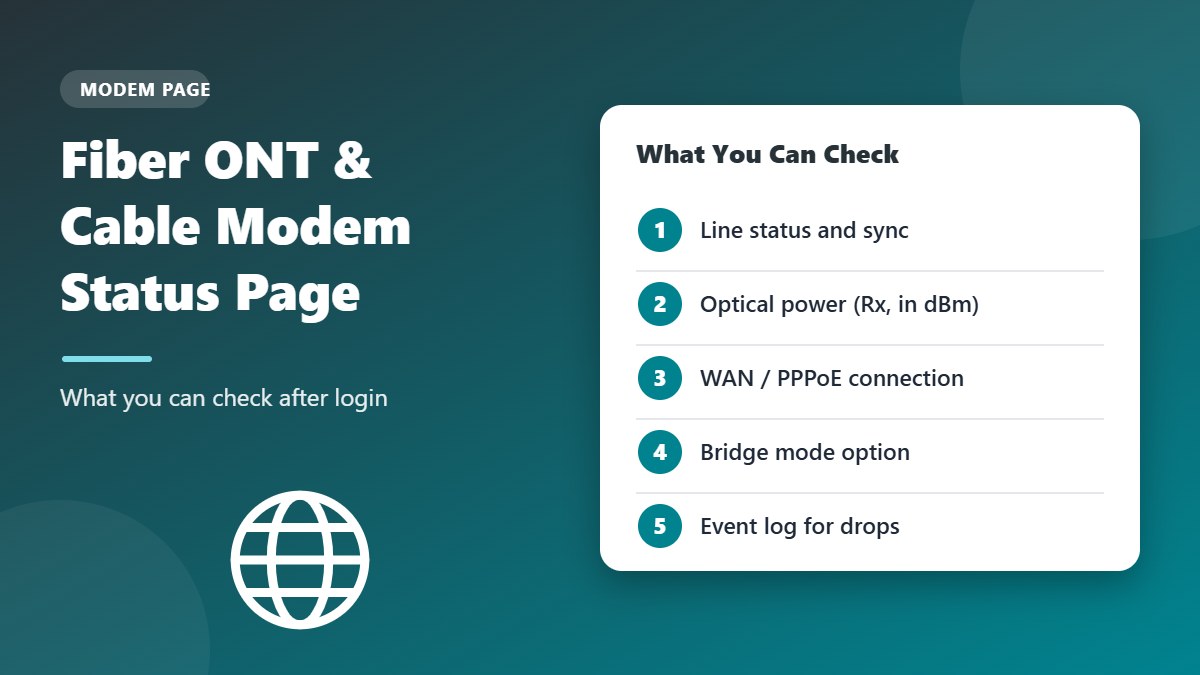
Most fiber ONTs and cable modems show a read-only status page even before you sign in. It is the fastest way to check whether a problem is on the line or inside your home:
- Line or sync status — shows whether the modem is connected to the provider network.
- Optical power (fiber) — the receive power (Rx) is shown in dBm. Most providers consider roughly -8 to -25 dBm normal; a much lower reading often points to a dirty or damaged fiber cable.
- Downstream and upstream channels (cable) — power levels and signal-to-noise ratio for each channel.
- WAN or PPPoE status — whether the internet session is up and which public IP it received.
- Event log — a list of disconnections and errors, useful when you report a problem to your provider.
Tip: take a screenshot of the status page when everything is working normally. Comparing it with a screenshot taken during a problem makes it easy to spot what has changed, such as a sudden drop in optical power.
Bridge Mode: Using Your Own Router
If you want to use your own WiFi router instead of the provider’s combo unit, the modem can usually be switched to bridge mode. In bridge mode the modem only passes the internet connection through, and your own router handles the PPPoE login, WiFi and firewall. This avoids double NAT, which can cause problems with online games, video calls and port forwarding.
On many fiber connections only the provider can enable bridge mode, because the internet settings are locked. Ask your provider before you change it, and keep your PPPoE username and password ready, since you will need to enter them on your own router.
Is the Problem the Modem or the WiFi?
When the internet stops working, a few quick checks tell you where the fault is before you call your provider:
- Look at the modem lights. A red LOS or PON light on a fiber ONT, or a blinking online light on a cable modem, means the line itself is down. Only your provider can fix that.
- Plug a laptop directly into the modem with an Ethernet cable. If the internet works this way, the modem is fine and the issue is your WiFi router.
- Open the status page. If it shows the connection as up but your devices still cannot browse, restart the router and check its WAN settings.
- Test another device. If only one phone or laptop has trouble, the problem is that device, not the network.
Write down what you found. Telling support “the PON light is red” or “the modem status shows connected but WiFi is down” usually gets the problem fixed much faster than “the internet is not working”.
Keep the Modem Safe
- Change the default admin password if your modem allows it.
- Do not change VLAN, WAN or optical settings unless your provider tells you to — a wrong value can take your internet offline.
- Leave the modem in a ventilated spot and avoid bending the fiber cable sharply.
- Restart the modem and router together if the internet drops: turn off the router first, then the modem, and start them in the reverse order.
Should You Change Modem Settings?
Most people only need the modem page to check signal status or to switch it to bridge mode for their own router. Change other settings only if you know what they do. Your WiFi name and password are normally on the router, not the modem. See how to change your WiFi password.
Frequently Asked Questions
What is 192.168.100.1 used for?
It opens the settings page of many fiber modems (ONTs) and cable modems. You can check signal status, connection details and, on some models, WiFi settings.
What is the default password for 192.168.100.1?
Many Huawei fiber modems use root as the username and admin as the password, and most cable modems use admin / password. Providers often change these, so check the label.
Why does 192.168.100.1 not open?
Your device may not be connected to the modem, the modem may use another address, or your provider may have blocked access. Connect with a cable and check the label.
Is 192.168.100.1 the same as 192.168.1.1?
No. 192.168.100.1 usually belongs to the modem, while 192.168.1.1 usually belongs to your WiFi router.
Can I change my WiFi password at 192.168.100.1?
Only if your modem also provides WiFi. Otherwise, change it on your router at 192.168.1.1 or 192.168.0.1.
Related Router Guides
Summary
192.168.100.1 is the login address of many fiber and cable modems. Connect with a cable, open the address and use the details on the label. Your WiFi settings are usually on your router at 192.168.1.1 or 192.168.0.1.