To open your router’s admin panel, change your WiFi password or fix a connection problem, you first need one small piece of information: your router IP address. Most routers use 192.168.1.1 or 192.168.0.1, but many do not — JioFiber uses 192.168.29.1, Xfinity uses 10.0.0.1 and some modems use 192.168.100.1. The good news is that every phone and computer connected to your network already knows the right address. This guide shows you exactly where to find it on Windows, Mac, iPhone, Android, Linux and Chromebook, in under a minute.
What Is a Router IP Address?
Your router IP address is the local address your router uses inside your home network. Every device connected to your WiFi sends its internet traffic through this address, which is why computers and phones call it the default gateway. On iPhones and Macs the same number is simply labelled Router.
Router IP addresses come from special private ranges — usually 192.168.x.x or 10.x.x.x — that only work inside your own network. That is why typing 192.168.1.1 opens your router and not someone else’s. If you want the technical background, the default gateway article on Wikipedia explains how it works.
How to Find Your Router IP Address on Windows
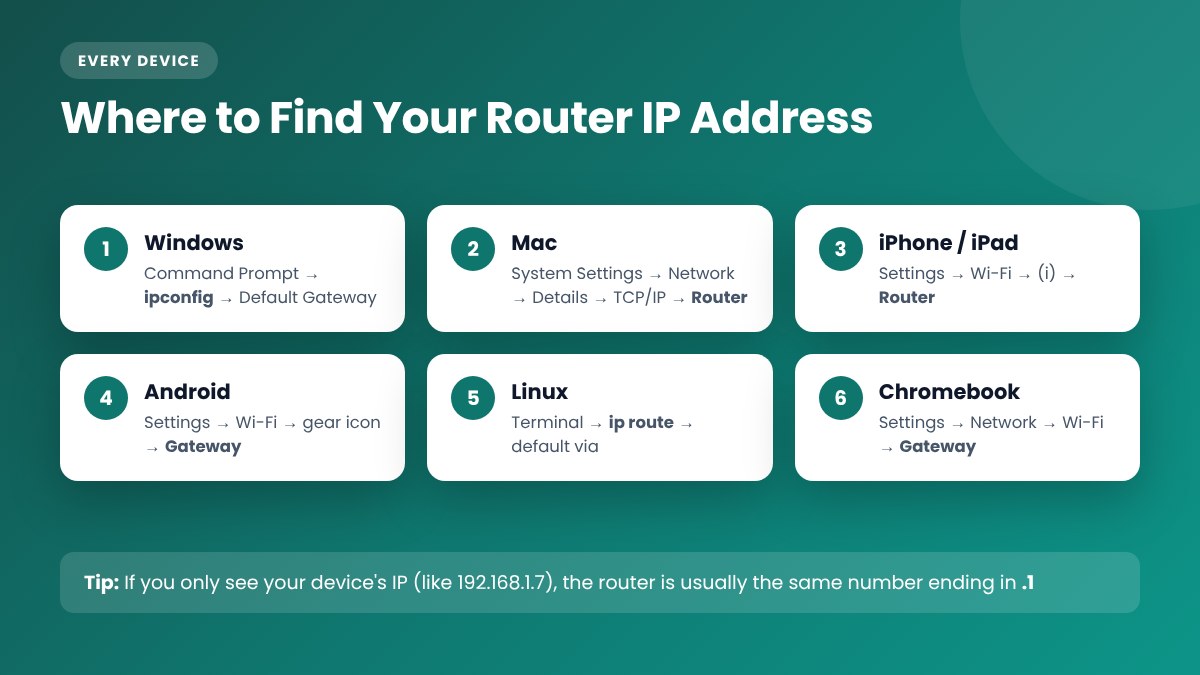
The fastest way on Windows 10 and Windows 11 is the Command Prompt:
- Press the Windows key, type cmd and open Command Prompt.
- Type
ipconfigand press Enter. - Find your active adapter — Wireless LAN adapter Wi-Fi or Ethernet adapter.
- The number next to Default Gateway is your router IP address.
Prefer not to use commands? On Windows 11, open Settings → Network & internet → Advanced network settings → Hardware and connection properties and look for the default gateway line. On Windows 10, go to Settings → Network & Internet → Status → View hardware and connection properties.
How to Find Your Router IP Address on Mac
- Open the Apple menu → System Settings (System Preferences on older macOS).
- Click Network, then select Wi-Fi or Ethernet.
- Click Details… next to the network you are connected to (or Advanced on older versions).
- Open the TCP/IP tab. The address next to Router is your router IP.
You can also open Terminal and run netstat -nr | grep default. The first IP address shown next to “default” is your router.
How to Find Your Router IP Address on iPhone and iPad
- Open Settings and tap Wi-Fi.
- Tap the blue (i) icon next to the network you are connected to.
- Scroll down to the IPv4 Address section. The number next to Router is the address you need.
How to Find Your Router IP Address on Android
Android menus vary a little between brands such as Samsung, Xiaomi, Oppo, Vivo and Google Pixel, but the steps are similar:
- Open Settings and go to Wi-Fi (or Network & internet → Internet, or Connections → Wi-Fi).
- Tap the gear icon or the name of the network you are connected to.
- Look for Gateway or Router. On some phones you need to tap Advanced, View more or Network details first.
If your phone only shows its own IP address (for example 192.168.1.7 or 192.168.0.104), your router is almost always the same number ending in .1 — so 192.168.1.1 or 192.168.0.1. Try that address first.
How to Find Your Router IP Address on Linux and Chromebook
On Linux, open a terminal and run ip route | grep default. The address after “default via” is your router. On a Chromebook, click the time in the corner, open Settings → Network → Wi-Fi, click your connected network and look for Gateway in the network details.
Check the Router Label or Your Internet Provider’s App
If you cannot use a connected device, turn the router over. Most routers have a sticker on the bottom or back that lists the default login address, the admin username and password, and the default WiFi name and password. Some brands print a web address such as tplinkwifi.net, routerlogin.net or tendawifi.com instead of a number — it opens the same login page.
Many internet providers also show router details in their mobile apps, such as the MyJio app for JioFiber or the Xfinity app. Remember that the label shows the factory address. If someone changed the router IP later, the device method above is more reliable.
Default Router IP Addresses by Brand
Use this table as a quick starting point. If an address does not work, check your device as shown above. For usernames and passwords, see our default router password list.
| Brand or provider | Common router IP address |
|---|---|
| TP-Link | 192.168.0.1 or 192.168.1.1 (tplinkwifi.net) |
| Netgear | 192.168.1.1 (routerlogin.net) |
| D-Link | 192.168.0.1 |
| Tenda | 192.168.0.1 (tendawifi.com) |
| Asus | 192.168.1.1 (router.asus.com) |
| Linksys | 192.168.1.1 |
| Xiaomi | 192.168.31.1 (miwifi.com) |
| Digisol, Belkin, Edimax | 192.168.2.1 |
| Huawei and fiber modems | 192.168.1.1, 192.168.3.1 or 192.168.100.1 |
| JioFiber | 192.168.29.1 |
| Airtel Xstream Fiber | 192.168.1.1 |
| Xfinity (Comcast) | 10.0.0.1 |
Router IP Address vs Public IP Address
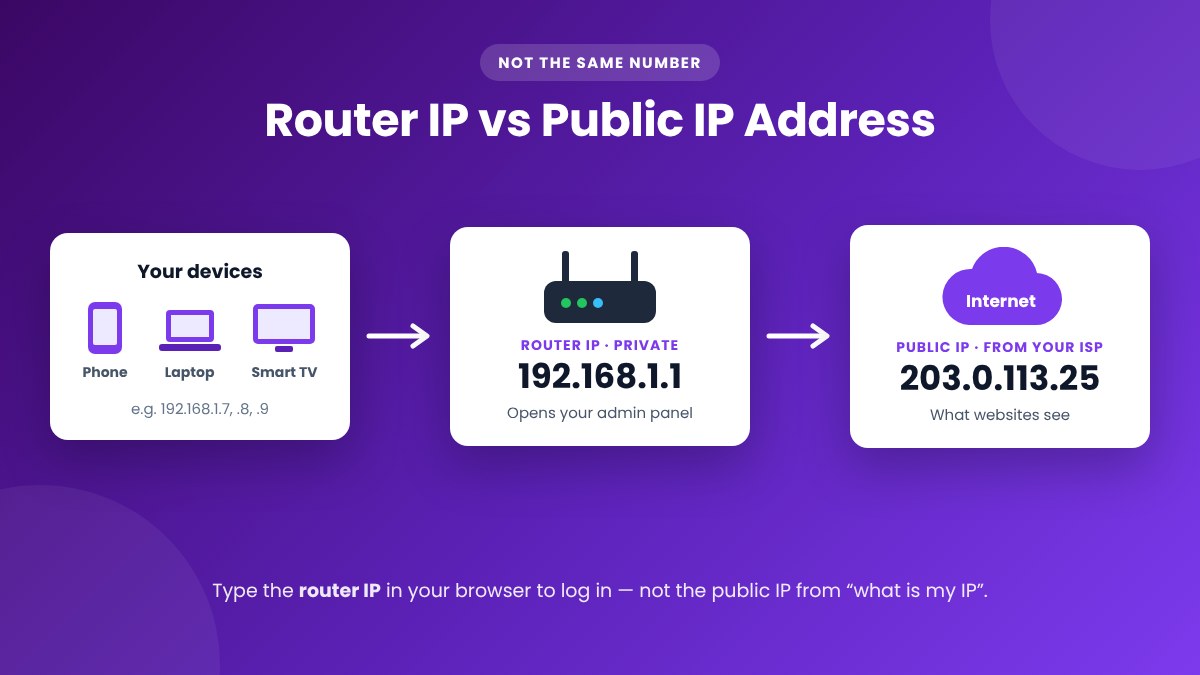
People often confuse these two. Your router IP address (private IP) only works inside your home and is used to open the admin panel. Your public IP address is the address your internet provider gives your connection, and it is what websites see when you browse. Searching “what is my IP” on Google shows your public IP — typing that number into your browser will not open your router’s login page.
What to Do After You Find Your Router IP Address
- Stay connected to your router’s WiFi or plug in an Ethernet cable.
- Open Chrome, Edge, Safari or Firefox and type the address into the address bar — not the Google search box — for example
http://192.168.1.1. - Enter the admin username and password from the router label. Our 192.168.1.1 admin login guide walks through this step in detail.
- Once inside, you can change your WiFi password and network name or secure your WiFi network.
Router IP Address Not Working? Quick Fixes
- Check for typos. It is 192.168.1.1 with the number one — not “192.168.l.1” with a letter L, and 192.168.0.1 with a zero, not the letter O.
- Turn off mobile data on your phone so the page loads through your WiFi.
- Disconnect any VPN — it can send your browser outside your home network.
- Try http:// instead of https://, another browser, or a private window.
- Check for a second router or mesh system. If your WiFi router sits behind an ISP modem, the gateway shown on your device belongs to the router you are connected to.
- Restart the router and try again. If you are locked out completely, follow our router reset guide to return it to factory settings.
Frequently Asked Questions
Is the default gateway the same as the router IP address?
Yes. On a normal home network, the default gateway shown on your phone or computer is your router’s IP address. iPhones and Macs label it “Router” instead.
Can I find my router IP address without a computer?
Yes. Any phone connected to your WiFi shows it in the network details, and the sticker on the router lists the default address.
Why is my router IP address different from 192.168.1.1?
Each manufacturer and internet provider chooses its own default, and you or your technician can change it in the router’s LAN settings. That is why some routers use 192.168.0.1, 192.168.29.1 or 10.0.0.1.
Can I change my router IP address?
Yes. Most routers let you change it under LAN or Network settings. After saving, you must log in again using the new address, so write it down first.
Is it safe to share my router IP address?
Your private router IP is not secret — millions of homes use the same 192.168.1.1 address, and it cannot be reached from the internet. What you should never share is your router admin password or WiFi password.
Final Thoughts
Finding your router IP address takes less than a minute: run ipconfig on Windows, check Router in the Wi-Fi details on a Mac or iPhone, or look for Gateway on Android. Once you have it, you can log in to your router, update your WiFi password and keep your network secure. Bookmark this page so you have the steps ready the next time you need them.
One Comment