Forgetting your router password is more common than you think — and it doesn’t mean you need a new router. Whether you’ve lost the admin password for the router’s settings page or the WiFi password your devices use to connect, this guide shows you how to recover it first and, if that doesn’t work, how to safely reset your router to factory settings and set it up again.
First: Which Router Password Did You Forget?
| Password | What it does | Can it be recovered without a reset? |
|---|---|---|
| WiFi password (network key) | Lets phones, laptops and other devices join your wireless network | Usually yes — from any device that is already connected |
| Admin password | Lets you log in to the router’s settings at an address like 192.168.1.1 | Only if it’s still the default or saved in your browser; otherwise a reset is needed |
Try These Before Resetting
1. Check the router label
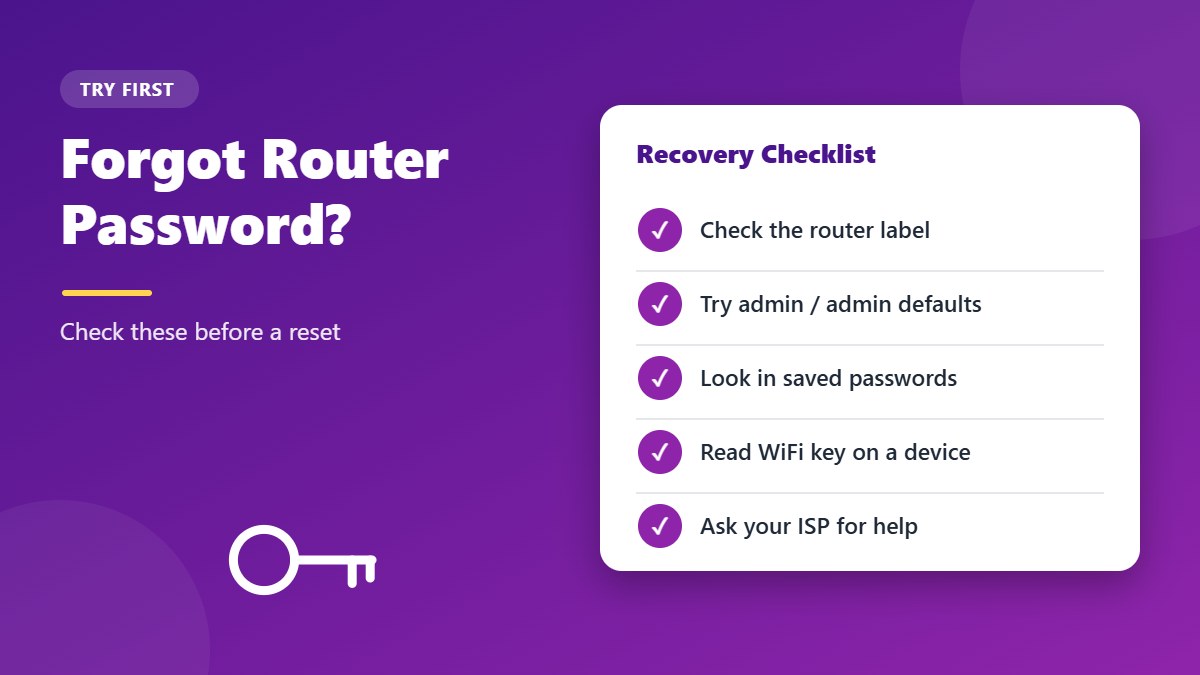
Look at the sticker on the bottom or back of the router. It usually shows the default username and router password and the default WiFi name and password. If nobody changed them, you can log in straight away using our 192.168.1.1 login guide.
2. Try common default logins
Common factory combinations include admin / admin, admin / password, and admin / (blank). Many newer routers use a unique router password printed on the label instead.
3. Check your saved router password
If you’ve logged in before, your browser or password manager may have saved the router password. Search the saved passwords for your router’s IP address (for example, 192.168.1.1).
4. Recover the WiFi password from a connected device
- Windows: Open Command Prompt and run
netsh wlan show profile name="YourNetworkName" key=clear. The password appears next to Key Content. - Mac: Open the Passwords app (macOS Sequoia and later) or Keychain Access on older versions, search for your network name, and reveal the password.
- iPhone/iPad (iOS 16+): Go to Settings → Wi-Fi, tap the (i) next to your network, then tap Password.
- Android (10+): Go to Settings → Wi-Fi, tap your network, then tap Share. After verifying, the phone shows a QR code and, on most phones, the password underneath.
If you recovered the WiFi password but still don’t know the router password for the admin page, or none of the above worked, a factory reset is the way to go.
What a Factory Reset Does
A factory reset erases all custom settings and returns the router to the way it came out of the box. That includes:
- Your WiFi network name and password
- The admin username and router password
- Port forwarding, parental controls, and guest network settings
- Your internet login details (PPPoE username and password) if your connection uses them
Important: Many DSL and fiber connections need a PPPoE username and password from your internet service provider (ISP). Before resetting, find these details on your ISP documents or ask your ISP’s helpline — without them, your internet may not work after the reset.
Note: A reset is not the same as a restart. Restarting (switching the router off and on) keeps all your settings; resetting wipes them.
How to Reset Your Router (Step by Step)
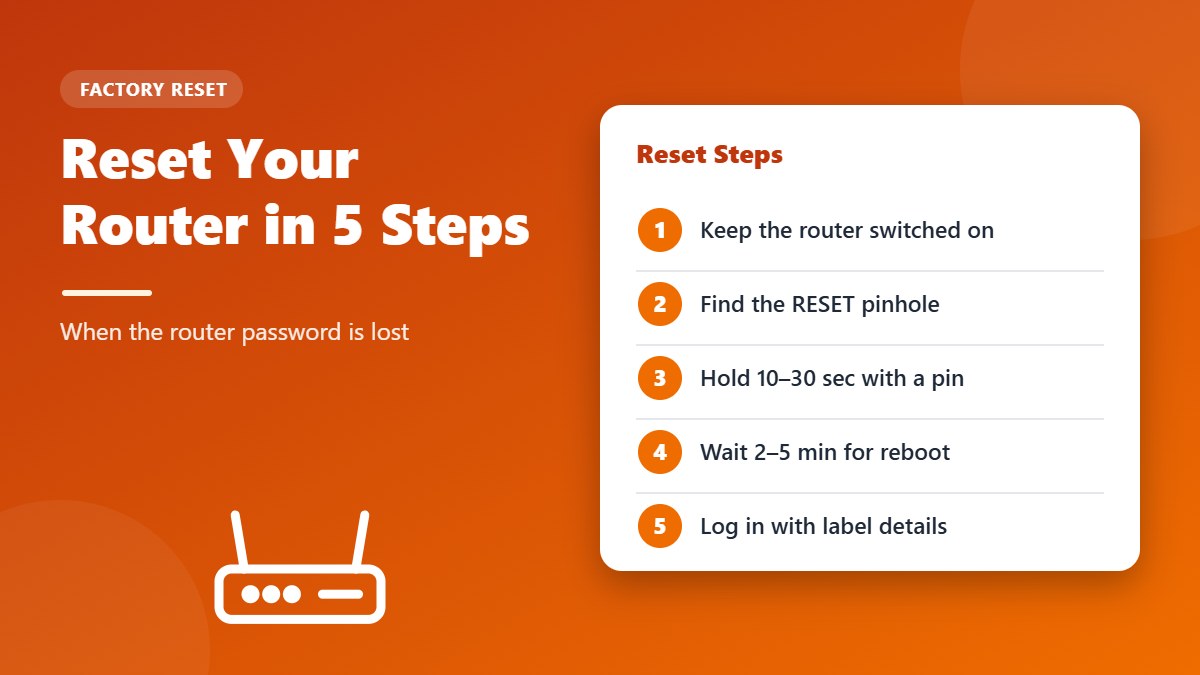
- Keep the router powered on. The reset button only works while the router is on.
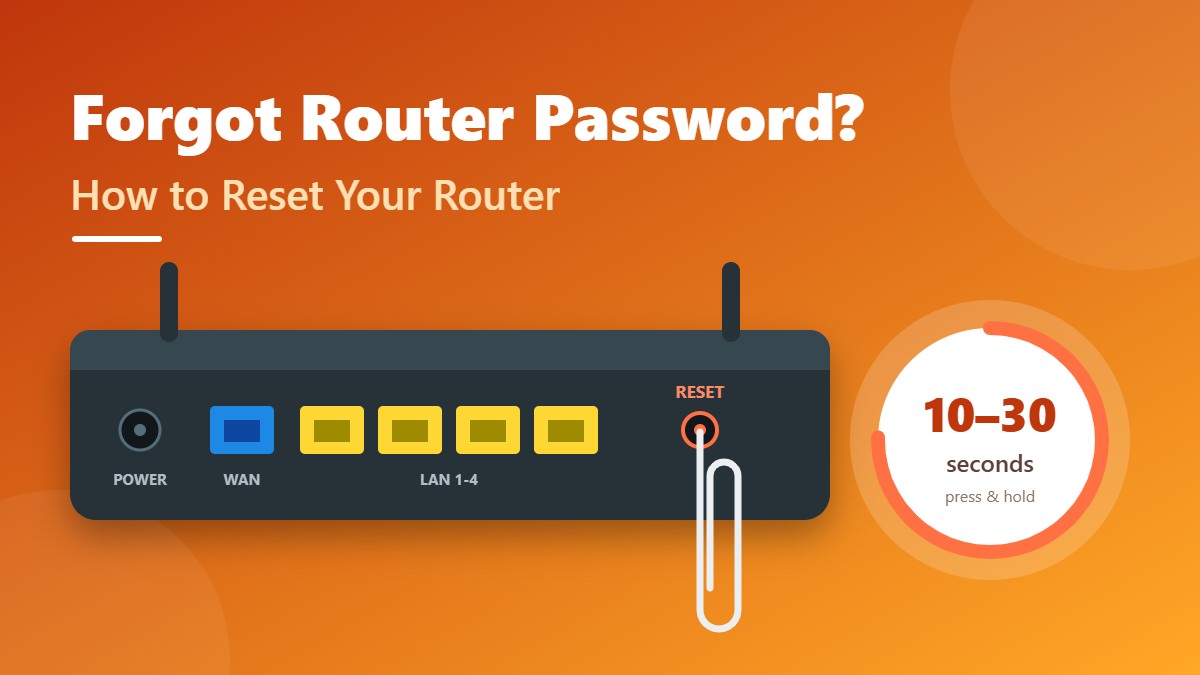
- Find the reset button. It’s usually a small pinhole on the back labeled RESET. On some models it shares a button with WPS (labeled WPS/RESET).
- Press and hold it. Use a straightened paperclip or SIM-eject pin and hold the button for about 10–30 seconds, until the lights blink or change. Check your router’s manual for the exact time.
- Release and wait. The router will restart. Give it 2–5 minutes to fully boot up.
- Connect to the default network. Join the WiFi name printed on the label using its default password, or plug in with an Ethernet cable.
- Log in with the default credentials. Open a browser, go to the router IP address (such as 192.168.1.1), and sign in with the default username and password from the label.
- Set it up again. Run the setup wizard, enter your ISP details if needed, and create a new router password.
Some older guides mention a “30-30-30” reset method. Most modern routers don’t need it — a single press-and-hold is enough.
Reset from the admin panel
If you can still log in, you can reset without the button. Look for System Tools, Administration, Maintenance, or Backup & Restore, then choose Factory Reset or Restore Defaults. Consider saving a backup of your settings first.
Default Router Password Not Working After a Reset?
If the label login still fails after a reset, the reset probably did not complete. Work through these checks:
- Hold the button longer. Some models need the full 30 seconds, and the lights should flash or go off before you release it.
- Wait for a full reboot. Try logging in only after the power and internet lights have settled, which can take up to five minutes.
- Check the IP address. After a reset the router returns to its factory address, which may be different from the one you used before.
- Clear your browser cache or use a private window so the browser does not autofill an old router password.
- Contact the manufacturer or your ISP if nothing works. Some ISP routers use a custom login that only the provider can give you.
Once you are back in, write the new login details down straight away and save a fresh backup of your settings. It takes less than a minute and saves you from repeating the whole reset process the next time a password slips your mind.
After the Reset: Setup Checklist
- Create a new strong admin password (different from your WiFi password).
- Set your WiFi name and a strong password — see How to Change Your WiFi Password and Name.
- Choose WPA3 or WPA2-AES encryption.
- Re-enter your ISP / PPPoE settings if your connection needs them.
- Update the firmware to the latest version.
- Work through our WiFi security checklist.
- Write your new passwords down and keep them somewhere safe, or store them in a password manager.
How to Avoid Losing Your Router Password Again
A reset fixes the problem, but it also wipes your settings. These simple habits make sure you never have to do it again:
- Save it in a password manager. Store the router password, the WiFi password, and your ISP login details together in one secure entry.
- Keep a paper copy somewhere safe. A note in a drawer is fine — just don’t stick it on the router itself.
- Back up your settings. Most routers can export a configuration file from the admin panel. Restoring it after a reset brings back all your settings in seconds.
- Use a memorable passphrase. A long phrase made of several random words is easier to remember than a short jumble of symbols, and it is just as strong.
If several people manage the network at home, agree on where the router password is kept so nobody has to guess it or reset the router by mistake.
Router From Your Internet Provider?
If your ISP supplied the router, it may use custom firmware or settings that the ISP manages remotely. Before resetting, contact your ISP — they can often reset the password for you or send you the correct configuration details so your internet keeps working.
Frequently Asked Questions
How long should I hold the reset button?
Usually 10–30 seconds, until the router’s lights flash. The exact time varies by brand, so check the manual or the manufacturer’s support page.
Will a factory reset delete my internet connection?
It deletes the router’s configuration. If your connection uses PPPoE login details, you’ll need to enter them again before the internet works. Connections that obtain settings automatically (DHCP) usually work right after the reset.
Can resetting fix slow or unstable internet?
Sometimes. A reset clears incorrect settings, but if the problem is with your ISP line or the router’s hardware, a reset won’t help. Try a simple restart first.
Is it safe to reset my router?
Yes — it won’t damage the router. Just make sure you have your ISP login details and are ready to set up your WiFi again.
Where can I find the default router password?
The default router password is printed on the sticker on the bottom or back of the router, often next to the WiFi name and WiFi key. If the sticker is missing, check the quick-start guide that came in the box or the support page for your router model on the manufacturer’s website.
Is it risky to keep the default router password?
Yes. Default logins such as admin / admin are published online, so anyone who joins your network could open the admin panel and change your settings. Always replace the default router password with a long, unique one after setup.
Conclusion
If you’ve forgotten your router password, start with the label, saved passwords, and a connected device. If that fails, a factory reset will get you back in within minutes. Just collect your ISP login details first, hold the reset button for 10–30 seconds, log in with the default credentials, and set new, strong passwords so you’re in control of your network again.