If you want to change your WiFi password, see who is connected to your network, or adjust your router’s settings, the first step is logging in to your router’s admin panel. For millions of home routers, that panel lives at 192.168.1.1. In this guide, you’ll learn exactly how to access 192.168.1.1, which default username and password to try, how to find your router’s IP address, and what to do if the login page won’t open.
What Is 192.168.1.1?
192.168.1.1 is a private IP address that many router manufacturers assign to their devices by default. It belongs to the 192.168.0.0 – 192.168.255.255 private address range, which is reserved for local networks and cannot be reached directly from the public internet.
When your router uses 192.168.1.1, that address acts as the default gateway for every device on your home network. Typing it into a web browser opens the router’s built-in web interface — often called the admin panel, admin page, or router dashboard — where all of its settings live.
Brands that commonly use 192.168.1.1 include Linksys, ASUS, many Netgear models, some TP-Link models, and a large number of routers supplied by internet service providers. Other common defaults are 192.168.0.1, 192.168.10.1 and 10.0.0.1.
Before You Start
- Connect to the router’s network using WiFi or, better, an Ethernet cable. You can’t open 192.168.1.1 over mobile data or from a different network.
- Check the router label. Most routers have a sticker on the bottom or back listing the default IP address, admin username, admin password, and WiFi details.
- Use any web browser — Chrome, Edge, Firefox, or Safari all work, on a computer or a phone.
How to Log In to 192.168.1.1 (Step by Step)
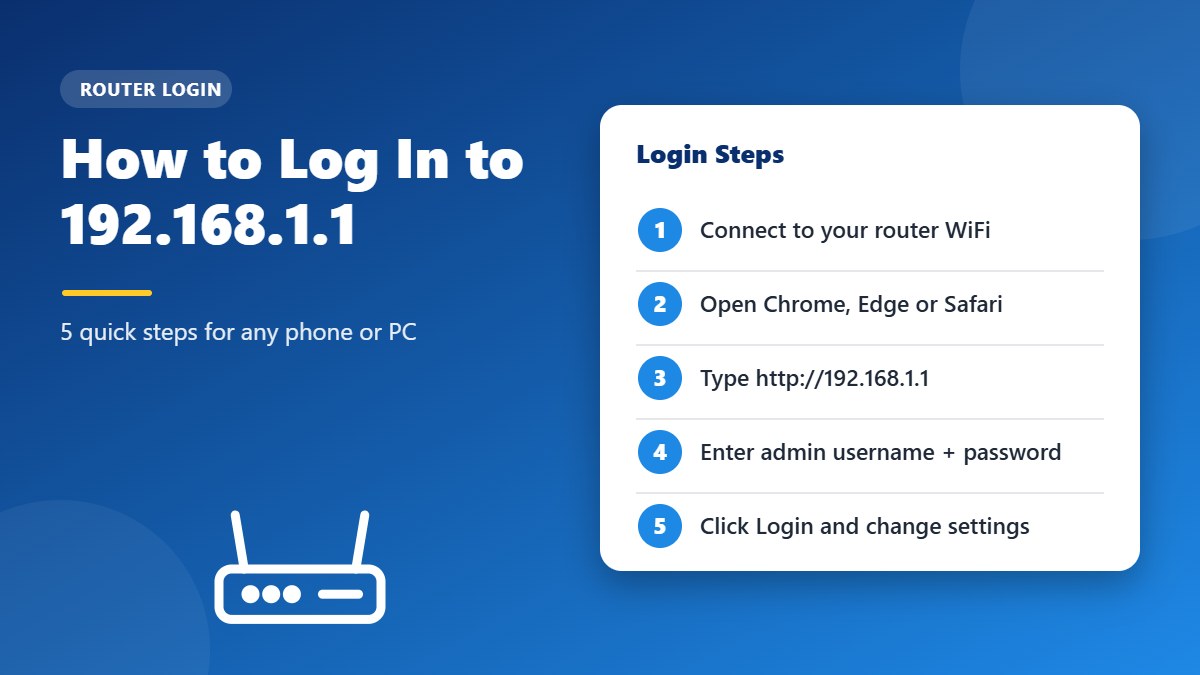
- Open a web browser on a device that is connected to your router.
- Type
http://192.168.1.1into the address bar (not the search box) and press Enter. - Enter the admin username and password. If you’ve never changed them, use the defaults printed on the router label or listed in the table below.
- Click Login. You’ll now see the router’s admin dashboard, where you can change WiFi settings, security options, and more.
- Change the default admin password right away if you’re still using the factory one — it’s one of the simplest ways to protect your network.
Tip: Type numbers only. A very common mistake is typing 192.168.l.1 (with a lowercase letter “L”) or 192.168.1.l instead of the number “1”. These typos won’t open your router — the correct address is 192.168.1.1.
Default Usernames and Passwords for 192.168.1.1
If you haven’t changed your login details, try the defaults below. Keep in mind that many newer routers ship with a unique password printed on the label, or ask you to create one during first-time setup, so always check the sticker first.
| Brand | Default Username | Default Password |
|---|---|---|
| Linksys | admin (or blank) | admin |
| ASUS | admin | admin |
| Netgear | admin | password |
| TP-Link | admin | admin (newer models ask you to create one) |
| D-Link | admin | (leave blank) |
| ISP-supplied routers | See the router label | See the router label |
If none of these work, the password has probably been changed. You can regain access by resetting the router to factory settings — see our guide: Forgot Router Password? How to Reset Your Router.
How to Find Your Router’s IP Address
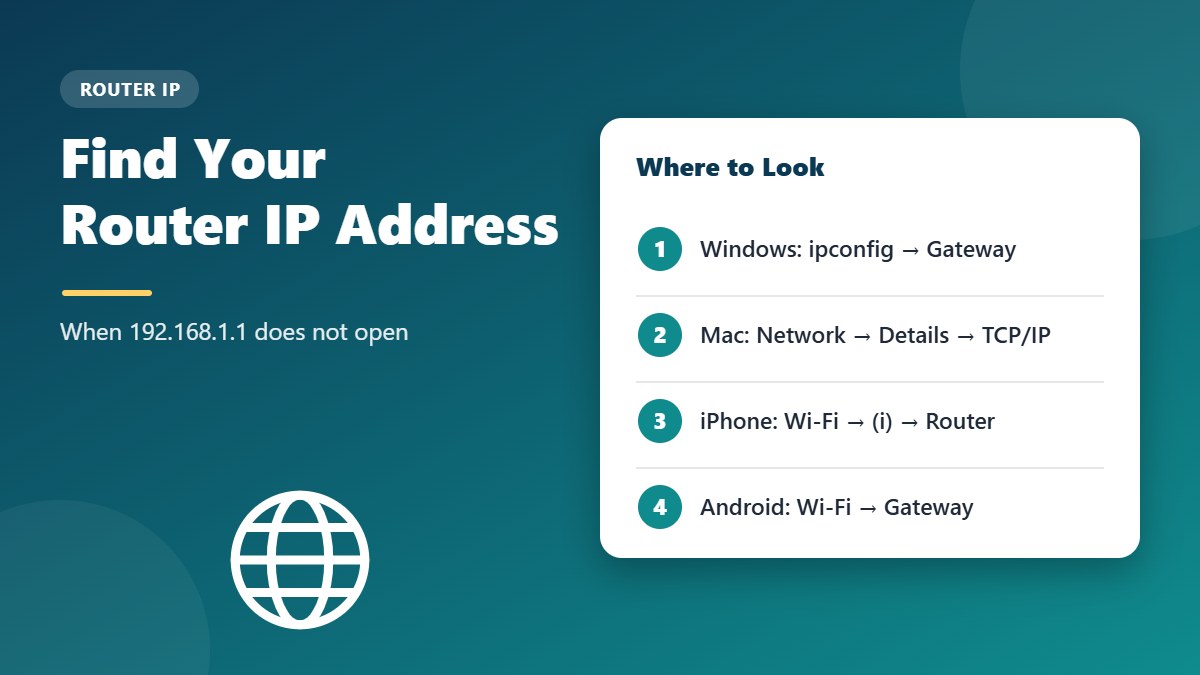
If 192.168.1.1 doesn’t open anything, your router may use a different address. Here’s how to find the correct one — it’s usually labeled Default Gateway or Router.
Windows
Press Windows + R, type cmd and press Enter. In the Command Prompt, type ipconfig and press Enter. Look for Default Gateway under your active network adapter.
macOS
Open System Settings → Network, select your Wi-Fi or Ethernet connection, click Details, then open the TCP/IP tab. The address next to Router is your gateway.
iPhone and iPad
Go to Settings → Wi-Fi, tap the (i) icon next to your connected network, and look for Router.
Android
Open Settings → Network & internet (or Connections → Wi-Fi), tap your connected network, and look for Gateway or Router. Menu names vary by phone brand, and on some phones you’ll need to tap Advanced or View more to see it.
How to Change the 192.168.1.1 Admin Password
The default admin password is the first thing you should change after logging in. Anyone connected to your WiFi who knows the factory password could open the admin panel and change your settings.
- Log in at 192.168.1.1 with your current username and password.
- Open System Tools, Administration, Management, or Maintenance — the name depends on your router brand.
- Find the Router Password, Admin Password, or Change Password option.
- Enter the old password, then type a new password of at least 12 characters twice.
- Click Save. You will be logged out, so sign in again with the new password.
Keep the new admin password in a password manager. If you ever forget it, the only way back in is a factory reset, which erases all of your settings.
192.168.1.1 vs 192.168.0.1: What Is the Difference?
Both are private IP addresses used as default gateways, and both open the same kind of admin panel. The only difference is the address range the manufacturer picked: a router on the 192.168.1.x range hands out addresses such as 192.168.1.2 to 192.168.1.254, while a router at 192.168.0.1 uses the 192.168.0.x range. Neither one is faster or more secure than the other.
If one address does not work, try the other — or check the default gateway on your device as explained above. You can also read our 192.168.0.1 login guide and the full default router password list.
What You Can Do After Logging In
- Change your WiFi network name (SSID) and password — see How to Change Your WiFi Password and Network Name
- Change the router’s admin password
- See which devices are connected and block unknown ones
- Update the router firmware
- Set up a guest network and parental controls
- Configure port forwarding, DNS and DHCP settings
- Harden your network with our WiFi security checklist
First-Time Setup Checklist After You Log In
Once you can reach the admin panel, spend five minutes on these settings. They fix the most common problems before they happen and make your home network noticeably safer.
- Set a new admin password so nobody else can change your router settings.
- Rename your WiFi network to something that does not reveal your name, address, or router model.
- Choose WPA2 or WPA3 security and set a long WiFi password — see our WiFi password guide.
- Check for a firmware update and turn on automatic updates if your router offers them.
- Turn off WPS and remote management unless you really need them.
- Create a guest network for visitors and smart-home gadgets.
- Write down your settings or save a backup file from the admin panel, so you can restore them quickly after a reset.
If you share the internet connection with family members, it is also worth looking at the parental controls and the list of connected devices. Most routers let you pause internet access for a device, set bedtime schedules, or block unknown phones and laptops with a single click.
192.168.1.1 Not Opening? Quick Fixes
- Check your connection. Make sure your device is connected to the router’s WiFi or plugged in with a cable.
- Confirm the IP address. Your router may use 192.168.0.1 or another address — use the steps above to find it.
- Type it correctly. Enter
http://192.168.1.1, numbers only, in the address bar. - Turn off VPN or proxy apps temporarily, as they can block access to local addresses.
- Try another browser or a private/incognito window, or clear your browser cache.
- Restart the router by unplugging it for 30 seconds, then plugging it back in.
- Use a wired connection with an Ethernet cable if your WiFi is unstable.
Frequently Asked Questions
Is it safe to log in to 192.168.1.1?
Yes. 192.168.1.1 is a local address on your own network, so the login page is served by your router, not by a website on the internet. Just make sure you change the default admin password so nobody else on your network can log in.
Can I access 192.168.1.1 from my phone?
Yes. Connect your phone to the router’s WiFi, open any browser, and type 192.168.1.1 in the address bar. Many router brands also offer a mobile app for managing settings.
Why does my browser show a “connection is not private” warning?
Some routers use a self-signed security certificate for their HTTPS login page. If you’re sure you typed your router’s local address while connected to your own network, this warning is expected. You can also try the plain http:// address instead.
Is the admin password the same as my WiFi password?
No. The admin password protects the router’s settings page, while the WiFi password (also called the network key or passphrase) is what devices use to join your wireless network. They should always be different.
Conclusion
Logging in to 192.168.1.1 takes less than a minute: connect to your network, type the address in your browser, and enter your admin credentials. Once you’re in, take a few minutes to change the default password, update the firmware, and review your WiFi security — your network will be safer and easier to manage.
One Comment