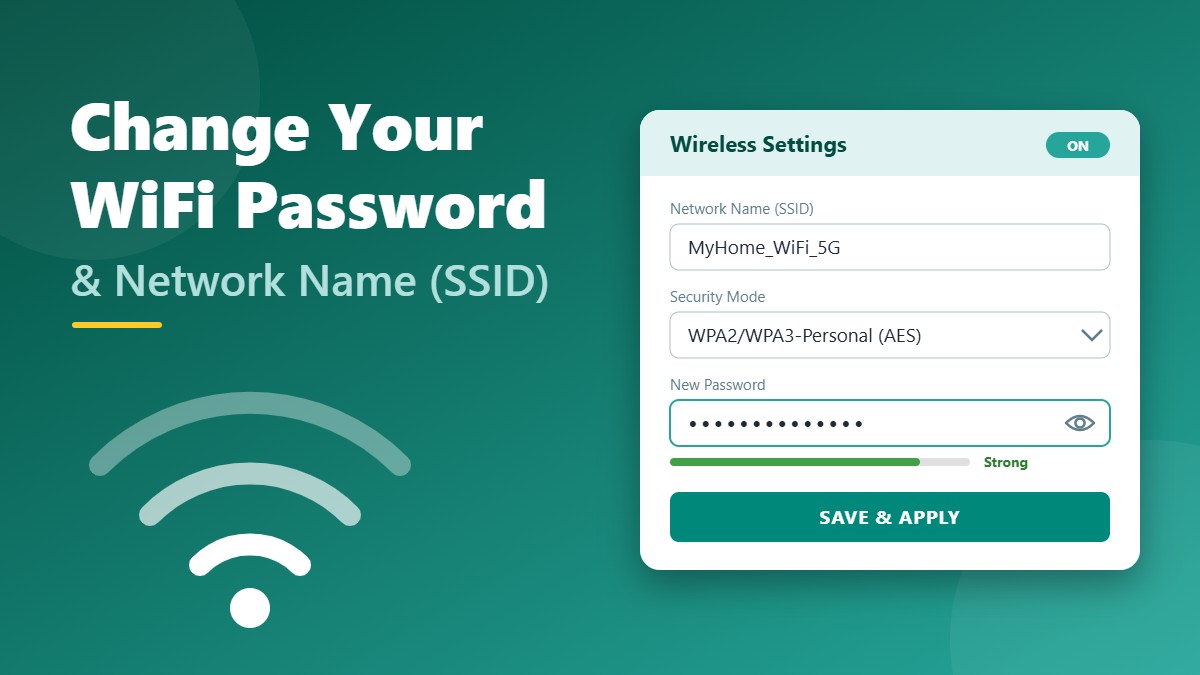
Your WiFi password is the front door to your home network. If you’re still using the default password printed on the router, shared it with too many guests, or suspect a neighbour is using your internet, it’s time to change it. The good news: changing your WiFi password and network name (SSID) takes about five minutes. This guide walks you through every step, with tips for choosing a strong password and fixing problems afterwards.
Why You Should Change Your WiFi Password
- Default passwords are a risk. The password on the router sticker is visible to anyone who sees the device.
- Stop freeloaders. Unknown users slow down your internet and could misuse your connection.
- Remove old access. Former roommates, guests, and old devices keep access until you change the password.
- Better security. It’s a good moment to switch to modern encryption like WPA3 or WPA2-AES.
Before You Start
- Use a computer connected with an Ethernet cable if possible. When you change the WiFi password, every wireless device — including the one you’re using — will be disconnected.
- Know your router’s admin login details. If you don’t, read our 192.168.1.1 admin login guide first.
- Decide on your new network name and password in advance and write them down somewhere safe.
How to Change Your WiFi Password and Name (Step by Step)
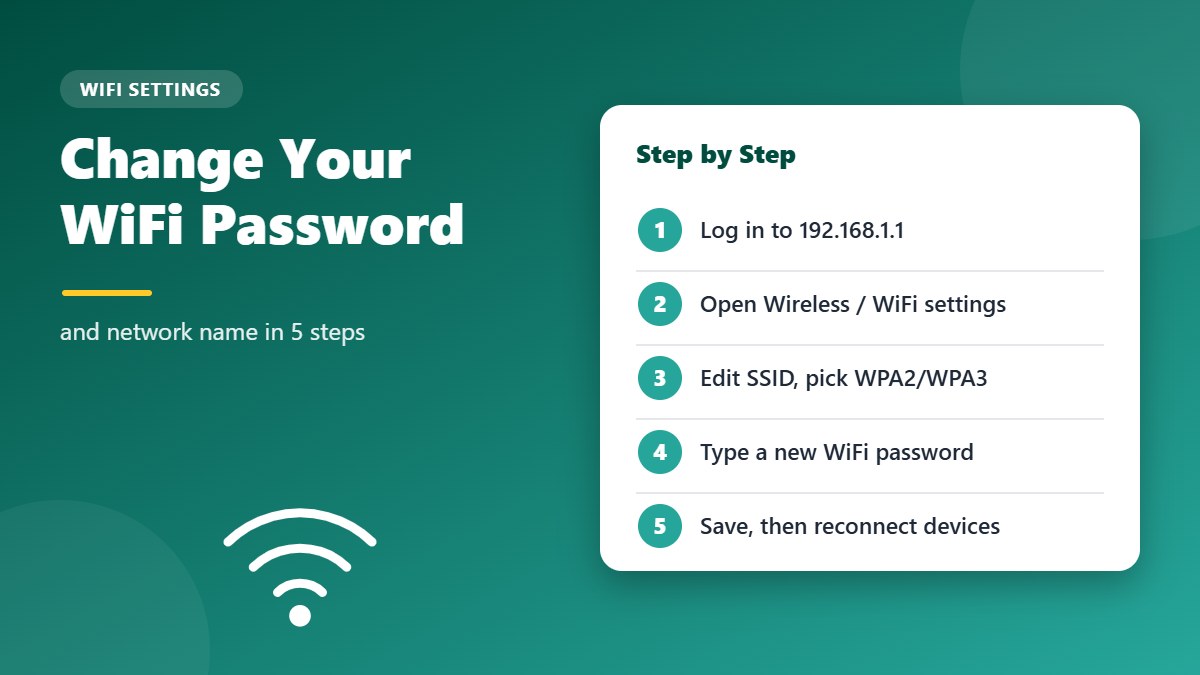
- Log in to your router. Open a browser and go to your router’s IP address (commonly
192.168.1.1or192.168.0.1), then enter the admin username and password. - Open the wireless settings. Look for a menu named Wireless, WiFi, WLAN, or Wireless Settings. On some routers it’s under Advanced or Basic Settings.
- Change the network name (SSID). Find the field called Network Name, SSID, or Wireless Name and type your new name.
- Choose the security mode. Select WPA3-Personal if all your devices support it, or WPA2/WPA3-Personal (mixed) for the best compatibility. If only WPA2 is available, choose WPA2-PSK with AES. Avoid WEP and WPA/TKIP.
- Enter your new password. It may be called Password, Passphrase, Pre-Shared Key, WPA Key, or Network Key.
- Save the changes. Click Save or Apply. The router may restart its wireless radio, which takes a minute.
- Reconnect your devices. Select the new network name on each device and enter the new password.
Don’t Forget Both Bands
Most modern routers broadcast two or three networks: 2.4 GHz, 5 GHz, and sometimes 6 GHz. If your router shows separate settings for each band, change the name and password on every band. If it has a Smart Connect or band steering option, you can use a single name and password for all bands.
Where to Find WiFi Settings on Popular Routers
Menu names differ between models and firmware versions, but these are the usual places to look:
| Router Brand | Typical Menu Path |
|---|---|
| TP-Link | Wireless → Wireless Security, or Advanced → Wireless → Wireless Settings |
| Netgear | Wireless (or Basic → Wireless) |
| Linksys | Wireless → Wireless Security, or WiFi Settings in Smart WiFi |
| ASUS | Wireless → General |
| D-Link | Setup → Wireless Settings, or Settings → Wi-Fi |
| ISP routers | Usually WLAN, Wireless, or Network → WiFi |
Changing WiFi Password with a Mobile App
Many newer routers and mesh systems are managed through an app instead of a browser — for example TP-Link Tether or Deco, the NETGEAR Nighthawk or Orbi app, the Linksys app, the ASUS Router app, and the Google Home app for Nest Wifi. Open the app, go to the WiFi or Wireless section, edit the name and password, and save.
How to Create a Strong WiFi Password
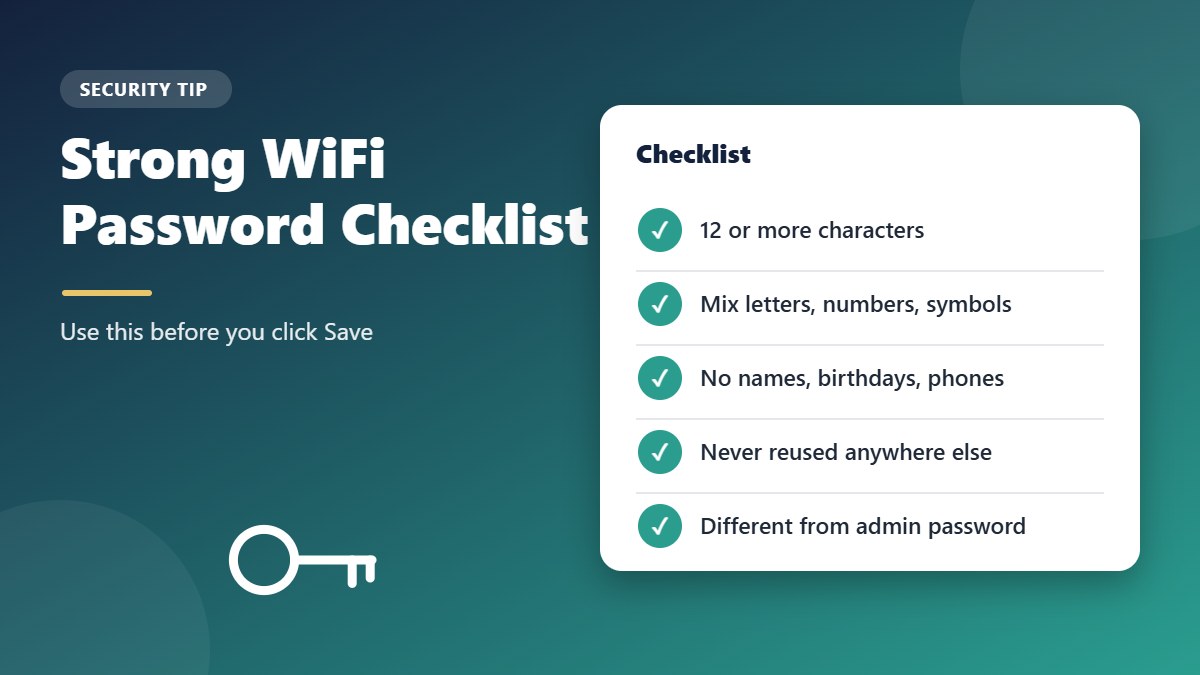
- Use at least 12–16 characters. Longer is stronger.
- Mix uppercase and lowercase letters, numbers, and symbols.
- Consider a passphrase — several random words joined together, like Mango-River-Lamp-74 (don’t use this exact example).
- Avoid personal details such as names, birthdays, phone numbers, or your address.
- Never reuse your router admin password or an email/bank password as your WiFi password.
Why WPA3 matters: WPA3 makes it much harder for attackers to guess your WiFi password offline, because every guess has to be tried live against your router. You can read more about how WiFi encryption has changed over the years in the Wi-Fi Protected Access article.
What if my router has no WPA3 option?
Older routers may only offer WPA2. That is still fine for home use as long as you choose WPA2-PSK with AES (sometimes shown as CCMP) and set a long WiFi password. If your router only offers WEP or WPA with TKIP, it is time to upgrade — those options can be broken quickly.
Tips for Choosing a Network Name (SSID)
- Don’t include your name, flat number, or address.
- Avoid showing the router brand or model, which can help attackers look up known weaknesses.
- Pick something unique so you don’t confuse it with neighbouring networks.
- Hiding your SSID is not real security — it only makes connecting harder for you. A strong password and WPA2/WPA3 encryption matter far more.
After Changing Your Password
- Forget the old network on your phones and laptops, then connect to the new one.
- Update smart devices like smart TVs, printers, cameras, and speakers — they often need to be reconnected through their own app or settings.
- Set up a guest network so visitors never need your main password.
- Review our WiFi security tips to lock down the rest of your router.
How to See Your Current WiFi Password
Before you change anything, it helps to know the current WiFi password — for example, to reconnect a smart TV or printer while you update it. If a device is already connected, you can usually reveal the saved password without logging in to the router:
- Windows: open Command Prompt and run
netsh wlan show profile name="YourNetworkName" key=clear, then look for Key Content. - Mac: open the Passwords app (macOS Sequoia or later) or Keychain Access, search for your network name, and reveal the password.
- iPhone/iPad (iOS 16 or later): go to Settings → Wi-Fi, tap (i) next to your network, then tap Password.
- Android 10 or later: open Settings → Wi-Fi, tap your network and choose Share to show a QR code. Most phones also show the WiFi password as text below it.
You can also find the current WiFi password in the router admin panel, on the same wireless security page where you change it.
How to Share Your WiFi Password Safely
Once you have a strong new WiFi password, you do not need to read it out loud every time a guest visits. Safer options include:
- Use a guest network. Give visitors a separate network name and password so your main WiFi password stays private.
- Share with a QR code. Android phones and many router apps can create a QR code that guests scan to join instantly.
- Use password sharing on iPhone. When a friend’s iPhone tries to join your network, your unlocked iPhone can offer to share the password if you are in each other’s contacts.
- Don’t write it on the router. A sticky note on the router is visible to anyone who visits your home.
Troubleshooting
A device can’t connect after the change
Delete (forget) the saved network on that device and connect again with the new password. If it still fails, the device may not support WPA3 — switch the router to WPA2/WPA3 mixed or WPA2-AES mode.
I got locked out of the router
If you changed settings and can’t reconnect, plug in with an Ethernet cable and log in again. If you’ve forgotten the admin password, follow our router reset guide.
Frequently Asked Questions
Will changing my WiFi password disconnect all devices?
Yes. Every wireless device will disconnect and must reconnect using the new password. Wired devices are not affected.
How often should I change my WiFi password?
Change it right away if you’re using the default password, if someone you no longer trust has it, or if you notice unknown devices. Otherwise, updating it once or twice a year is a sensible habit.
Is the WiFi password the same as the router admin password?
No. The WiFi password lets devices join your network; the admin password protects the router’s settings page. Use a different strong password for each.
Can I change my WiFi password from my phone?
Yes. Connect your phone to the WiFi network, open a browser, and go to your router’s IP address (such as 192.168.1.1), or use your router maker’s app. The steps are the same as on a computer — the menus are just smaller. Your phone will disconnect when you save, so reconnect using the new WiFi password.
Will changing my WiFi password make my internet faster?
It can, if other people were using your connection without permission. Removing unknown devices frees up bandwidth for you. If nobody else was connected, the speed will stay the same — in that case, try moving the router to a central spot or switching your devices to the 5 GHz band.
Conclusion
Changing your WiFi password and network name is one of the quickest ways to improve your home network’s security. Log in to your router, open the wireless settings, choose WPA2 or WPA3 encryption, set a long and unique password, and save. Then reconnect your devices — and enjoy a faster, safer connection that only you control.
One Comment