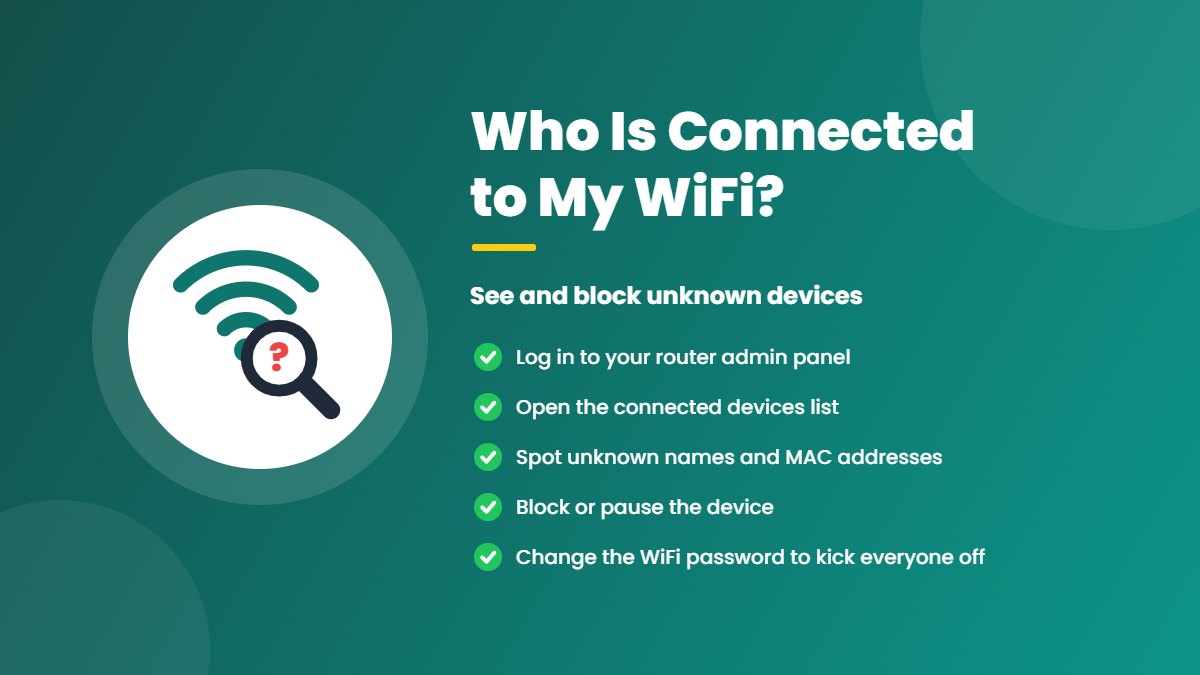
Is your internet slower than usual, or does the WiFi light on your router keep blinking even when your own devices are switched off? Someone else may be using your connection. Every router keeps a list of the devices connected to it, and checking that list takes only a few minutes. This guide shows you how to see who is connected to your WiFi, how to tell your own devices apart from strangers, and how to block unknown devices for good.
Signs That Someone Else Is Using Your WiFi
- Your internet is slower than usual, even though nobody at home is streaming or downloading.
- The WiFi or activity light on your router keeps blinking quickly when all your devices are off.
- Your data usage is much higher than normal, or you reach your plan’s data limit early.
- You see device names in your router or its app that you do not recognise.
None of these signs proves on its own that someone is using your WiFi — a smart TV updating in the background can cause them too. The only way to know for sure is to check the connected devices list.
What You Need Before You Start
- A phone or computer connected to your router by WiFi or cable.
- Your router’s login address, usually 192.168.1.1 or 192.168.0.1. If neither works, see how to find your router IP address.
- The router’s admin username and password. These are often printed on a sticker on the router, or you can check our default router password list.
Method 1: Check the Device List in Your Router Admin Panel
This method works on almost every router and shows the most detail.
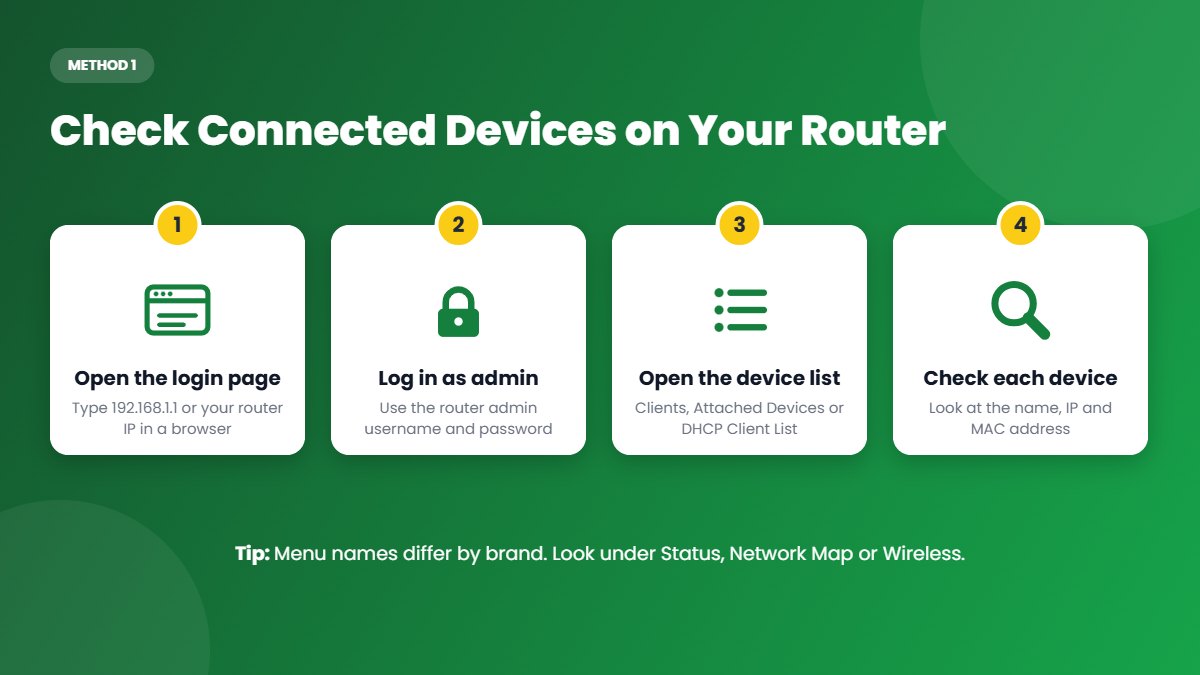
- Open a browser and type your router’s IP address, for example 192.168.1.1, into the address bar.
- Log in with the admin username and password. Our 192.168.1.1 admin login guide helps if the page does not open.
- Look for a page called Connected Devices, Attached Devices, Clients, Device List, DHCP Client List or Wireless Clients. It is usually under Status, Network Map, Wireless or LAN.
- Check each device’s name, IP address and MAC address, and note whether it is connected by WiFi (2.4 GHz or 5 GHz) or by cable.
The DHCP client list can also include devices that connected recently but are now offline, so an entry there does not always mean the device is online right now. The wireless clients or online devices page shows who is connected at this moment.
Where to Find Connected Devices on Popular Routers
Menu names change between models and firmware versions, but these are the usual places to look:
| Router brand | Where to see connected devices | Where to block a device |
|---|---|---|
| TP-Link | Basic > Network Map > Clients, or Advanced > Network > DHCP Server | Advanced > Security > Access Control |
| Tenda | Device Management or Attached Devices | Access Control switch next to the device, or MAC Address Filter |
| Netgear | Attached Devices (or Connected Devices) | Advanced > Security > Access Control |
| D-Link | Connected Clients on the home screen, or Status > Wireless | MAC Address Filter (Network Filter on some models) |
| Asus | Network Map > Clients | Click the device and turn on Block Internet Access |
| Huawei fiber routers from ISPs | Status > User Device Information | Security > WLAN MAC Filter |
If your router came from your internet provider, the provider’s app may also show your connected devices — see Method 2.
Method 2: Use Your Router’s Mobile App
Many routers and internet providers have a free app that shows connected devices in a simple list, often with a button to block or pause a device:
- TP-Link Tether and Deco apps — open Clients.
- Netgear Nighthawk and Orbi apps — open Devices.
- Tenda WiFi app — open the list of connected devices.
- Provider apps such as Jio Home or the Xfinity app — look for Devices or Connected Devices.
Sign in with the same account you used to set up the router. If the app asks for the router’s admin password, it is the same one you use for the web admin panel.
Method 3: Use a Network Scanner App
If you cannot log in to your router, a network scanner app such as Fing (for Android and iPhone) can scan your network and list the devices it finds, with their maker, IP address and often their type — phone, TV, camera and so on. Connect your phone to your WiFi, open the app and start a scan.
Scanner apps only see devices that are online during the scan, and most cannot block devices without extra hardware or a paid plan. Use them to identify devices, then block any intruders from your router.
How to Tell Which Devices Are Yours
Device lists often show confusing names such as “android-5f3a2c”, “ESP_8A1B2C” or just a MAC address. Here is how to work out what each one is:
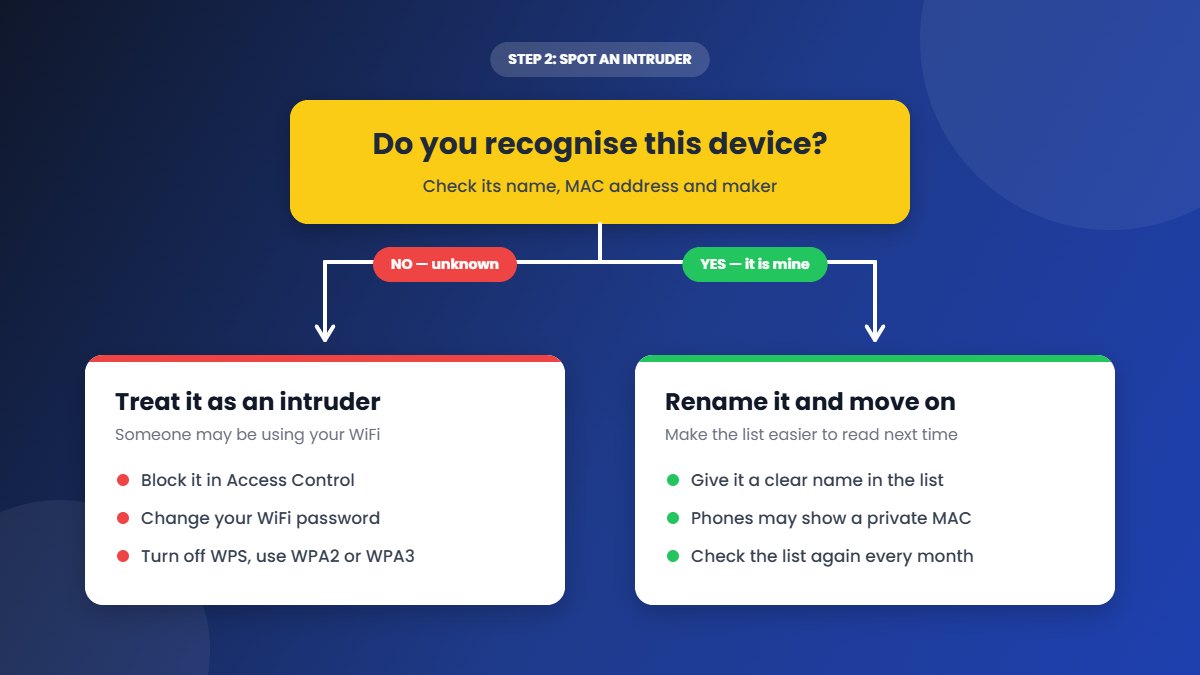
- Check the name. Many devices show a clear name like “Galaxy-S24”, “iPhone” or “LivingRoom-TV”. Smart plugs, bulbs and cameras often use a name based on their WiFi chip, such as ESP_ followed by numbers.
- Look up the maker. The first six characters of a MAC address identify the manufacturer. Type them into a free MAC address lookup website to see whether the device was made by Samsung, Apple, Xiaomi, TP-Link and so on.
- Compare MAC addresses. Open the WiFi details on your phone or laptop to see the MAC address it uses, then find the matching entry in the router list.
- Switch devices off one by one. Turn off WiFi on a device and refresh the router’s list. The entry that disappears belongs to that device.
- Rename known devices. Many routers and apps let you give each device a friendly name, which makes the next check much quicker.
Do not forget devices you rarely think about: smart TVs, set-top boxes, printers, security cameras, smart speakers, smart plugs and bulbs, game consoles and even smartwatches all connect to WiFi.
Why Your Phone May Show a Different MAC Address
Modern iPhones and Android phones use a private (random) MAC address for each WiFi network to protect your privacy. This means the MAC address in your router list will not match the hardware address shown in your phone’s About settings, and it can change after you reset network settings. To see the address your phone uses on your network:
- iPhone: open Settings > Wi-Fi and tap the (i) next to your network. The Wi-Fi Address and the Private Wi-Fi Address option are on that screen.
- Android: open Settings > Wi-Fi and tap your network or the gear icon next to it. Look for the MAC address and the Privacy option, which shows whether a randomised MAC is used.
Menu names vary slightly between Android brands.
How to Block Unknown Devices From Your WiFi
Once you are sure a device is not yours, you can remove it in one of these ways. For the best protection, combine option 1 with option 3.
Option 1: Block the Device in Your Router
Most routers have a Block button next to each device, or an Access Control, Blacklist or MAC Filter page. Add the unknown device to the block list (also called a deny list) and save. In a router app, this is often a single Block or Pause button.
Option 2: Allow Only Your Own Devices
Some routers let you switch to an allow list (whitelist), so only devices you have approved can connect. This is the strictest option, but you will need to add every new phone, TV or guest device by hand before it can join.
Option 3: Change Your WiFi Password
Blocking by MAC address helps, but a determined person can change their device’s MAC address and connect again. The most reliable fix is to change your WiFi password. Every device is disconnected, and only people who know the new password can reconnect. Use a long password of at least 12 characters that mixes words, numbers and symbols, and do not share it with neighbours.
After changing the password, reconnect your own devices and check the list again to make sure the unknown device has gone.
Keep Intruders Off Your WiFi for Good
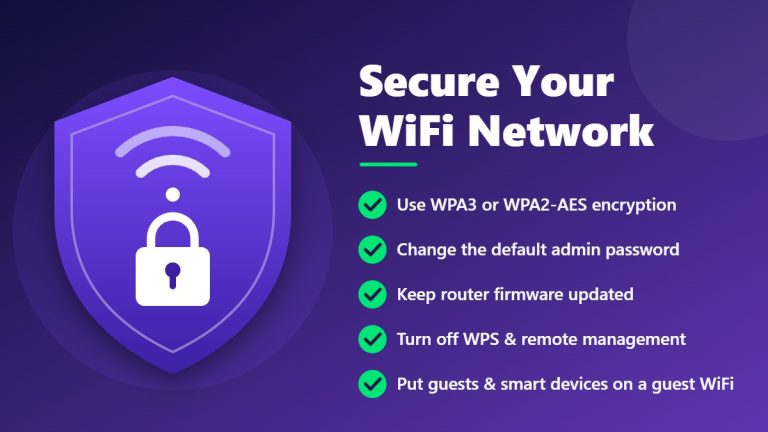
- Use WPA2 or WPA3 security. Never leave your WiFi open or on old WEP or WPA security.
- Turn off WPS. The WPS button and PIN can let others connect without knowing your password.
- Change the router admin password. Anyone who can log in to your router can see your WiFi password and change your settings.
- Set up a guest network for visitors and smart-home gadgets, so they never need your main password.
- Update the router firmware to close security holes.
- Check the device list once a month, and rename every new device so strangers stand out.
Our guide on how to secure your WiFi network explains each of these steps in more detail.
Frequently Asked Questions
Can I see who is connected to my WiFi from my phone?
Yes. Open your router’s login page (for example 192.168.1.1) in your phone’s browser, or use your router’s app, such as TP-Link Tether, Deco, Nighthawk or your provider’s app. Both show the list of connected devices.
Can I see what websites other people visit on my WiFi?
Usually not. Most routers only show which devices are connected and how much data they use. Some routers keep a basic log of the sites visited, but almost all websites use HTTPS encryption, so the pages and their content stay private.
Will changing my WiFi password disconnect everyone?
Yes. Every device that used the old password is disconnected and must reconnect with the new one. That includes your own phones, TVs and smart devices, so keep the new password handy.
Why do I see devices I do not recognise?
In most cases they are your own gadgets with unclear names, such as a smart TV, a printer, a smart plug or a phone using a private MAC address. Use the steps above to identify each one before you block anything.
Does MAC filtering stop hackers?
Not completely. MAC addresses can be copied, so MAC filtering mainly stops casual users. A strong WiFi password with WPA2 or WPA3 security and WPS turned off is what really keeps people out.
Can my neighbour use my WiFi without the password?
Only if your network is open, uses old WEP security, has WPS turned on, or uses a weak or default password that is easy to guess. Fix these and nobody can connect without your password.
Final Thoughts
Checking who is connected to your WiFi takes only a few minutes: log in to your router or open its app, look at the connected devices list and match each entry to a device in your home. If you find a stranger, block the device and change your WiFi password to be sure. Repeat the check every month, and if your WiFi still feels sluggish afterwards, try our tips to speed up slow WiFi.