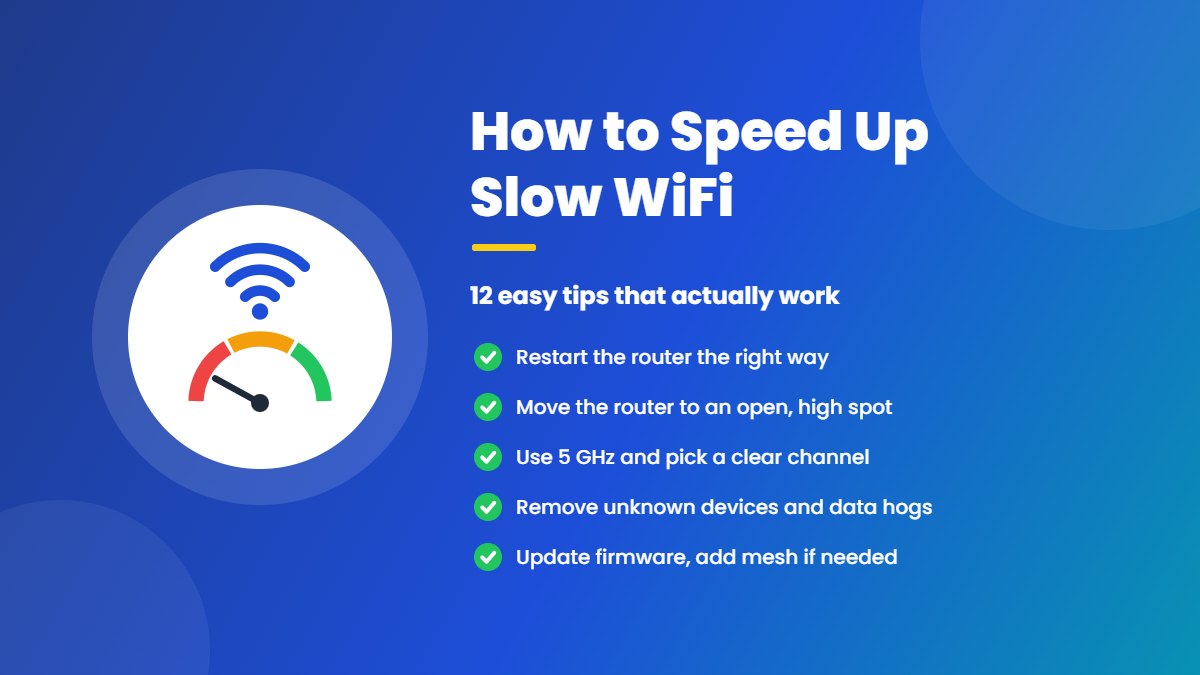
Videos keep buffering, video calls freeze and web pages load one line at a time — slow WiFi is frustrating, especially when you are paying for a fast internet plan. The good news is that most slow WiFi problems come from a few simple things: where your router sits, which WiFi band you use, too many devices or an old router. This guide shows you how to speed up slow WiFi with 12 easy tips, starting with a quick test that tells you where the problem really is.
Why Is My WiFi So Slow?
Your internet plan sets the maximum speed that reaches your home, but the WiFi signal then has to travel from the router to your phone or laptop. Along the way, several things can slow it down:
- Distance and walls: the signal gets weaker the further you are from the router, and concrete walls, floors and metal objects block it.
- Interference: neighbours’ WiFi networks, microwaves, cordless phones and Bluetooth devices crowd the same airwaves.
- Too many devices: every phone, TV, camera and smart plug shares the same connection.
- Old equipment: an old router or an old phone may not support modern, faster WiFi standards.
- Your internet provider: sometimes the line itself is slow, busy at peak hours, or your speed has been reduced after you used up a data limit.
First, Find Out Where the Problem Is
Before changing any settings, run a quick test. Open a speed test website or app, such as Speedtest by Ookla or Fast.com, and test your speed in two places:
- Stand 1–2 metres from your router and run the test.
- Go to the room where WiFi feels slow and run the test again.
- Compare both results with the speed of your internet plan.
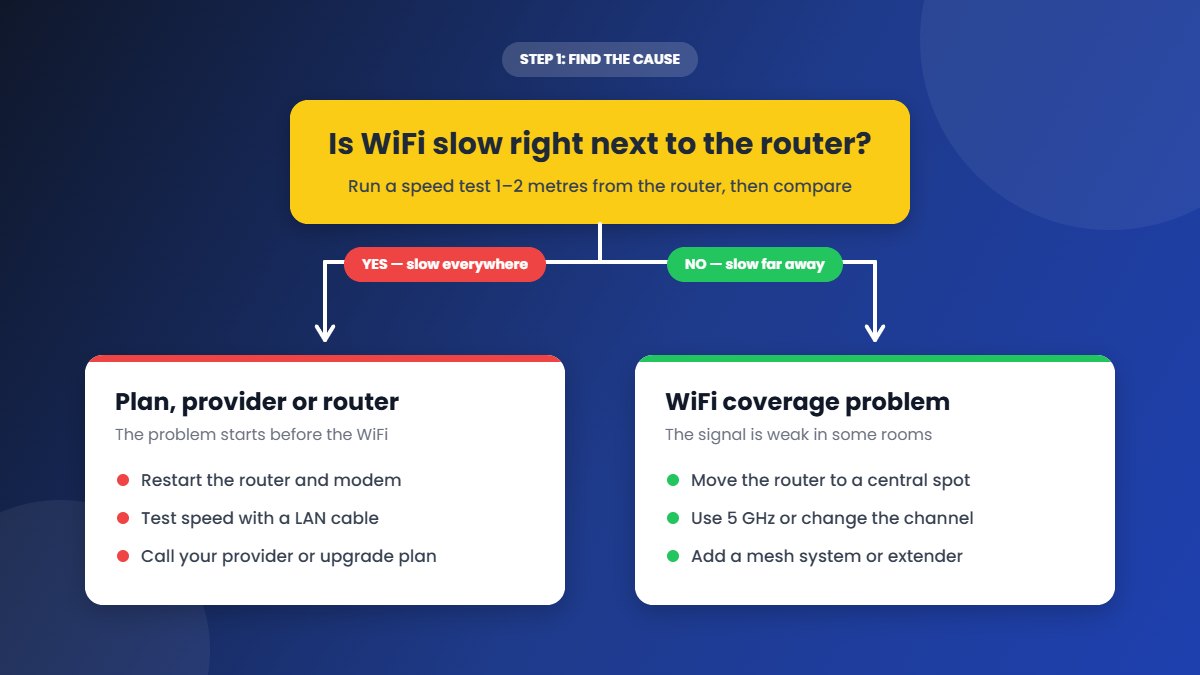
- Slow even next to the router: the problem is your plan, your provider or the router itself. Start with tips 1, 5, 6, 7 and 12, and test with a LAN cable if you can.
- Fast near the router but slow in other rooms: this is a coverage problem. Tips 2, 3, 4, 8 and 11 will help most.
- Only one device is slow: the problem is that phone or laptop. Jump to tip 10.
WiFi is almost always a little slower than a wired connection, so do not expect to see your full plan speed on every device. If you get most of your plan speed close to the router, your internet line is working fine.
1. Restart Your Router and Modem
A restart clears the router’s memory, ends stuck connections and often brings speed back to normal. Unplug the router (and the modem or fiber box if you have a separate one), wait 30 seconds, plug the modem in first and wait for its lights to become steady, then plug in the router. Our guide to fixing WiFi connected but no internet shows this step in more detail.
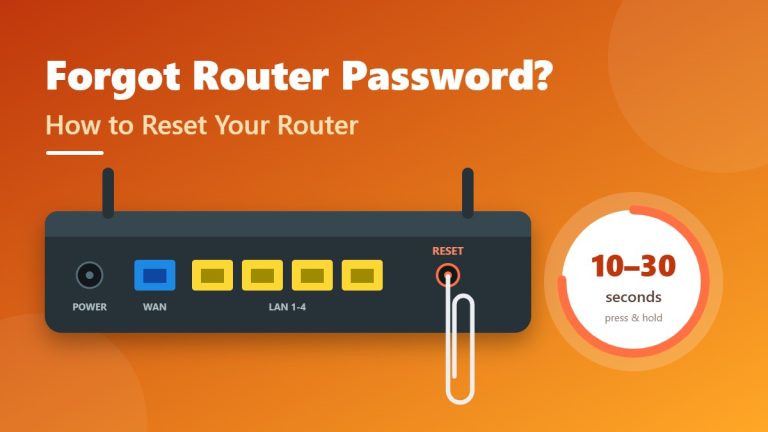
Use the power cable only — do not press the small Reset button, because that erases all your settings. If you have to restart the router every day to keep the speed normal, it may be overheating or failing (see tip 12).
2. Move Your Router to a Better Spot
Where your router sits is one of the biggest reasons for slow WiFi. The signal spreads out in all directions and gets weaker with every wall it passes through. For the best coverage:
- Place the router in a central part of your home, not in a corner or at one end of the house.
- Put it up high, on a shelf or mounted on a wall, rather than on the floor.
- Keep it in the open, not inside a cabinet, behind the TV or in a cupboard.
- Keep it away from thick concrete walls, metal objects, mirrors and large water tanks or aquariums.
- Give it space to breathe — a hot router slows down and drops connections.
If the internet cable enters your home in a corner, ask your provider or an electrician to run a longer cable so the router can sit in a better place. Even moving the router a few metres can make a big difference.
3. Switch to the 5 GHz Band
Most modern routers are dual-band, which means they broadcast on two bands: 2.4 GHz and 5 GHz. The 5 GHz band is much faster and less crowded, while 2.4 GHz reaches further and passes through walls better.
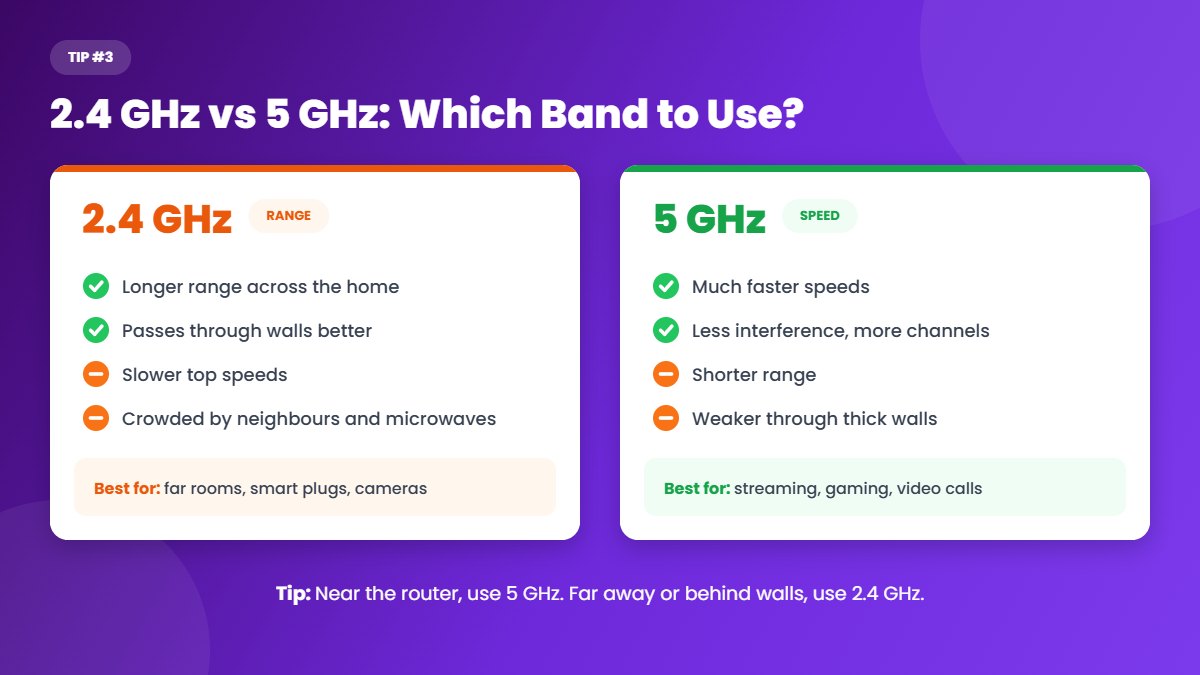
If your router shows two network names (for example “HomeWiFi” and “HomeWiFi_5G”), connect phones, laptops and TVs in the same room or the next room to the 5 GHz network. Leave far-away devices and smart-home gadgets on 2.4 GHz. If your router uses one name for both bands (often called Smart Connect or band steering), it picks the band for you. If a device keeps choosing 2.4 GHz, you can give the 5 GHz band its own name in the wireless settings — our guide to changing your WiFi name and password shows where to find them.
If your router and devices support WiFi 6E or WiFi 7, the 6 GHz band is even faster and less crowded, but it has the shortest range of all.
4. Change Your WiFi Channel
Each WiFi band is split into channels. If your neighbours’ routers use the same channel as yours, they all slow each other down — this is very common in flats and apartment buildings. To change the channel:
- Log in to your router admin panel, usually at 192.168.1.1 or 192.168.0.1.
- Open Wireless, WiFi Settings or Advanced Wireless.
- For 2.4 GHz, choose channel 1, 6 or 11 — these are the only channels that do not overlap.
- For 5 GHz, try a different channel from the list, or leave it on Auto if it already works well.
- Save the settings and run a speed test again.
Not sure which address opens your router? See how to find your router IP address. A free WiFi analyser app on Android can also show which channels your neighbours use, so you can pick the least busy one. While you are in the wireless settings, a 20 MHz channel width is usually more stable on a crowded 2.4 GHz band, while 80 MHz gives higher speeds on 5 GHz.
5. Remove Unknown Devices From Your WiFi
If a neighbour knows your WiFi password, or your network uses a weak password, other people may be using your connection and slowing it down. Open the connected devices list in your router or its app and look for names you do not recognise. Our step-by-step guide on how to see who is connected to your WiFi explains how to check the list and block unknown devices.
If you find strangers on your network, the quickest fix is to change your WiFi password. Every device is disconnected, and only people who know the new password can connect again.
6. Stop Data Hogs and Turn On QoS
Sometimes the slowdown comes from inside your home. A 4K video stream, a large game download, a cloud photo backup or a security camera uploading video all day can use most of your bandwidth and leave very little for everyone else.
- Pause big downloads and updates when you need fast internet for a call or a class.
- Schedule game, phone and computer updates for the night.
- Lower the video quality on TVs and phones that do not need full HD.
- Turn on QoS (Quality of Service) if your router has it. QoS lets you give priority to important devices or activities, such as video calls and online gaming.
On many routers, QoS is found under Advanced, Bandwidth Control or Traffic Management. Some routers also let you set a speed limit for each device.
7. Update Your Router Firmware
Firmware is the software that runs your router. Updates fix bugs, improve speed and stability, and close security holes. Open the router admin panel or app and look for Firmware Update, System Tools or Administration. Many newer routers can check for updates automatically — turn that option on if you see it.
Never switch off the router while a firmware update is running, as that can damage it. If your router was supplied by your internet provider, the provider usually updates it for you.
8. Adjust the Antennas and Avoid Interference
If your router has external antennas, do not point them all in the same direction. A good starting point is to point one antenna straight up and another sideways, which helps the signal reach devices on different floors and at different angles.
Also keep the router away from devices that use the same radio frequencies, especially on the 2.4 GHz band:
- Microwave ovens
- Cordless phones and baby monitors
- Bluetooth speakers and some wireless security cameras
- Other routers or WiFi extenders placed right next to it
9. Use an Ethernet Cable Where You Can
A wired connection is faster and more stable than WiFi, and walls or interference do not affect it. Connect devices that stay in one place — a smart TV, a desktop computer, a game console or a work laptop on your desk — with a LAN cable. This also frees up WiFi for phones and tablets. A Cat 5e or Cat 6 cable supports gigabit speeds.
10. Check the Device That Is Slow
If only one phone or laptop is slow, the problem is that device, not your WiFi. Try these quick checks:
- Restart the device, then forget the WiFi network and connect again.
- Turn off any VPN, proxy or data saver app and test again.
- Install the latest system updates, and on Windows update the WiFi adapter driver.
- Close apps that sync or download in the background, such as cloud backup.
- Turn off battery saver or low power mode, which can limit WiFi performance.
Older devices that only support WiFi 4 (802.11n) cannot reach the speeds of newer routers, even when your plan is fast.
11. Add a Mesh System or WiFi Extender
In a large home, a house with several floors or one with thick concrete walls, a single router may never cover every room. You have two main options:
- Mesh WiFi system: two or three units that work together as one network with a single name. Your phone moves between them automatically as you walk around, which makes mesh the best choice for bigger homes.
- WiFi extender (repeater): a cheaper single unit that repeats the router’s signal. Place it halfway between the router and the weak area, not inside the weak area itself, where it cannot hear the router well. Basic extenders can cut speed, so choose mesh if you need full speed everywhere.
If your home already has LAN cabling between rooms, connecting a second access point or mesh unit by cable gives the best result of all.
12. Upgrade Your Router or Internet Plan
If you have tried everything above and WiFi is still slow, your equipment or plan may simply be too old or too small for your home. Consider an upgrade when:
- Your router is more than five or six years old or only supports WiFi 4 (802.11n). A WiFi 6 or newer router handles many devices at once much better.
- Your speed is slow even with a LAN cable plugged straight into the router. The bottleneck is then your plan or your provider’s line.
- Several people stream, game and work from home at the same time, and the plan speed is not enough to share between all of them.
Before buying a new router, ask your provider whether they can replace an old model they supplied — some providers upgrade routers for free or for a small fee, especially on fiber plans.
Quick Fix Table: Symptom, Cause and Solution
| What you see | Likely cause | What to do |
|---|---|---|
| Slow in every room, even near the router | Plan, provider or router | Restart the router, test with a cable, contact your provider |
| Fast near the router, slow in far rooms | Weak signal | Move the router, use 2.4 GHz far away, add mesh |
| Slow mostly in the evening | Busy network at peak hours | Turn on QoS, schedule downloads, report it to your provider |
| Drops when the microwave is on | 2.4 GHz interference | Switch to 5 GHz, move the router |
| Slow in a flat or apartment | Crowded WiFi channel | Use channel 1, 6 or 11, or switch to 5 GHz |
| Only one device is slow | Device settings or old WiFi chip | Restart, turn off VPN, update drivers |
| Gets slower after a few days | Old firmware or overheating | Update firmware, give the router airflow |
| Strange devices in the device list | Someone using your WiFi | Block them and change the WiFi password |
When to Contact Your Internet Provider
Call your provider or raise a complaint in their app if:
- Your speed is much lower than your plan even with a LAN cable connected to the router.
- The router’s Internet, PON or LOS light is red or blinking.
- The speed drops at the same time every day, which can mean congestion in your area.
- Your plan has a data limit (FUP) and you have used it up, so your speed has been reduced.
Share your speed test results with them. Screenshots of a wired test next to the router make it much easier for support staff to find the problem.
Frequently Asked Questions
Why is my WiFi slow at night?
In the evening most people are at home streaming and gaming, so your provider’s network and the WiFi channels around you are at their busiest. Using 5 GHz, turning on QoS and scheduling big downloads for late at night all help. If the speed drops sharply every evening, report it to your provider.
Does restarting the router really make WiFi faster?
Often, yes. A restart clears the router’s memory and ends stuck connections, which can bring speed back to normal. It will not fix a weak signal, a crowded channel or a slow plan, though.
Is 2.4 GHz or 5 GHz faster?
5 GHz is faster and less crowded, but it has a shorter range. Use 5 GHz when you are near the router, and 2.4 GHz in far-away rooms and for smart-home devices.
How many devices slow down WiFi?
There is no fixed number. A modern WiFi 6 router can handle dozens of devices, but they all share the same internet speed. A few devices streaming 4K video or downloading at the same time can slow everyone down, even on a fast plan.
Will a WiFi extender increase my internet speed?
No. An extender spreads the signal to rooms where it is weak, so WiFi can feel faster in those rooms, but it cannot make your internet plan faster than it is.
Can someone using my WiFi make it slow?
Yes. Every extra device shares your bandwidth. Check your router’s connected devices list and change the WiFi password if you find devices you do not recognise.
Final Thoughts
Most slow WiFi problems can be fixed without spending any money: restart the router, move it to an open, central spot, connect nearby devices to 5 GHz and pick a clearer channel. Run a speed test before and after each change so you can see what works. If WiFi is still slow even with a cable plugged into the router, contact your internet provider or consider upgrading your router or plan. To keep your network fast and safe for the long run, follow our tips to secure your WiFi network.