Your phone or laptop shows full WiFi bars, but nothing loads — YouTube spins, WhatsApp will not send and the browser says “No internet”. This WiFi connected but no internet problem is one of the most common home network issues, and the good news is that you can usually fix it yourself in a few minutes. This guide helps you find where the problem is, then walks you through 12 easy fixes, starting with the quickest ones.
What “Connected, No Internet” Actually Means
Your home network has two links. The first is between your device and the router — that is the WiFi connection, and it is working. The second is between the router and your internet provider, and that is usually the one that has failed. Sometimes the router is online but your device did not get a valid IP address or cannot reach a DNS server, so it still cannot open websites.
You will see different messages depending on your device: “No internet, secured” or “Connected, no internet” on Windows, “Connected without internet” or “Internet may not be available” on Android, and “No Internet Connection” under the network name on iPhone. They all mean the same thing.
First, Find Out Where the Problem Is
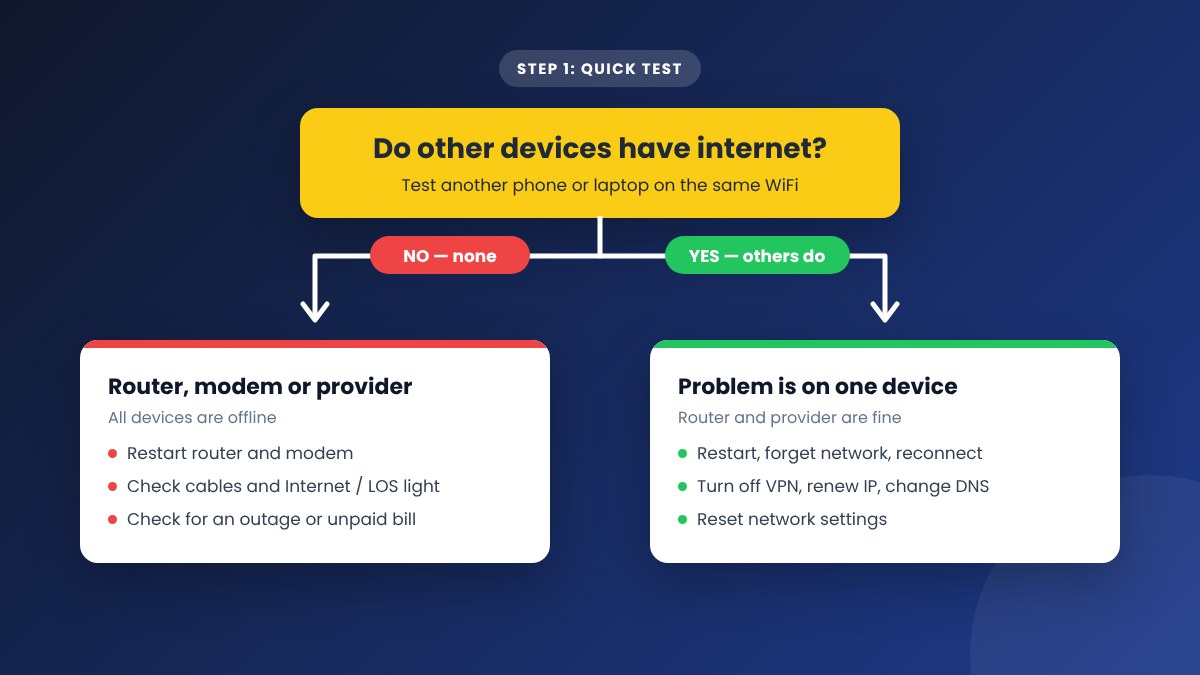
Before you change any settings, check whether other devices on the same WiFi can browse the internet. This one test tells you which fixes to try:
- No device has internet: the problem is the router, the modem or your internet provider. Start with fixes 1 to 3.
- Only one device has no internet: the problem is that phone or computer. Jump to fixes 4 to 12.
1. Restart Your Router and Modem the Right Way
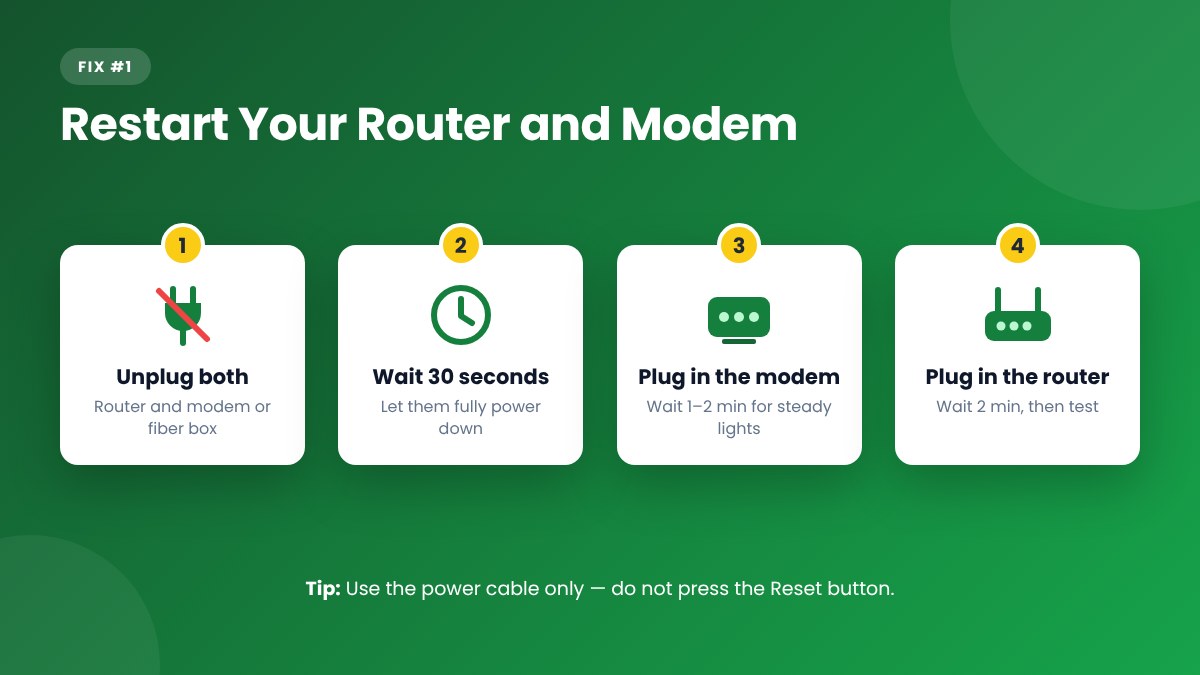
A proper restart clears temporary errors and makes the router reconnect to your provider. It fixes the problem more often than any other step.
- Unplug the power cable from the router and the modem or fiber box (ONT), if you have a separate one.
- Wait at least 30 seconds.
- Plug in the modem first and wait until its lights are steady, usually 1–2 minutes.
- Plug in the router and wait another 2 minutes before testing.
Do not press the small Reset hole on the back — that erases all your settings. A restart only needs the power cable.
2. Check the Cables and Router Lights
Make sure the internet cable is firmly plugged into the router’s WAN or Internet port, not one of the LAN ports. Then look at the lights. A green or white Internet light is good; an orange, red or off Internet light means the router cannot reach your provider. On fiber connections, a red LOS light means the fiber signal is lost — check that the thin fiber cable is not bent or loose, then call your provider.
3. Check for an Outage, Unpaid Bill or Data Limit
Open your provider’s app or website using mobile data. Look for an outage notice in your area, an expired prepaid plan or recharge, or a used-up data limit. Providers such as JioFiber, Airtel and Xfinity show this in their apps, and some send an SMS when there is a fault in your area. If there is an outage, no setting on your side will fix it — you just have to wait.
4. Restart Your Phone or Computer
If only one device is affected, restart it. On a phone, you can also switch Airplane mode on for 10 seconds and then off again, which resets all its wireless connections.
5. Forget the WiFi Network and Reconnect
Open your WiFi settings, select your network and choose Forget (or Forget This Network on iPhone). Then connect again and type the WiFi password. This clears saved settings that may be out of date, especially if you recently changed your WiFi password or network name.
6. Turn Off VPN and Proxy Settings
A VPN app that has lost its connection can block all internet traffic, even though your WiFi is fine. Disconnect or pause the VPN and test again. On Windows, also check Settings → Network & internet → Proxy and make sure no manual proxy is turned on unless your workplace requires one.
7. Check the Date and Time on Your Device
If your device’s date or time is wrong, secure websites fail to load and it can look like you have no internet. Turn on Set time automatically in your date and time settings.
8. Renew Your IP Address and Flush DNS on Windows
If your Windows PC is the only device without internet, it may have a bad IP address or old DNS records. Open Command Prompt as administrator and run these commands one at a time:
ipconfig /releaseipconfig /renewipconfig /flushdnsnetsh winsock reset— then restart your PC.
While you are in Command Prompt, run ipconfig. If your IPv4 address starts with 169.254, your PC did not get an address from the router — restart the router and reconnect.
9. Change Your DNS Servers
DNS turns website names into addresses. If your provider’s DNS server is down, apps like WhatsApp may still work while websites fail to open. Try a public DNS service such as Cloudflare (1.1.1.1 and 1.0.0.1) or Google (8.8.8.8 and 8.8.4.4). You can set it on one device in its WiFi or network settings, or for every device in your router’s DHCP or WAN settings.
On Android, also check Settings → Network & internet → Private DNS (on Samsung: Connections → More connection settings → Private DNS). If it is set to a custom provider that is not working, switch it to Automatic.
10. Check Whether Your Router Is Blocking the Device
Log in to your router admin panel — our 192.168.1.1 admin login guide shows how — and look at Parental controls, Access control, MAC filtering and any Internet schedule. A device that was paused or blocked by mistake will connect to WiFi but get no internet. If you do not know your router’s address, see how to find your router IP address.
11. Update Router Firmware and Device Drivers
Bugs in old router firmware can cause the connection to drop every few hours or days. Check for an update in the router’s System, Administration or Firmware menu. On a Windows laptop, open Device Manager → Network adapters, right-click your WiFi adapter and choose Update driver, or install the latest driver from the laptop maker’s website.
12. Reset Network Settings
If one device still has no internet, reset its network settings. This removes saved WiFi networks and VPN settings, so you will need to enter your WiFi password again:
- Windows 11: Settings → Network & internet → Advanced network settings → Network reset → Reset now.
- Android: Settings → System → Reset options → Reset Wi-Fi, mobile & Bluetooth (on Samsung: General management → Reset → Reset network settings).
- iPhone: Settings → General → Transfer or Reset iPhone → Reset → Reset Network Settings.
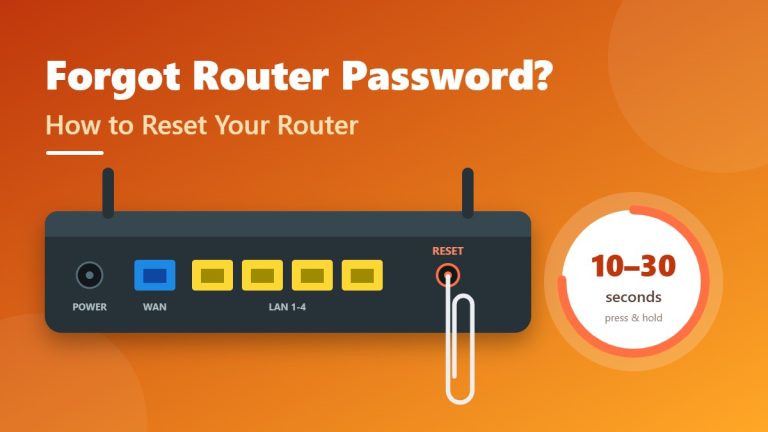
If every device has no internet and nothing above helped, a factory reset of the router is the last step. It erases your WiFi name, password and internet login settings, so make sure you have your provider’s account details first. Our router reset guide explains how to do it safely.
Quick Fix Table: Symptom, Cause and Solution
| What you see | Likely cause | What to do |
|---|---|---|
| No device has internet | Router, modem or provider | Restart router, check lights, check for outage |
| Red LOS light on fiber box | Fiber signal lost | Check fiber cable, contact provider |
| Only one device affected | Device settings | Restart, forget network, reset network settings |
| IP address starts with 169.254 | No address from router | Restart router, renew IP |
| Apps work, websites do not | DNS problem | Flush DNS, switch to 1.1.1.1 or 8.8.8.8 |
| Stops working after VPN use | VPN or proxy | Disconnect VPN, turn off proxy |
| Drops every few hours | Old firmware or overheating | Update firmware, give the router airflow |
When to Contact Your Internet Provider
Call your provider if the Internet or PON light stays red or off after a restart, if the LOS light is red, if there is an outage in your area, or if no device has internet even when you plug a laptop straight into the router with a cable. Tell them what you have already tried — it saves time and helps them find the fault faster. Only contact your provider through its official app, website or phone number, and never share your router password with anyone who calls you claiming to be support.
How to Prevent “No Internet” Problems
- Keep the router in an open, cool place — not inside a cabinet or behind the TV.
- Turn on automatic firmware updates if your router supports them.
- Use a power surge protector or UPS for the router and modem.
- Protect your network with a strong password so strangers cannot use up your data. Our guide on how to secure your WiFi network covers the essentials.
Frequently Asked Questions
Why does my WiFi say connected but no internet?
Your device is connected to the router, but the router cannot reach your internet provider, or your device has a bad IP address or DNS setting. Checking whether other devices work tells you which one it is.
Why does my phone have internet but my laptop does not?
If your phone works on the same WiFi, the router and provider are fine. The problem is on the laptop — try restarting it, forgetting the network, disconnecting any VPN, renewing the IP address or updating the WiFi driver.
Will resetting my router fix no internet?
A simple restart often does. A factory reset can fix corrupted settings, but it also erases your WiFi and internet login settings, so use it only as a last resort after the other fixes.
Can too many devices cause no internet?
Yes, on older or basic routers. When too many devices connect, the router can run out of memory or IP addresses. Restart it, disconnect devices you are not using, and consider upgrading if it happens often.
How do I know if my internet provider is down?
Check your provider’s app or social media pages using mobile data, look for an outage SMS, or ask neighbours who use the same provider. A red or off Internet light that stays that way after a restart is also a strong sign.
Final Thoughts
Most “WiFi connected but no internet” problems are solved by a proper router restart, a quick cable and light check, or reconnecting the affected device. Start by testing other devices so you know where the problem is, work through the fixes in order, and contact your provider if the router’s Internet light stays red. Bookmark this guide so the steps are ready the next time your connection drops.
One Comment