Router login guide · Updated October 2026
192.168.0.1 Login Admin – 192.168.o.1 Router Login & Password
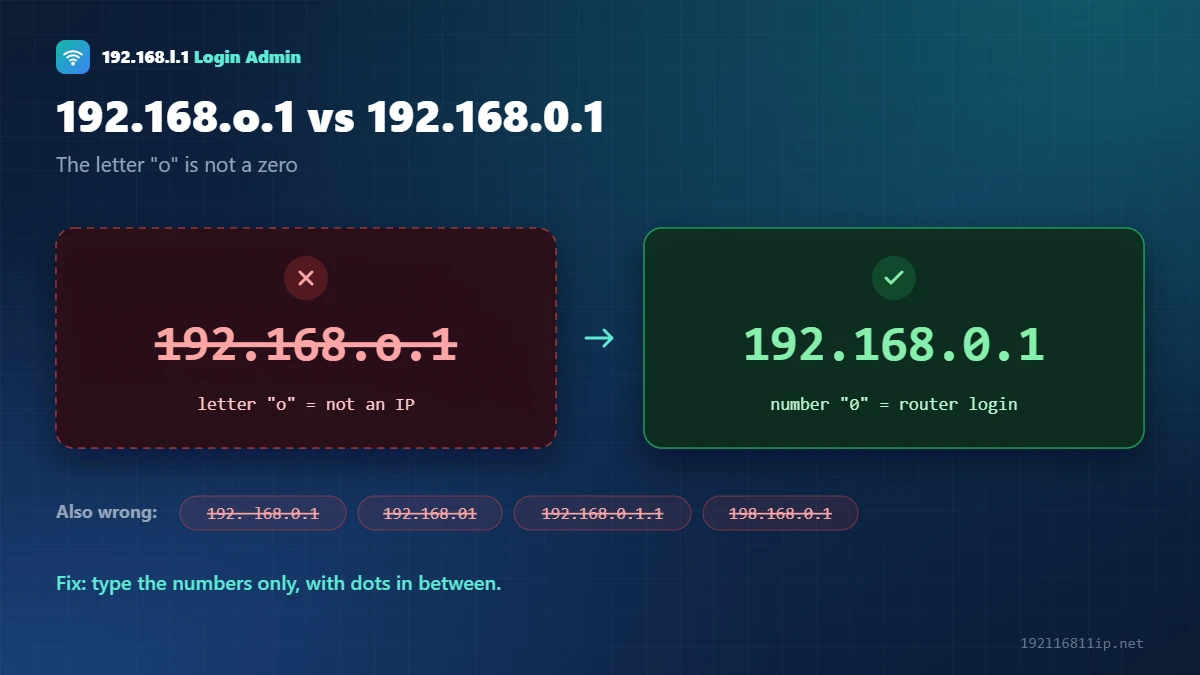
Trying to open 192.168.o.1 or 192. l68.0.1? The correct address is 192.168.0.1, with the number zero. It is the default login IP for most D-Link and Tenda routers and many TP-Link and Netgear models.
The button works only while your device is connected to that router or modem.
Quick Answer: How to Log In to 192.168.0.1
- Connect your phone or computer to the router by WiFi or LAN cable.
- Open Chrome, Safari or Edge.
- Type 192.168.0.1 in the address bar and press Enter.
- Enter the username and password. Common defaults are
admin/admin, oradminwith a blank password. - Open the settings you need and click Save.
This guide explains what this address is, why the letter-o version fails, the default login for each brand, and how to fix common errors. If your router uses 192.168.1.1 instead, follow our 192.168.l.1 and 192.168.1.1 login guide.
What Is 192.168.0.1?
192.168.0.1 is a private IP address. Router makers set it as the default gateway, which is the address your router uses on your home network. It works only inside that network, so you must be connected to the router to open it.
Routers use either 192.168.0.1 or 192.168.1.1 as their own address. The third number is the only difference. It decides which group of addresses your phones and laptops get.
192.168.o.1, 192. l68.0.1 and Other Typos
Browsers only accept numbers and dots in an IP address. A letter “o” or “l” turns the address into a search term, so Google opens instead of your router.
| What people type | What’s wrong | How to fix it |
|---|---|---|
| 192.168.o.1 | Letter “o” instead of 0 | Use the number 0, not the letter o |
| 192. l68.0.1 or 192.l68.0.1 | Letter “l” in 168 | Write 168 with the number 1 |
| 192.168.01 | Missing dot | Add the missing dot before the last 1 |
| 192.168.0.1.1 | Extra number at the end | Remove the extra .1 at the end |
| 198.168.0.1 | 198 instead of 192 | Start with 192, not 198 |
| http //192.168.o.1 | Missing colon, letter “o” | Add the colon and use a zero |
192.168.0.1 Default Username and Password
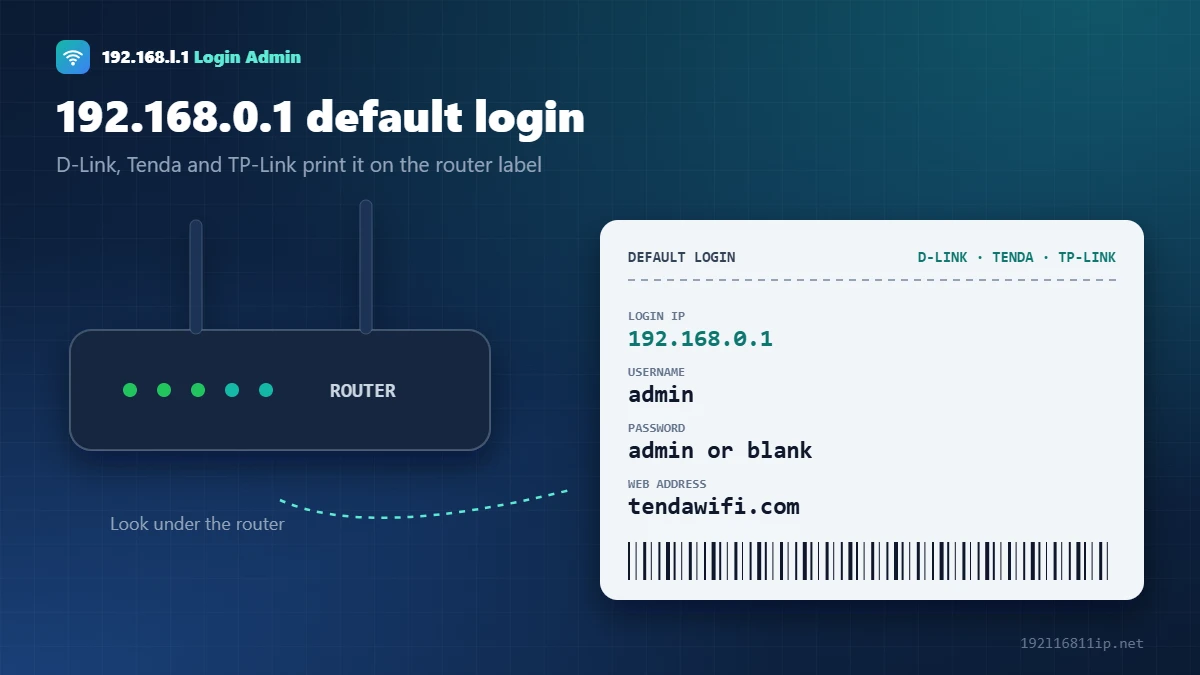
Check the sticker on the bottom of your router first. If there is no sticker, these are the factory defaults for routers that use this IP:
| Brand | Login address | Username | Password |
|---|---|---|---|
| D-Link | 192.168.0.1 | admin | blank |
| Tenda | tendawifi.com or the same IP | admin | admin, or none on newer models |
| TP-Link | tplinkwifi.net or the same IP | admin | admin (newer models ask you to create one) |
| Netgear | routerlogin.net or the same IP | admin | password |
Still stuck? Our default router password list covers more brands and internet providers.
How to Log In to 192.168.0.1 on Phone and Computer
On a computer
- Connect to the router with WiFi or an Ethernet cable.
- Type http://192.168.0.1 in the address bar. Do not use the search box.
- If a security warning appears, choose Advanced and then Proceed. This is normal for a home router.
- Enter the admin username and password, then click Login.
On an Android phone or iPhone
- Join the router’s WiFi network.
- Turn off mobile data so the phone stays on the WiFi.
- Open Chrome or Safari and type 192.168.0.1.
- Log in. Brand apps such as Tenda WiFi and TP-Link Tether can do the same job.
Change Your WiFi Password From the Admin Panel
After you log in, the WiFi password is usually under one of these menus. Menu names change a little between models.
| Brand | Where to find the WiFi password |
|---|---|
| D-Link | Setup → Wireless Settings, or Settings → Wi-Fi |
| Tenda | WiFi Settings → WiFi Name & Password |
| TP-Link | Wireless → Wireless Security, or Advanced → Wireless |
| Netgear | Wireless, or Basic → Wireless |
Choose WPA2-PSK (AES) or WPA3, type a new password of at least 12 characters, and save. For full steps on every brand, read how to change your WiFi password.
192.168.0.1 Not Working? 7 Fixes
- Check the addressType the IP with a zero — the letter-o version never works.
- Use the address barTyping into a search box shows search results, not your router.
- Check your gatewayYour router may use 192.168.1.1 instead. Run ipconfig on Windows and look for Default Gateway.
- Stay on the router networkTurn off VPN and mobile data, and leave guest WiFi.
- Try http, not httpsMost router login pages use plain http, so remove the extra s if your browser adds it.
- Try another browserClear the cache or open a private window.
- Restart the routerUnplug it for 30 seconds, then wait 2 minutes before trying again.
Forgot the admin password? Hold the reset button for 10–30 seconds while the router is on. This restores the default login, but it also erases your WiFi name, password and internet settings.
How to Change the Router Admin Password
The factory login is printed on the router and published online, so change it as soon as you get in. The menu name differs by brand, but the steps are almost identical:
- Log in to the admin panel with the current username and password.
- Open System Tools, Administration, Management or Maintenance.
- Choose Admin Password, Login Password or Change Password.
- Type the old password once and the new one twice. Use at least 12 characters.
- Click Save and log in again with the new password.
Keep the new password in a password manager. If you lose it later, you will need a factory reset to get back in.
A good admin password is long rather than complicated. Three or four random words joined with hyphens are easy to type on a phone and very hard to guess. Never reuse your WiFi password as the admin password, and never share it with guests.
Secure Your Router After Logging In
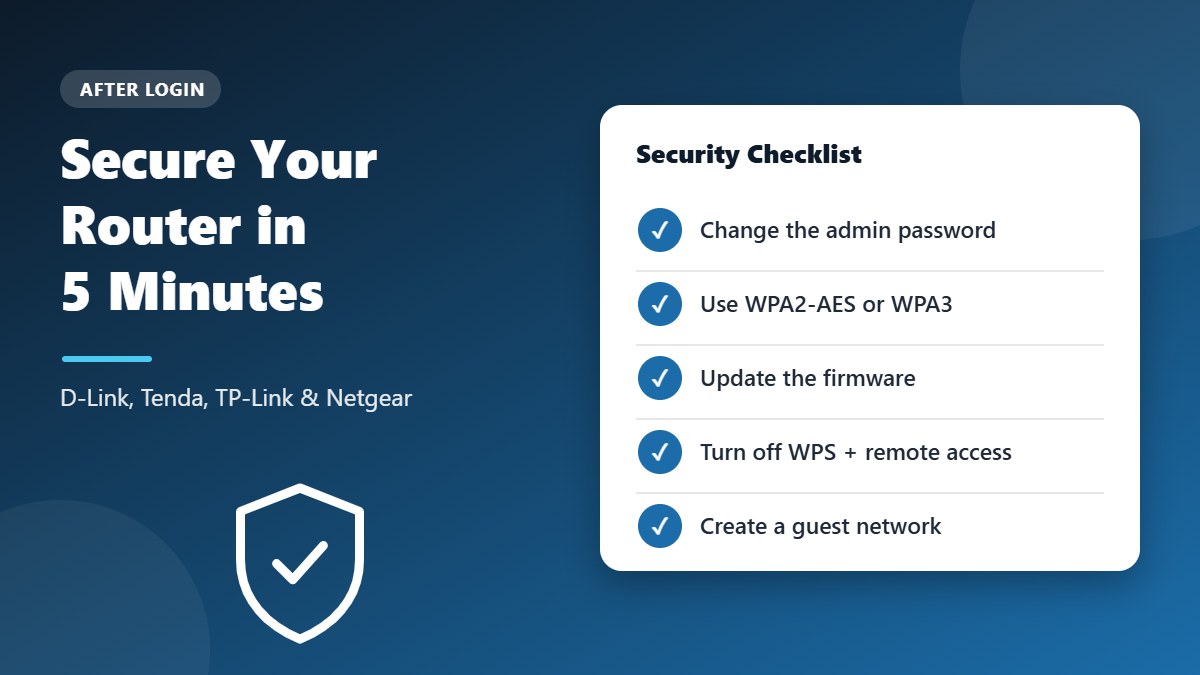
Most attacks on home routers use weak factory settings. These quick changes close the biggest gaps:
- Use WPA2-AES or WPA3 encryption for your WiFi. Avoid WEP and WPA-TKIP, which are outdated — the Wi-Fi Protected Access article explains why.
- Update the firmware from the System or Maintenance menu, and turn on automatic updates if your router supports them.
- Turn off WPS and remote management unless you really use them.
- Create a guest network for visitors and smart-home devices.
- Check the connected devices list every few weeks and block anything you do not recognise.
For a complete walkthrough, read our guide on how to secure your WiFi network.
Use the Router App Instead of a Browser
Many newer routers can also be managed from a phone app, which is often easier than typing an IP address. TP-Link offers the Tether and Deco apps, Tenda has the Tenda WiFi app, and Netgear uses the Nighthawk app. Connect your phone to the router WiFi, open the app, sign in, and you will see the same settings — WiFi name, password, connected devices and parental controls — in a simpler layout.
The browser login still works on these models, so you can switch between the app and the web page at any time.
192.168.0.1 vs 192.168.1.1
Both are private router addresses. Neither is faster or safer. Your router simply comes set to one of them from the factory.
| Detail | 192.168.0.1 | 192.168.1.1 |
|---|---|---|
| Common brands | D-Link, Tenda, many TP-Link | TP-Link, Netgear, Asus, Huawei, ZTE, Airtel |
| Device addresses | 192.168.0.2 – 192.168.0.254 | 192.168.1.2 – 192.168.1.254 |
| Common typo | 192.168.o.1 | 192.168.l.1 |
| Login guide | This page | 192.168.1.1 login guide |
Frequently Asked Questions
Is 192.168.o.1 the same as 192.168.0.1?
No. That version uses the letter “o”, so it is not a valid IP address. Type the address with the number zero instead.
What is the default router password?
It depends on the brand. D-Link often uses admin with a blank password, Tenda and older TP-Link models use admin / admin, and Netgear uses admin / password. Check the sticker first.
Why does 192.168.0.1 not open?
You may not be connected to the router, the address may be mistyped, or your router may use 192.168.1.1. Check your default gateway to find the right address.
Can I open the login page on my phone?
Yes. Connect to the router WiFi, turn off mobile data and type the address in Chrome or Safari.
How do I change my WiFi password from the admin panel?
Log in, open the Wireless or WiFi Settings menu, enter a new password and click Save.
Is it safe to log in to the admin panel?
Yes. It is your own router on your home network. After logging in, change the default admin password so others on your WiFi cannot change settings.
Related Router Guides
Summary
192.168.o.1 is a typo of the real address, the default login IP for D-Link, Tenda and many TP-Link routers. Type the address with a zero, connect to your router and log in with the details on the sticker. Then change the default admin password.