Router login guide · Updated October 2026
Airtel Router Login 192.168.l.1 – Username, Password & WiFi Change
Searching for 192.168.l.1 Airtel? The correct Airtel router login address is 192.168.1.1, with the number 1. Airtel lists admin as the default username and password as the default password, but many Xstream Fiber routers print their own password on the label.
The button works only while your device is connected to that router or modem.
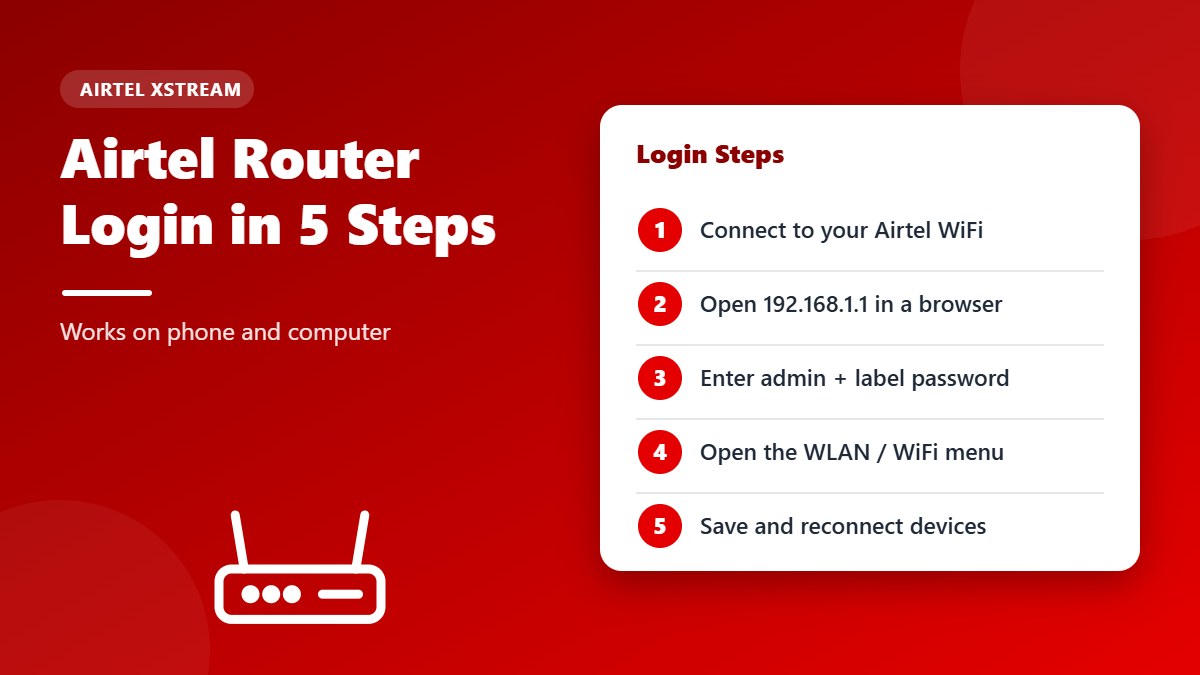
Quick Answer: Airtel Router Login
- Connect to your Airtel WiFi or plug in a LAN cable.
- Open a browser and type 192.168.1.1 in the address bar.
- Enter username
adminand the password from the router label. Trypasswordif there is no label. - Open the WLAN or Wi-Fi menu to change your WiFi name or password, then click Save.
This guide covers Airtel router login on phone and computer, the default Airtel username and password, and two ways to change your Airtel WiFi password. If your router is from another provider, start with our 192.168.l.1 login guide.
Airtel Router Login Address
Airtel broadband and Xstream Fiber routers use 192.168.1.1 as their login address. Many people type 192.168.l.1 or 192. l68.1.1 by mistake. Those contain a letter “l”, so the browser runs a search instead of opening the router.
If 192.168.1.1 does not respond, your router may use a different gateway address. Our homepage shows how to find your router IP on Windows, Mac, Android and iPhone.
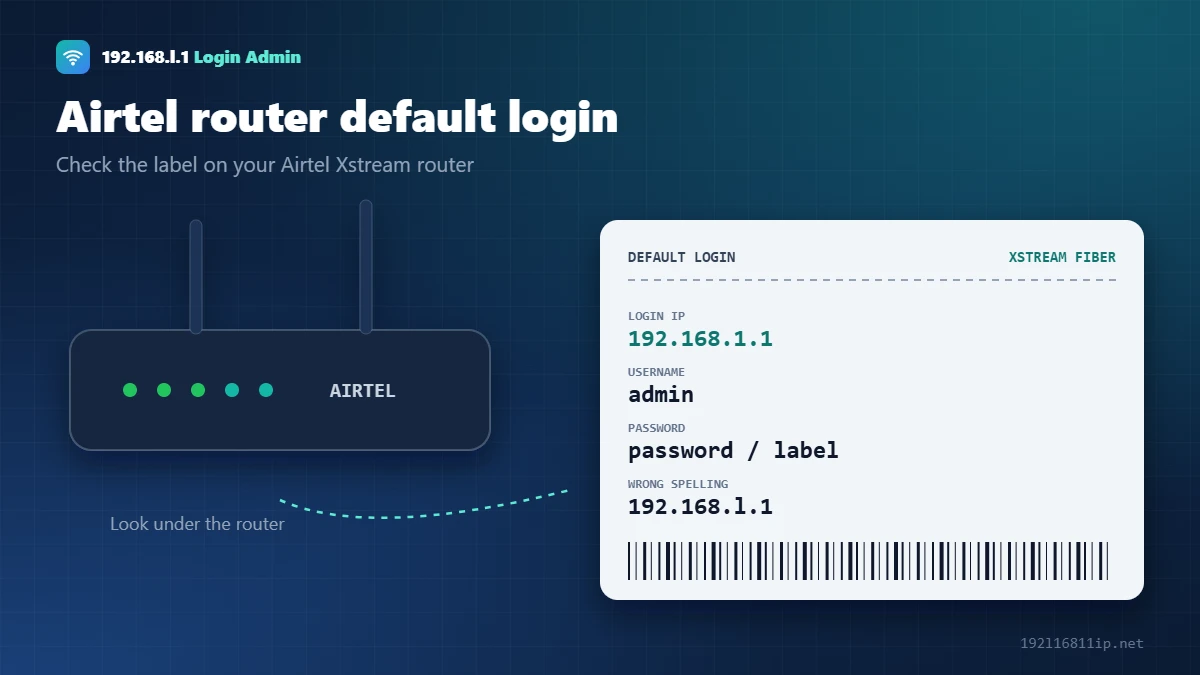
Airtel Router Login Username and Password
| Router | Login IP | Username | Password |
|---|---|---|---|
| Airtel Xstream Fiber router | 192.168.1.1 | admin | Printed on the router label |
| Airtel default (as listed by Airtel) | 192.168.1.1 | admin | password |
| Older Airtel DSL modems | 192.168.1.1 | admin | admin or password |
The admin password is not the same as your WiFi password. If a technician set up your router and changed the admin password, ask Airtel support for it before you reset anything.
How to Change Airtel WiFi Password
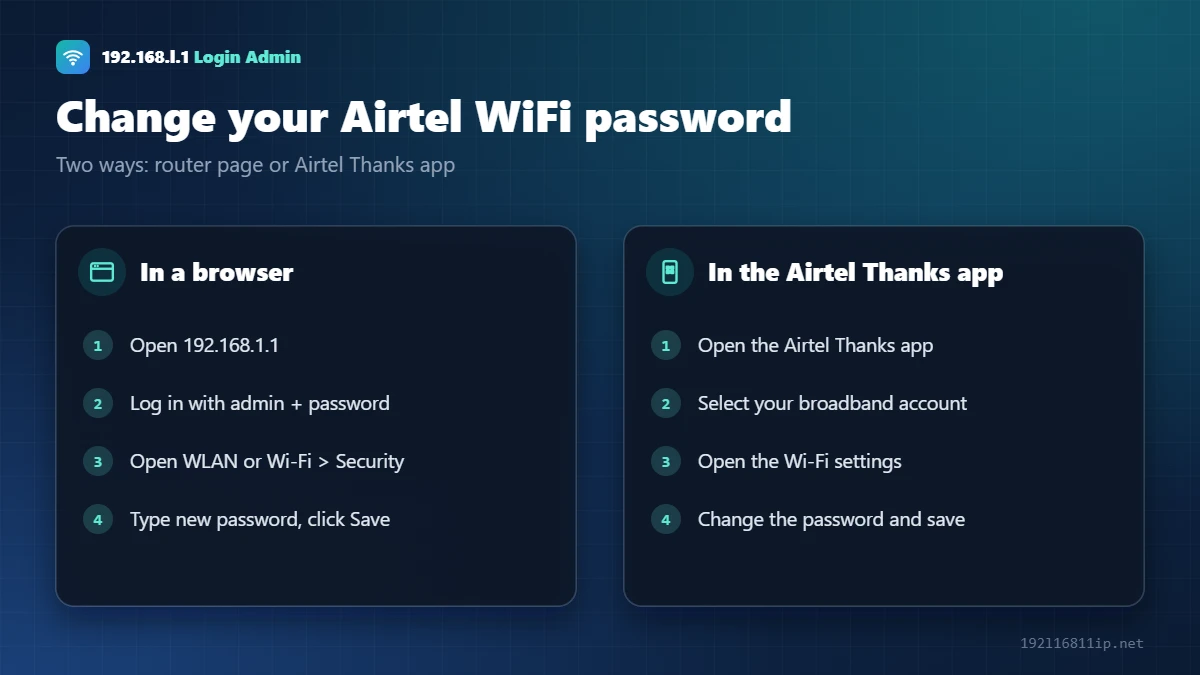
Method 1: Through 192.168.1.1
- Log in at 192.168.1.1 with the admin username and password.
- Open WLAN, Wireless or Wi-Fi settings. The name depends on your router model.
- Find Security or WPA Passphrase and type a new password of at least 12 characters.
- Click Save or Apply, then reconnect your devices with the new password.
Method 2: In the Airtel Thanks app
- Open the Airtel Thanks app and sign in with your registered number.
- Select your broadband or Xstream Fiber account.
- Open the Wi-Fi settings for your router.
- Change the WiFi name or password and save. Menu names in the app can change after updates.
Need steps for a non-Airtel router? Read how to change a WiFi password on any router.
Airtel Router Login Not Working? 6 Fixes
- Fix the typoType 192.168.1.1. The address 192.168.l.1 with a letter “l” never opens.
- Join the Airtel WiFiThe page only opens from devices on your Airtel network.
- Use httpType http://192.168.1.1. Some routers refuse https.
- Use the label passwordXstream Fiber routers often use a unique password, not the generic one.
- Try another browserClear the cache or open a private window.
- Restart the routerSwitch it off for 30 seconds and wait 2 minutes after turning it on.
How to Change the Airtel Router Admin Password
After your first Airtel router login, replace the admin password printed on the label with your own. Airtel supplies routers from several manufacturers, so the menu names differ slightly, but the steps are the same:
- Log in at 192.168.1.1 with the current username and password.
- Open Management, Maintenance or Administration.
- Choose Account Management, User Management or Change Password.
- Enter the current password and a new password of at least 12 characters.
- Click Apply or Save, then log in again.
If the label is missing and the Airtel router default password does not work, the password has probably been changed. Contact Airtel through the Airtel Thanks app or customer care before you try a reset, because they can confirm the correct login for your router model.
Changing the admin password does not disconnect your WiFi devices, so you can do it at any time without interrupting anyone at home.
Secure Your Airtel WiFi Router
A few minutes in the admin panel make your Airtel WiFi router much harder to misuse:
- Use WPA2-PSK (AES) or WPA3 in the WLAN security settings. Older modes such as WEP and WPA-TKIP can be cracked quickly — the Wi-Fi Protected Access article explains the differences.
- Set a long WiFi password of 12 or more characters that is different from the admin password.
- Turn off WPS if you don’t use the push-button connection.
- Check the connected devices list and change your WiFi password if you see a device you don’t recognise.
- Don’t share the admin login with guests — give them the WiFi password only, or set up a guest network if your router supports it.
For more tips, read our full guide on how to secure your WiFi network.
Tips for a Faster Airtel WiFi Connection
Many speed problems have nothing to do with your plan. Before you call support, try these quick fixes — most of them need only an Airtel router login and a minute of your time:
- Restart the router once a week to clear memory and refresh the connection.
- Use the 5 GHz network for phones, laptops and smart TVs near the router. It is much faster than 2.4 GHz over short distances.
- Place the router in a central, open spot, away from thick walls, mirrors and microwave ovens.
- Remove unknown devices from the connected list and change the WiFi password if someone is using your connection.
- Plug in big devices with a cable. A smart TV or desktop PC on Ethernet frees up WiFi for everyone else.
If speeds are still low after an Airtel wifi router login check, run a speed test with a cable plugged directly into the router. If the wired speed is also low, the problem is on the line, and Airtel support can look into it. If the wired speed is fine, the issue is WiFi coverage, which a mesh system or extender can fix. Keep a note of your Airtel router login details nearby so you can make these changes quickly.
When to Contact Airtel Instead
Some problems can only be fixed by Airtel, because the internet settings on Xstream Fiber routers are managed by the provider. Contact Airtel support if:
- The internet light is red or off even after restarting the router.
- You reset the router and the internet no longer connects.
- The login page asks for a password that is not on the label.
- You want to move the connection to a new address or replace a faulty router.
Keep your account number or registered mobile number ready, and describe exactly which lights are on — it helps the support team find the problem faster.
Tip: note down the router model number from the label before you call. Support teams can find the right instructions much faster when they know the exact model you have.
Should You Reset an Airtel Router?
A factory reset clears the admin password, but it can also erase the fiber or PPPoE settings that Airtel configured. Your internet may stop until Airtel sets it up again. Contact Airtel support through the Airtel Thanks app before you reset.
If you still choose to reset, hold the reset button for 10–30 seconds while the router is on, wait for it to restart, and log in with the details on the label.
Frequently Asked Questions
What is the Airtel router login username and password?
The username is admin. Airtel lists password as the default password, but most Xstream Fiber routers use the password printed on the router label.
Is 192.168.l.1 the Airtel router login page?
No. 192.168.l.1 is a typo with the letter “l”. Type 192.168.1.1 with the number 1.
How do I change my Airtel WiFi password on mobile?
Use the Airtel Thanks app, or connect to your Airtel WiFi, open 192.168.1.1 in your phone browser and change the password under WLAN or Wi-Fi settings.
Why is my Airtel router password not working?
The password may have been changed by you or a technician. Try the label password first, then contact Airtel support before doing a factory reset.
Can I log in to my Airtel router from outside my home?
Not through 192.168.1.1. That address works only on your home network. The Airtel Thanks app can manage some settings remotely.
Related Router Guides
Summary
Airtel router login works at 192.168.1.1, not 192.168.l.1. Use admin as the username and the password from the router label, then change your WiFi password under WLAN settings or in the Airtel Thanks app. This is an independent guide and is not affiliated with Bharti Airtel.